
How to Restart a Hard Disk External: A Step-by-step Guide
Are you tired of dealing with a cluttered computer storage? Have you decided to conserve all your files, photos, and digital music on an external hard disk? If so, you’re in the right place! In this article, we’ll guide you through the process of restarting a hard disk external using both Windows and macOS.
Why Restart a Hard Disk External?
Before we dive into the tutorial, let’s talk about why you might want to restart your hard disk external. Perhaps you’ve run out of space on your primary partition and need to free up some room. Or maybe you want to organize your files more efficiently by creating separate partitions for different types of data.
Whatever the reason, restarting your hard disk external is a relatively simple process that can help you declutter your computer storage and make it easier to find what you need.
Restarting a Hard Disk External With Windows
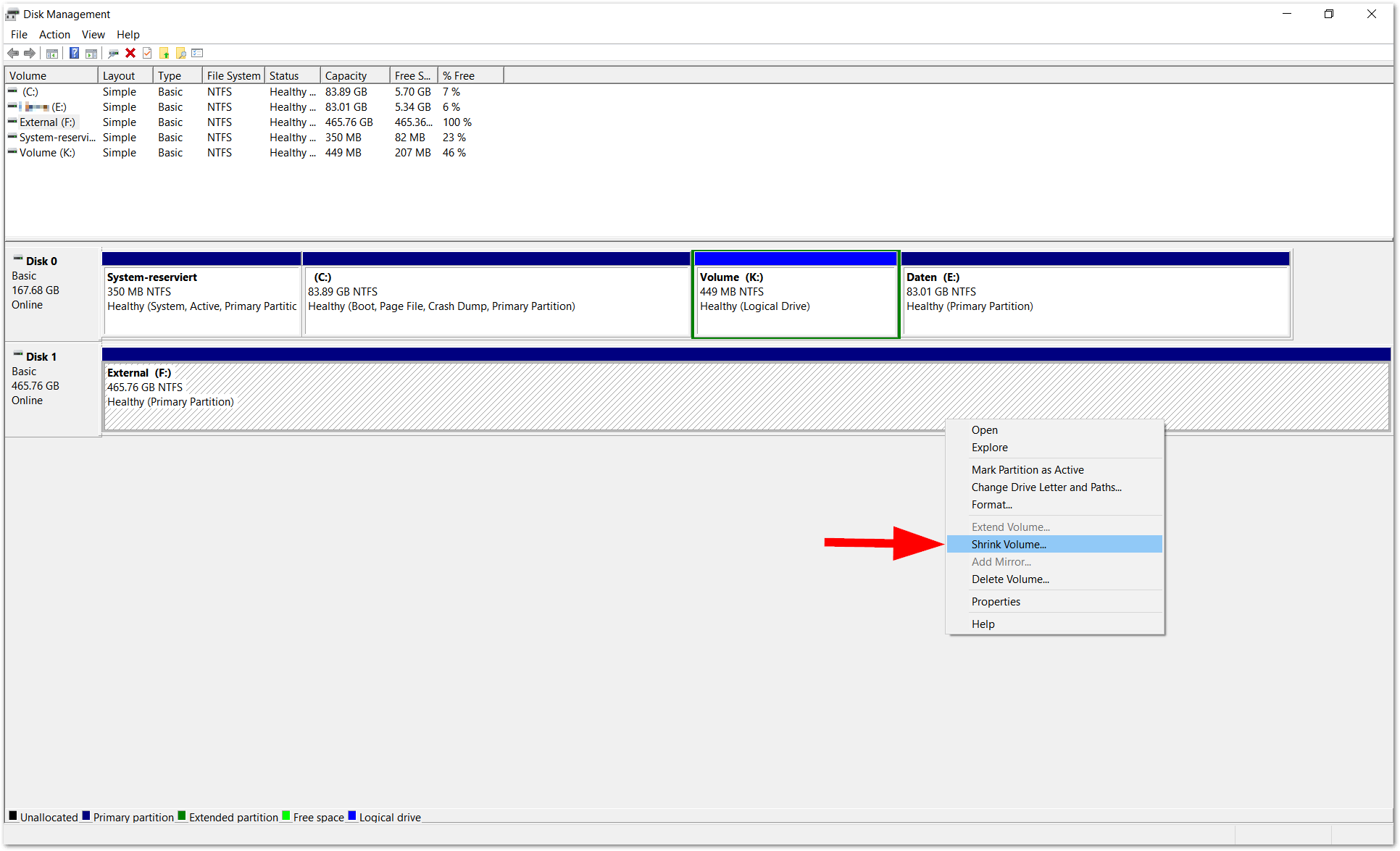
If you’re using Windows, you can restart your hard disk external using the built-in Disk Management tool. Here’s how:
- Open Disk Management: Press the Windows key + R to open the Run dialog box. Type “diskmgmt.Msc” and press Enter.
- Create a New Partition: In the Disk Management window, right-click on the hard disk external drive and select “New Simple Volume.”
- Specify Partition Parameters: In the “New Simple Volume Wizard,” specify the partition size, file system, and label as desired.
- Assign Drive Letter: Assign a drive letter to the new partition by selecting it from the drop-down menu.
- Format The Partition: Format the partition by right-clicking on it and selecting “Format.”
Alternative: Easeus Partition Master Free
If you’re not comfortable using Disk Management, you can try EaseUS Partition Master Free. This software offers a user-friendly interface and allows you to create, resize, move, merge, split, extend, and delete partitions.
To use EaseUS Partition Master Free:
- Download And Install: Download the software from the official website and install it on your computer.
- Open The Software: Open the software by double-clicking on its icon.
- Select The Hard Disk External Drive: In the main window, select the hard disk external drive that you want to restart.
- Create a New Partition: Click on the “New” button to create a new partition.
- Specify Partition Parameters: Specify the partition size, file system, and label as desired.
Restarting a Hard Disk External With Macos
If you’re using macOS, you can restart your hard disk external using the built-in Disk Utility app. Here’s how:
- Open Disk Utility: Click on the “Applications” folder in the Dock or Finder window, then click on “Utilities.” Double-click on “Disk Utility.”
- Select The Hard Disk External Drive: In the Disk Utility window, select the hard disk external drive from the left-hand sidebar.
- Create a New Volume: Click on the “New” button to create a new volume (partition).
- Specify Volume Parameters: Specify the volume size, format, and label as desired.
- Format The Volume: Format the volume by clicking on the “Apply” button.
Alternative: Paragon Hard Disk Manager
If you’re not comfortable using Disk Utility, you can try Paragon Hard Disk Manager. This software offers a user-friendly interface and allows you to create, resize, move, merge, split, extend, and delete partitions.
To use Paragon Hard Disk Manager:
- Download And Install: Download the software from the official website and install it on your computer.
- Open The Software: Open the software by double-clicking on its icon.
- Select The Hard Disk External Drive: In the main window, select the hard disk external drive that you want to restart.
- Create a New Partition: Click on the “New” button to create a new partition.
- Specify Partition Parameters: Specify the partition size, file system, and label as desired.
Conclusion
Restarting your hard disk external can be a simple process if you follow these step-by-step guides. Whether you’re using Windows or macOS, the process is relatively straightforward and can help you declutter your computer storage and make it easier to find what you need.
Remember to always back up your important files before making any changes to your computer storage!
Faqs
- What is a Hard Disk External?
A hard disk external is an external storage device that connects to your computer via USB or other interfaces. - Why Restart my Hard Disk External?
You might want to restart your hard disk external if you’ve run out of space on your primary partition, need to organize your files more efficiently, or simply want to free up some room. - What Software Can I Use to Restart a Hard Disk External With Windows?
You can use the built-in Disk Management tool or EaseUS Partition Master Free. - What Software Can I Use to Restart a Hard Disk External With Macos?
You can use the built-in Disk Utility app or Paragon Hard Disk Manager. - Will Restarting my Hard Disk External Erase All my Files?
No, as long as you follow these guides carefully and back up your important files before making any changes! - Can I Resize my Existing Partition on a Hard Disk External?
Yes, using EaseUS Partition Master Free or Paragon Hard Disk Manager can help you resize your existing partitions. - What is The Maximum Size of a Partition on a Hard Disk External?
The maximum size of a partition depends on the file system used (e.G., NTFS, FAT32). - Can I Format my Hard Disk External to Apfs?
Yes, using Disk Utility or Paragon Hard Disk Manager can help you format your hard disk external to APFS.
I hope this article has helped you understand how to restart a hard disk external!


