
How to Partition a Hard Drive on Windows 7: A Step-by-step Guide
Are you looking for a way to partition your hard drive on Windows 7? Look no further! In this article, we will guide you through the process of partitioning your hard drive using the built-in utility in Windows 7.
What You Need to Know Before Partitioning Your Hard Drive
Before we dive into the steps, it’s essential to understand what partitions are and how they work. A partition is a section of your hard drive that can be used to store files and data independently. Think of it like a separate file cabinet within your main file cabinet.
Types of Partitions on Windows 7
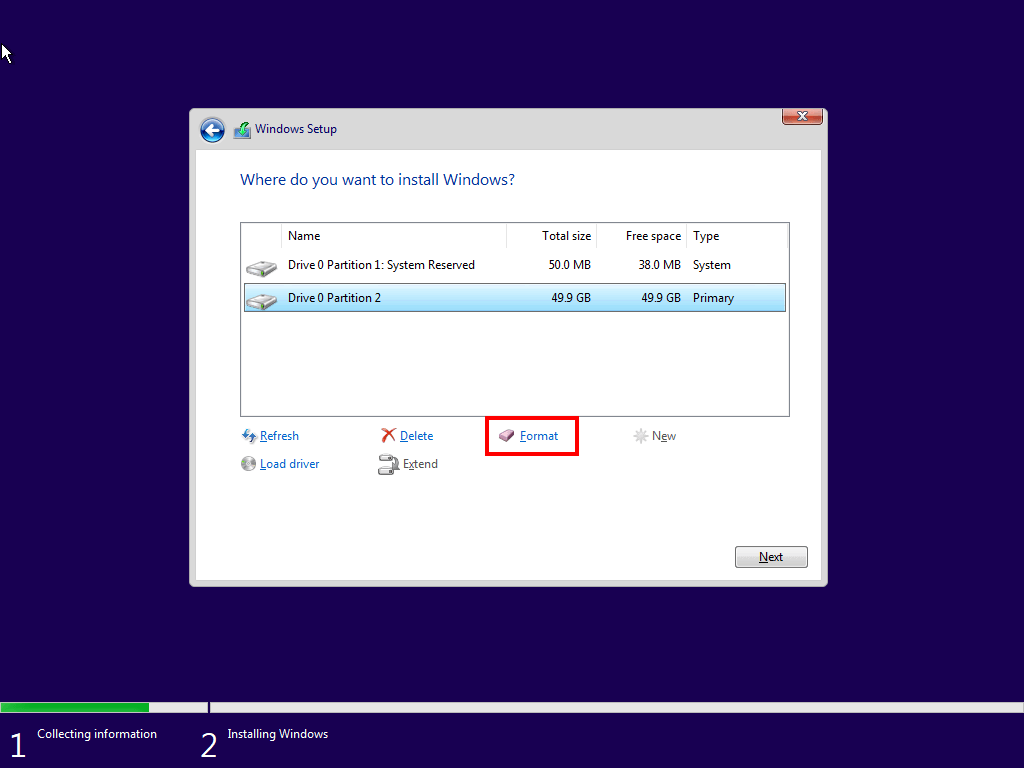
When you first install Windows 7, your hard drive will typically have four partitions:
- System Reserved Partition: This partition contains the system files required for booting up your computer.
- C: Drive: This is the primary partition where your operating system and most of your data are stored.
- Recovery Partition: This partition contains a backup copy of your system files in case you need to recover from a problem.
- Blank Unallocated Space: This is unused space on your hard drive that can be used for additional partitions or storage.
Creating a New Partition
If you want to create a new partition, you’ll need to shrink an existing one. To do this:
- Go to Start > Computer (or This PC).
- Right-click on the drive you want to shrink and select “Shrink Volume.”
- Enter the amount of space you want to allocate for your new partition.
- Click “Shrink” to create a new, unallocated space.
Extending an Existing Partition
If you have free space available on your hard drive, you can extend an existing partition:
- Go to Start > Computer (or This PC).
- Right-click on the partition you want to extend and select “Extend Volume.”
- Enter the amount of space you want to add to the partition.
- Click “Extend” to increase the size of your partition.
Deleting a Partition
If you need to delete an existing partition, be aware that this will erase all data stored on it:
- Go to Start > Computer (or This PC).
- Right-click on the partition you want to delete and select “Delete Volume.”
- Confirm that you want to delete the partition.
Alternative Partitioning Software
If you’re not satisfied with the built-in utility in Windows 7 or encounter issues using it, consider alternative software:
- Minitool Partition Wizard Free Edition: A user-friendly program for creating, deleting, and managing partitions.
- Gparted: A Linux-based tool that can handle advanced partition operations.
Conclusion
Partitioning your hard drive on Windows 7 is a straightforward process. Remember to back up any important files before making changes, and be careful when deleting or modifying existing partitions. With this guide, you should now have the confidence to manage your hard drive effectively.
Frequently Asked Questions (FAQs)
- Q: Can I Create More Than Four Primary Partitions on my Windows 7 Machine?
A: No, Windows 7 limits you to four primary partitions. - Q: What Happens if I Delete a Partition Without Backing up my Data?
A: All data stored on the deleted partition will be lost. - Q: How do I Know Which Partition is The Correct One to Extend or Delete?
A: Make sure to identify the correct partition in the Disk Management tool (Disk Management > Computer > right-click on drive). - Q: Can I Use Alternative Software Like Minitool Partition Wizard Free Edition Instead of The Built-in Utility?
A: Yes, you can try alternative software if the built-in utility doesn’t meet your needs. - Q: Will Extending or Deleting a Partition Affect my Operating System’s Stability?
A: Generally, no. However, be cautious when making changes to avoid potential issues. - Q: How do I Recover Data From an Accidentally Deleted Partition?
A: Try using recovery software before attempting to recreate the lost partition. - Q: Can I Move Files Between Partitions Without Disrupting my Operating System?
A: Yes, you can use built-in tools or third-party software to transfer files between partitions safely. - Q: What is The Purpose of a System Reserved Partition?
A: This partition contains essential system files and is used for booting your computer.
Remember, always be cautious when working with partitions, as incorrect actions may lead to data loss or other issues.


