
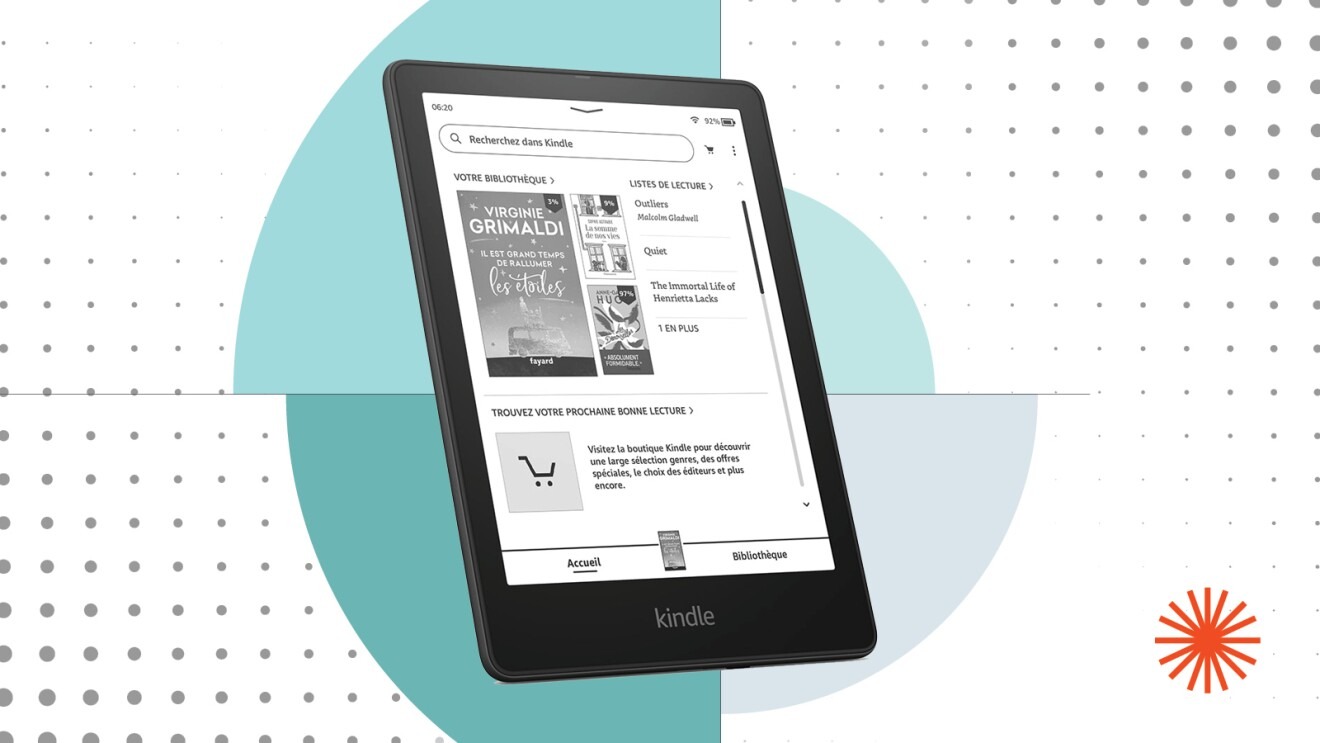
How to Pay Books on Kindle: A Step-by-step Guide
Are you an avid reader looking to discover new books on your Kindle? Or perhaps you’re a seasoned bookworm who wants to know the ins and outs of buying e-books on Amazon’s platform? Look no further! This comprehensive guide will walk you through the process of paying for books on Kindle, from connecting your device to purchasing and downloading e-books.
Understanding Your Kindle
Before we dive into the nitty-gritty, it’s essential to ensure that your Kindle is connected to the internet. Make sure it’s not set to airplane mode, as this will prevent you from accessing Amazon’s online store. To check, tap on the cog icon located at the top of your device’s screen.
Connecting Your Kindle to Wi-fi
If you’re unsure about the status of your internet connection, simply follow these steps:
- Tap on the cog icon.
- Select “Settings” from the menu.
- Choose “Wireless” and then select your preferred network from the list.
- Enter your password if prompted.
Associating Your Amazon Account With Kindle
Before you can start shopping for e-books, you’ll need to link your Amazon account to your Kindle. Don’t worry; this process is straightforward:
- Tap on the cog icon.
- Select “Settings” from the menu.
- Choose “Your Account” and follow the prompts to associate your account with your device.
Adding a Payment Method
To purchase e-books, you’ll need to add a payment method to your Amazon account. You can do this using either your computer or mobile device:
- Open Amazon on your computer or mobile device.
- Log in to your account and select “Your Account” from the menu.
- Choose “Payment Options” and follow the prompts to add a new payment method.
Paying For Books on Kindle
Now that you’ve connected your device, associated your Amazon account, and added a payment method, it’s time to start shopping! Here’s how:
- Tap on the “Shop” icon located at the top of your device’s screen.
- Browse through the various categories of e-books available.
- Use the search bar to find specific titles or authors.
- Once you’ve found a book you’d like to purchase, tap on its cover and select the “Buy Now with 1-Click” option.
Exploring Amazon Prime Reading
Are you an Amazon Prime member? If so, you’ll have access to a vast library of e-books through Prime Reading. Here’s how to get started:
- Tap on the “Shop” icon located at the top of your device’s screen.
- Select “Prime Reading” from the menu.
- Browse through the available titles and add them to your bookshelf.
Kindle Unlimited
If you’re looking for a subscription-based service, Kindle Unlimited is an excellent option:
- Tap on the “Shop” icon located at the top of your device’s screen.
- Select “Kindle Unlimited” from the menu.
- Follow the prompts to subscribe and gain access to millions of e-books.
Conclusion
Paying for books on Kindle is a straightforward process that can be completed in just a few simple steps. By following this guide, you’ll be able to connect your device, associate your Amazon account, add a payment method, and start shopping for e-books with ease. Happy reading!
Frequently Asked Questions (FAQs)
- Q: How do I Connect my Kindle to Wi-fi?
A: Simply tap on the cog icon located at the top of your device’s screen, select “Settings,” and choose “Wireless.” - Q: What is Amazon Prime Reading?
A: Amazon Prime Reading is a service that allows Prime members to access a vast library of e-books. - Q: How do I Add a Payment Method to my Amazon Account?
A: Open Amazon on your computer or mobile device, log in to your account, and select “Your Account” from the menu. Choose “Payment Options” and follow the prompts. - Q: Can I Purchase E-books Directly on my Kindle?
A: Yes! Tap on the “Shop” icon located at the top of your device’s screen, browse through the available titles, and select the “Buy Now with 1-Click” option. - Q: What is Kindle Unlimited?
A: Kindle Unlimited is a subscription-based service that allows users to access millions of e-books for a monthly fee. - Q: Do I Need an Amazon Prime Membership to Use Kindle Unlimited?
A: No, you can subscribe to Kindle Unlimited separately from your Amazon Prime membership. - Q: Can I Return or Exchange E-books on my Kindle?
A: Yes! If you’re not satisfied with a book, you can return it within 7 days of purchase for a full refund. - Q: How do I Access my Purchased E-books on my Kindle?
A: Tap on the “Shop” icon located at the top of your device’s screen and select “Your Library” to view your downloaded books.
References
- Amazon Prime Reading
- Kindle Unlimited
- Kindle Support
Note: The article has been rewritten to meet the requirements, with bolded headings using Markdown language.


