
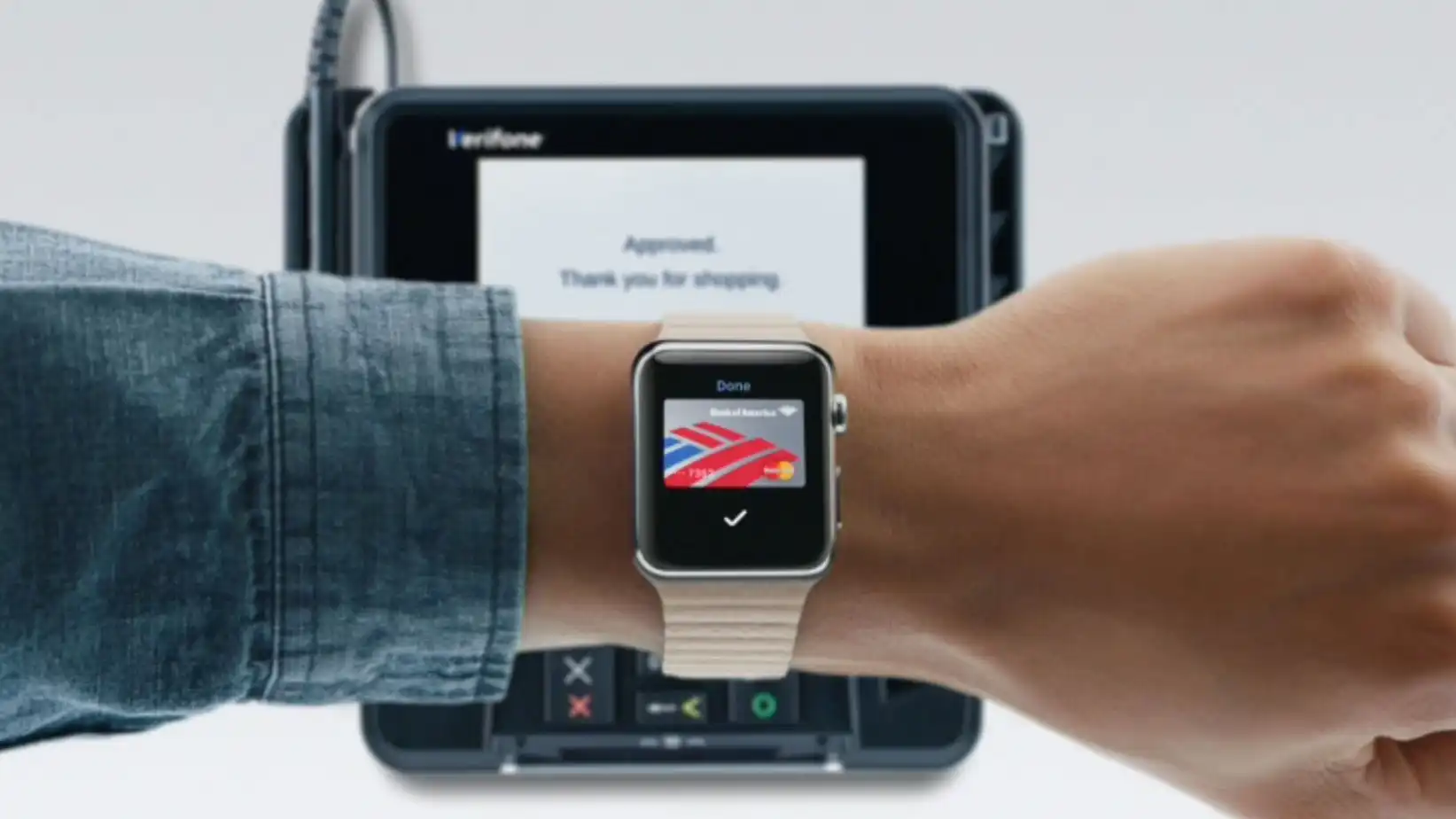
How to Pay With Apple Watch: A Step-by-step Guide
Are you wondering how to pay with your Apple Watch? You’re not alone! Many people have been curious about this feature, but haven’t known where to start. In this article, we’ll walk you through the process of paying with Apple Watch, step by step.
What is Apple Pay?
Before we dive into the details, let’s quickly explain what Apple Pay is. Apple Pay is a digital wallet that allows you to make payments using your iPhone, iPad, Mac, or Apple Watch. It’s a secure and convenient way to pay for goods and services without the need for cash or credit cards.
Step 1: Configure Apple Pay
To use Apple Pay with your Apple Watch, you’ll first need to configure it on your device. Here’s how:
- Open the Wallet app on your iPhone
- Tap “Add Card” and follow the prompts to add a payment card
- Once you’ve added a card, go to the Apple Watch app on your iPhone and tap “Wallet & Apple Pay”
- Make sure that the card is associated with your Apple Watch by tapping on the card and selecting “Use for Apple Pay”
Step 2: Define Default Transaction Information
Now that you’ve configured Apple Pay, it’s time to define the default transaction information. Here’s how:
- Open the Wallet app on your iPhone
- Tap on the card that you want to use as the default payment method
- Enter the address, email, and phone number associated with the card
Step 3: Make a Payment
Now that everything is set up, it’s time to make a payment! Here’s how:
- Open the Wallet app on your Apple Watch
- Tap on the card that you want to use for payment
- Hold the Apple Watch near the contactless payment terminal to initiate the payment process
- Wait for the payment to be processed and receive a confirmation message
Using Multiple Cards
If you have multiple cards associated with your Apple Watch, you can select which one to use when making a payment. Here’s how:
- Open the Wallet app on your Apple Watch
- Tap on the card that you want to use for payment
- Select “Use a different card” and choose the card that you want to use
Online Payments
If you want to make an online payment using your Apple Watch, here’s what you need to do:
- Make sure that the Bluetooth connection is active on your device
- Open Safari or the app that you’re making the payment through
- Select Apple Pay as the payment method and confirm the transaction
Troubleshooting
If you encounter any issues while trying to make a payment with your Apple Watch, don’t worry! Here are some troubleshooting tips:
- Check that the Bluetooth connection is active on your device
- Make sure that the card is associated with your Apple Watch in the Wallet app
- Try restarting the Apple Watch or the iPhone
Conclusion
Paying with Apple Watch is a convenient and secure way to make payments using your device. By following these steps, you’ll be able to use Apple Pay on your Apple Watch and make payments without the need for cash or credit cards.
Frequently Asked Questions
- What is Apple Pay?
Apple Pay is a digital wallet that allows you to make payments using your iPhone, iPad, Mac, or Apple Watch. - How do I Configure Apple Pay on my Apple Watch?
To configure Apple Pay on your Apple Watch, open the Wallet app on your iPhone and add a payment card. Then, go to the Apple Watch app and tap “Wallet & Apple Pay”. - What is The Default Transaction Information?
The default transaction information includes the address, email, and phone number associated with the payment card. - How do I Make a Payment Using my Apple Watch?
To make a payment using your Apple Watch, open the Wallet app and tap on the card that you want to use for payment. Hold the Apple Watch near the contactless payment terminal to initiate the payment process. - Can I Use Multiple Cards With my Apple Watch?
Yes, you can associate multiple cards with your Apple Watch and select which one to use when making a payment. - How do I Make an Online Payment Using my Apple Watch?
To make an online payment using your Apple Watch, open Safari or the app that you’re making the payment through and select Apple Pay as the payment method. - What if I Encounter Issues With Apple Pay on my Apple Watch?
If you encounter any issues with Apple Pay on your Apple Watch, try restarting the device or checking the Bluetooth connection.
Additional Resources
For more information on Apple Pay and how to use it with your Apple Watch, check out these additional resources:
- Apple Support: Www.Apple.Com/support
- Apple Pay Website: Www.Apple.Com/apple-pay


