
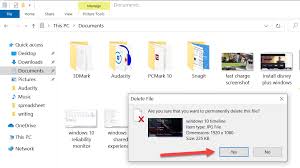
Deleting Files Permanently: A Guide
Are you tired of worrying about deleted files coming back? Do you want to ensure that your sensitive data is completely erased from your device? Look no further! In this article, we’ll show you how to delete files permanently on both Windows and Mac computers, as well as on Android and iPhone devices.
What Happens When You Delete a File
When you delete a file, it doesn’t just disappear into thin air. Instead, the operating system marks the space occupied by the file as available for reuse. This means that until something new is written over the deleted file, its contents remain intact on your hard drive or solid-state drive (SSD). This is why recovered files often retain their original formatting and structure.
Why Delete Files Permanently?
There are several reasons why you might want to delete files permanently:
- Security: Deleting sensitive data can prevent it from falling into the wrong hands.
- Privacy: Erasing personal information can help maintain your online anonymity.
- Storage Space: Removing unwanted files frees up space on your device.
Software For Permanent File Deletion
For Windows users, there are several software options available that can delete files permanently:
- Eraser (Windows): A free program that integrates with the Windows Recycle Bin to securely erase files.
- Permadelete (Windows): An open-source tool that uses secure erasure techniques to eliminate files.
For Mac users, try:
- Cleanmymac X: A popular maintenance tool that includes a file shredder feature for permanent deletion.
Android And Iphone File Deletion
On Android devices, you can delete photos and videos permanently using the Google Photos app. Simply open the app, select the photo or video you want to erase, tap on the three-dot menu, and choose “Delete.” For other types of files, use the Files app:
- Files App (Android): Open the app, navigate to the file you want to delete, long-press on it, and drag it to the trash can icon.
- Photos App (iOS): Tap on a photo or video to open it, tap the three-dot menu, and select “Delete.”
How to Use Permadelete on Windows
To use Permadelete on Windows:
- Download and install the software from the Microsoft Store or GitHub.
- Launch Permadelete and choose the file you want to delete.
- Select the shredding method (e.G., DOD, Gutmann) and confirm the deletion.
Tips For Permanent File Deletion
When deleting files permanently:
- Use a Reliable Erasure Tool: Choose software specifically designed for secure file deletion.
- Verify File Removal: Ensure that deleted files cannot be recovered by checking with disk cleanup tools or data recovery services.
- Consider Encryption: Use encrypted storage solutions to protect sensitive information.
Conclusion
Deleting files permanently is crucial for maintaining security, privacy, and storage space on your device. By using the right software and following best practices, you can ensure that unwanted files are completely erased from your system. Remember to stay vigilant about file deletion and use reliable tools to safeguard your digital life!
Frequently Asked Questions (FAQs)
- Q: What Happens When I Delete a File on my Computer?
A: When you delete a file, it’s marked as available for reuse by the operating system. - Q: Can Deleted Files be Recovered?
A: Yes, until something new is written over the deleted file, its contents remain intact on your hard drive or SSD. - Q: What Software Can I Use to Delete Files Permanently on Windows?
A: Try Eraser or Permadelete for secure file deletion. - Q: How do I Delete Files Permanently on my Android Device?
A: Use the Google Photos app to erase photos and videos, or the Files app for other types of files. - Q: Can I Recover Deleted Files From an Iphone?
A: No, Apple devices use a secure deletion mechanism that ensures erased data cannot be recovered. - Q: Is it Safe to Delete Files Permanently on my Computer?
A: Yes, using reliable erasure software and following best practices will ensure your sensitive information is protected. - Q: Can I Encrypt my Storage Device For Added Security?
A: Yes, consider using encrypted storage solutions to safeguard your data. - Q: How Often Should I Delete Files Permanently on my Computer?
A: Regularly review and delete unnecessary files to maintain optimal system performance and storage space.
Hope you liked the article!


