
The Ultimate Guide to Pingare With Mac: A Step-by-step Tutorial
Are you wondering how to pingare with your Mac? Look no further! In this article, we will guide you through the process of pinging a website or device using your Mac’s built-in tools and third-party solutions.
What is Pingare?
Before we dive into the tutorial, let’s first understand what pingare means. Pingare is the act of sending small packets of data to a website or device to test its connectivity and response time. This can be useful in diagnosing network issues, checking internet speeds, and more.
Preliminary Information
Before we start, it’s essential to clarify some preliminary information about pingare:
- Ping (Packet Internet Grouper): Ping is a command-line tool used to test the state of the net and communication between devices. It sends small packets of data to a server or device and measures the response time.
- Icmp (Internet Control Message Protocol): ICMP is a protocol that conveys error messages and operational information between devices on an IP network.
How to Pingare With Mac
Now that we have the basics covered, let’s move on to the tutorial!
Using Terminal
You can pingare with your Mac using the Terminal. Here’s how:
1. Open the Terminal app, which you can find in the Applications/Utilities folder or use Spotlight to search for it.
2. Type ping -c 5 google.Com (or any other website you want to test), followed by Enter.
3. Press the Return key to execute the command and see the results.
Using Neo Network Utility
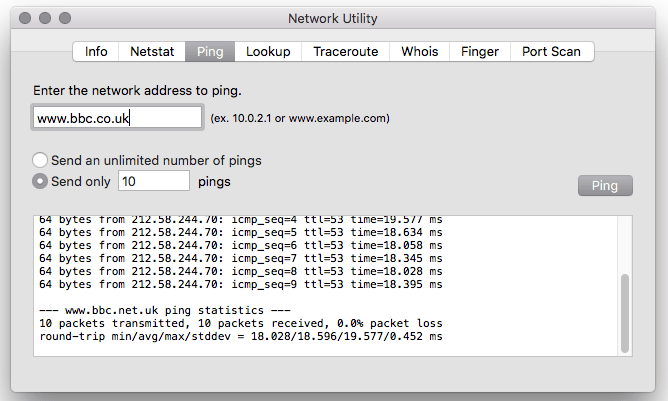
Another way to pingare with your Mac is by using the Neo Network Utility app. Here’s how:
1. Download and install Neo Network Utility from the App Store or its official website.
2. Launch the app and select the “Ping” tab.
3. Enter the URL or IP address of the device you want to test in the “Target” field.
4. Choose the number of pings you want to send, either unlimited or a specific number.
5. Click the “Ping” button to initiate the operation.
Other Instruments For Pingare With Mac
If you’re looking for alternative solutions, there are other instruments available that can help you pingare with your Mac. Here are some options:
- My-ip.It: A website that provides helpful tools, including a tool for discovering your IP address and checking email addresses.
- Ping.Eu: A free online service that allows you to ping any data address or IP.
- Mxtoolbox: A portal that includes various instruments for monitoring the net, including a tool for pingare specific addresses or IPs.
- IP Scan: A free app that scans your local network, identifies devices, and allows you to ping them.
- Pingdoctor: A paid app that analyzes your net, tests your ping, and provides detailed information about other peripherals or websites.
Conclusion
In this article, we have provided a step-by-step guide on how to pingare with your Mac using the Terminal, Neo Network Utility, and other third-party solutions. Whether you’re a beginner or an experienced user, these tools can help you test your internet connection, diagnose network issues, and more. Remember to always follow proper safety protocols when using these instruments.
Frequently Asked Questions
Here are some frequently asked questions about pingare with Mac:
- What is The Purpose of Pingare?
Pingare is used to test the state of the net and communication between devices. - How do I Use Terminal to Pingare?
Typeping -c 5 google.Com(or any other website you want to test), followed by Enter, and press the Return key to execute the command and see the results. - What Are Some Alternative Solutions For Pingare With Mac?
There are several instruments available, such as My-IP.It, Ping.Eu, MxToolbox, IP Scan, and PingDoctor.
Hope this helps!


