
How to Pixelate a Photo: A Step-by-step Guide
Are you looking for ways to protect your identity or create humorous images? Pixelating a photo is an effective way to achieve this. In this article, we will guide you through the process of pixelating a photo using various methods.
What is Pixelation?
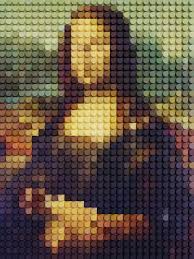
Pixelation is the process of converting an image into a mosaic of small squares or pixels. This can be done to conceal faces or other sensitive information in a photograph.
Method 1: Using Photoshop
Photoshop is a powerful editing software that allows you to pixelate images with ease. Here’s how to do it:
- Open your photo in Photoshop and select the “Filter” menu.
- Choose the “Effect” option and then select “Pixelize”.
- Adjust the pixel size to your liking and click “OK”.
- Save the image as a new file.
Method 2: Using Paint
If you don’t have access to Photoshop, you can use the built-in paint software on Windows. Here’s how:
- Open Paint and select the photo you want to pixelate.
- Reduce the resolution of the photo by going to “Image” > “Resize”.
- Save a copy of the reduced image and then open it in Paint again.
- Select the “Brush” tool and choose a small brush size.
- Paint over the areas you want to conceal with the brush.
Method 3: Using Online Tools
There are several online tools that allow you to pixelate images without downloading any software. Here are a few options:
- Facepixelizer: This is a free online tool that allows you to pixelate faces and other sensitive information.
- Photopea: This is an online photo editor that includes a pixelation tool.
- Fotor: This is another online photo editor that allows you to apply various effects, including pixelation.
Method 4: Using Mobile Apps
If you have a smartphone or tablet, there are several mobile apps that allow you to pixelate images on-the-go. Here are a few options:
- Pixlr: This is a popular photo editing app that includes a pixelation tool.
- Point Blur: This is another photo editing app that allows you to apply various effects, including pixelation.
How to Pixelate a Photo in Whatsapp
If you want to share a pixelated image on WhatsApp, here’s how:
- Open WhatsApp and select the chat where you want to send the image.
- Tap the paperclip icon and select “Photo” or “Video”.
- Choose the photo you want to pixelate and then tap the pencil icon.
- Select the “Pixelate” option and adjust the pixel size as desired.
- Send the image to your contact.
Conclusion
Pixelating a photo is a simple yet effective way to protect your identity or create humorous images. Whether you use Photoshop, Paint, online tools, mobile apps, or WhatsApp, there are plenty of options available to suit your needs. Remember to always save a copy of the original image before pixelating it, in case you need to revert back.
Frequently Asked Questions
- Q: What is Pixelation?
A: Pixelation is the process of converting an image into a mosaic of small squares or pixels. - Q: How do I Pixelate a Photo Using Photoshop?
A: To pixelate a photo using Photoshop, select the “Filter” menu and choose the “Effect” option. Then select “Pixelize” and adjust the pixel size as desired. - Q: Can I Use Paint to Pixelate an Image?
A: Yes, you can use Paint to pixelate an image by reducing its resolution, saving a copy, and then applying a small brush size to conceal sensitive information. - Q: Are There Any Online Tools That Allow me to Pixelate Images?
A: Yes, there are several online tools available, including Facepixelizer, Photopea, and Fotor. - Q: Can I Use Mobile Apps to Pixelate Images?
A: Yes, you can use mobile apps like Pixlr, Point Blur, and others to pixelate images on-the-go. - Q: How do I Pixelate a Photo in Whatsapp?
A: To pixelate a photo in WhatsApp, tap the pencil icon, select the “Pixelate” option, and adjust the pixel size as desired.
Common Myths
- Myth: Pixelating an image will completely remove it from the internet.
- Fact: While pixelation can make an image difficult to recognize, it may not be enough to completely remove it from the internet.
- Myth: Pixelating an image is a complex process that requires advanced technical skills.
- Fact: Pixelating an image can be done using simple software or online tools, and does not require advanced technical skills.
Tips And Tricks
- Tip: Save a copy of the original image before pixelating it, in case you need to revert back.
- Tip: Experiment with different pixel sizes and effects to achieve the desired result.
- Tip: Use pixelation as a creative tool to add humor or whimsy to an image.


