
How to Insert an Announcement on Google: A Step-by-step Guide
Are you looking to boost your online presence by inserting an announcement on Google? Look no further! In this article, we will guide you through the process of creating a Google announcement, from start to finish.
Why Use Google Announcements?
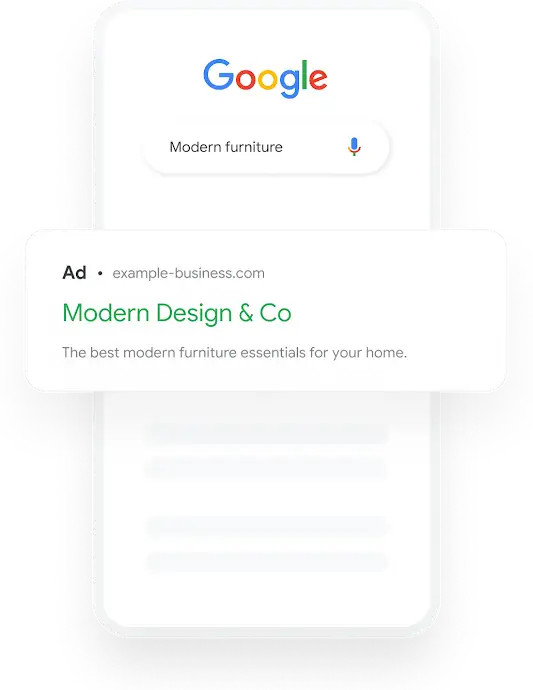
Google announcements are a powerful tool for promoting your business or website. They appear in prime positions when users search for services related to yours, and can be tailored to reach specific target audiences. With flexible payment options based on clicks, not budgets, you only pay when interested users utilize the sponsored link to access your site.
Creating a Google Account
Before inserting an announcement on Google, you need to create a Google account if you don’t already have one. Follow our guide to setting up a new account and proceed with creating your announcement.
Inserting an Announcement on PC
To insert an announcement from your computer:
- Access The Google Ads Page: Go to the Google Ads website and sign in with your Google account.
- Click on Access: In the top right corner, click on “Access” to enter your email and password.
- Create a New Campaign: Click on the “New Campaign” button to start creating your announcement.
- Choose Your Objective: Select the type of campaign you want to create (e.G., Sales, leads, website traffic).
- Select Your Target Audience: Choose your target location and language.
- Set up Your Budget: Set a daily budget for your campaign.
- Add Keywords And Descriptions: Add relevant keywords and descriptions to make your announcement more effective.
- Review And Publish: Review your settings, make any necessary changes, and click “Publish” to start your campaign.
Inserting an Announcement on Smartphone or Tablet
To insert an announcement from your smartphone or tablet:
- Download The Google Ads App: Download the Google Ads app from the Play Store (Android) or App Store (iOS/iPadOS).
- Sign in With Your Google Account: Sign in with your Google account to access the app.
- Create a New Campaign: Tap on the “+” icon and select “New Campaign” to start creating your announcement.
- Choose Your Objective: Select the type of campaign you want to create (e.G., Sales, leads, website traffic).
- Set up Your Budget: Set a daily budget for your campaign.
- Add Keywords And Descriptions: Add relevant keywords and descriptions to make your announcement more effective.
- Review And Publish: Review your settings, make any necessary changes, and tap “Publish” to start your campaign.
Managing Your Campaign
Once you’ve published your campaign, you can manage it from the Google Ads dashboard. You can add or remove keywords, adjust your budget, and pause or resume your campaign as needed.
Google Ads Tutorial
For more in-depth information on how to use Google Ads, check out our tutorial on managing Google Ads campaigns.
Conclusion
Inserting an announcement on Google is a straightforward process that can help boost your online presence. By following these steps, you can create effective campaigns that reach your target audience and drive traffic to your website.
Frequently Asked Questions (FAQs)
- Q: What is The Cost of Inserting an Announcement on Google?
A: You only pay when interested users utilize the sponsored link to access your site. - Q: Can I Insert Multiple Announcements at Once?
A: Yes, you can create and manage multiple campaigns from the Google Ads dashboard. - Q: How do I Add Keywords to my Announcement?
A: Add relevant keywords to your campaign settings to ensure your announcement appears in relevant search results. - Q: Can I Pause or Resume my Campaign at Any Time?
A: Yes, you can pause or resume your campaign from the Google Ads dashboard. - Q: How do I Track The Performance of my Campaign?
A: Use the Google Ads dashboard to monitor your campaign’s performance and make data-driven decisions. - Q: Can I Use Google Announcements on Mobile Devices?
A: Yes, you can insert and manage campaigns from your smartphone or tablet using the Google Ads app. - Q: Is it Free to Create a Google Account?
A: Yes, creating a Google account is free. - Q: How do I Delete my Campaign?
A: From the Google Ads dashboard, select “Campaigns” and then choose the campaign you want to delete.
Conclusion
In conclusion, inserting an announcement on Google can be a powerful tool for promoting your business or website. By following these steps and utilizing the Google Ads platform, you can create effective campaigns that drive traffic and boost your online presence.


