
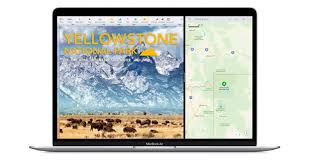
How to Combine Two Photos on a Mac: A Step-by-step Guide
Are you looking for ways to combine two photos into one image on your Mac? Maybe you want to create a collage or compare two different shots. If so, you’re in the right place! In this tutorial, we’ll show you how to assign two photos with a Mac in just a few easy steps using integrated macOS functions and third-party solutions.
Why Use a Mac For Combining Photos?
Your Mac is the perfect tool for combining photos due to its powerful processing capabilities and user-friendly interface. Plus, many photo editing software programs are available exclusively for Mac, making it an ideal choice for photographers and graphic designers.
Method 1: Using Command Fast
One of the easiest ways to combine two photos on a Mac is by using Command Fast, an application that comes pre-installed in the latest editions of macOS. This tool allows you to automate various operations, including combining images.
To get started:
- Open the Photos app and drag the photo you want to assign into its window.
- Go to this webpage and click on the “Install” button to add Command Fast to your Mac.
- Open Command Fast and select the “Combine Images & Share” script.
- Choose the images you want to combine by dragging them from the Photos app into the Command Fast window.
- Select the desired layout (horizontal, vertical, or grid) and click on “Finish.”
- Export the combined image by clicking on the sharing icons in the top-right corner and selecting your preferred application.
Method 2: Using Xnview MP
XnView MP is a free, open-source image viewer that can also be used to combine photos. This tool offers various editing functions, making it an excellent choice for photographers.
To combine two photos using XnView MP:
- Download and install the latest version of XnView MP from its official website.
- Open XnView MP and go to “Create” > “Join images.”
- Drag the photos you want to assign into the window, selecting their arrangement, alignment, spacing, and background color as desired.
- Click on “OK” to visualize the combined image.
- Save the assigned image in a folder of your choice by clicking on the floppy disk icon.
Method 3: Using Preview
If you don’t have any additional software installed, you can still combine two photos using the built-in Preview app. This method allows you to simulate a press-assigned photo and save it as a PDF.
To use Preview:
- Open the first image in Preview.
- Go to “View” > “Miniatures” and drag the other images into the sidebar.
- Rearrange the miniatures as desired and go to “File” > “Save As.”
- Choose the PDF format and select the layout, orientation, and other settings as needed.
Other Solutions For Combining Photos on a Mac
If you’re not satisfied with the above methods or want more flexibility, there are several alternative solutions available:
- Adobe Photoshop: The industry-standard photo editing software offers advanced features for combining images.
- GIMP: A free, open-source alternative to Photoshop that can be used for graphic creations and image combination.
- FilesMerge: An online service allowing you to combine images in various layouts, with a free version but limited functionality.
Conclusion
Combining two photos on a Mac is easier than you think! With these step-by-step guides, you should be able to achieve your desired outcome using Command Fast, XnView MP, Preview, or other software. Whether you’re a professional photographer or an amateur enthusiast, the possibilities are endless when it comes to creative photo manipulation.
Faqs
Q: What is the best method for combining two photos on a Mac?
A: The best method depends on your specific needs and preferences. Command Fast offers simplicity and automation, while XnView MP provides advanced editing features.
Q: Can I use Preview to combine two photos?
A: Yes! Preview allows you to simulate a press-assigned photo and save it as a PDF.
Q: Do I need to have Photoshop installed on my Mac?
A: No, but if you’re already using Photoshop, it’s an excellent option for combining images.
Q: Are there any free alternatives to commercial software for combining photos?
A: Yes! GIMP and FilesMerge are two popular options that offer free versions with varying functionality.
Q: Can I combine more than two photos on my Mac?
A: Absolutely! The methods outlined above can be applied to multiple photos, depending on your desired layout and arrangement.


