
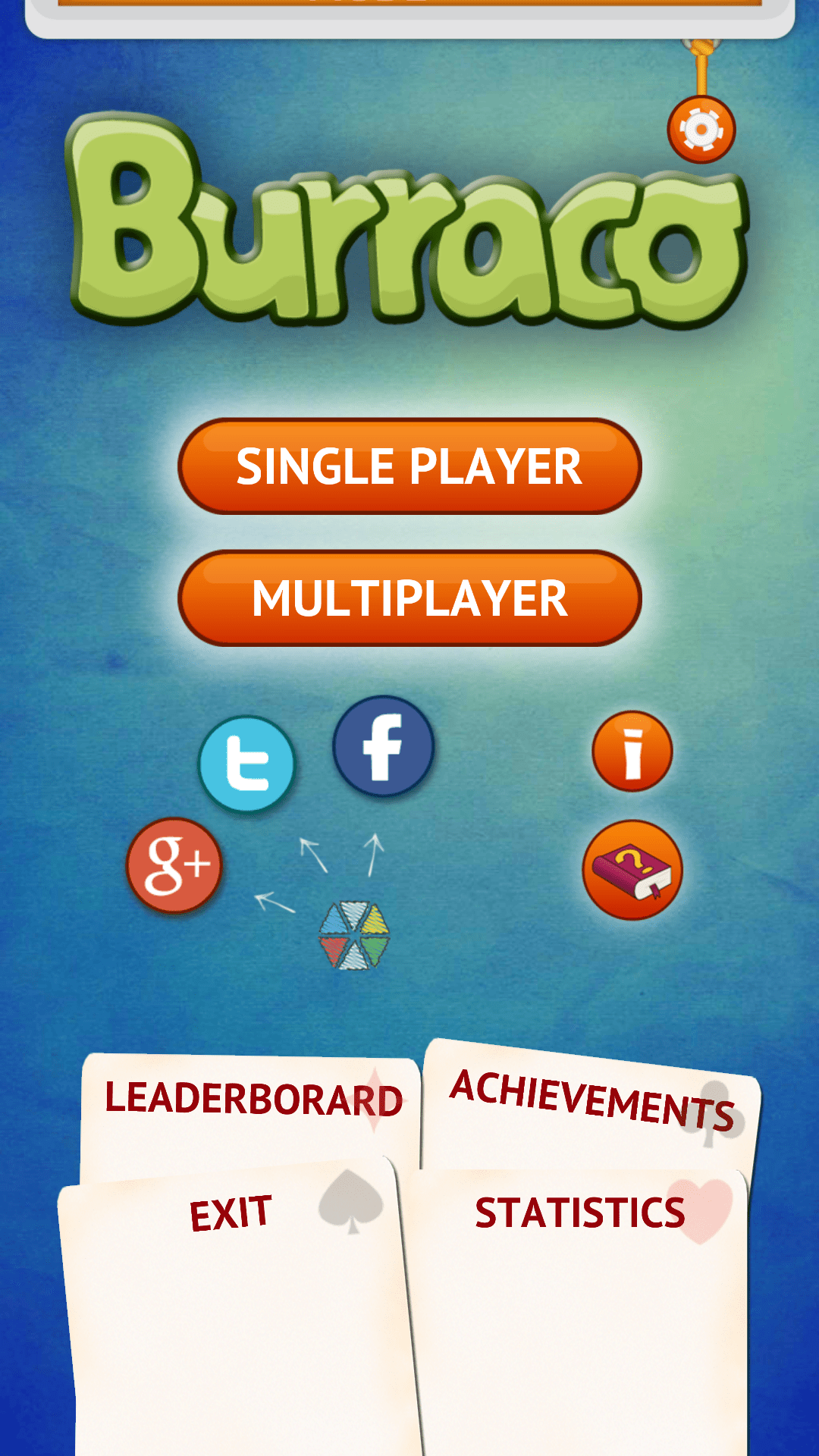
Burraco: The Challenge on PC – A Step-by-step Guide
Are you ready to take on the ultimate challenge? Burraco Italian: The Challenge is a popular game that can be played on your smartphone or tablet, but did you know that you can also play it on your computer? Yes, you read that right! In this guide, we’ll show you how to download and install Burraco Italian: The Challenge on your PC using the best emulators available.
What is Burraco Italian: The Challenge?
Burraco Italian: The Challenge is a game where players take turns drawing cards and trying to score points. It’s a game of strategy and skill, and it’s perfect for anyone who loves card games. The game has been available on smartphones and tablets for some time now, but with the help of emulators, you can now play it on your PC.
How to Download Burraco Italian: The Challenge on PC
To download Burraco Italian: The Challenge on your PC, you’ll need to use an emulator. An emulator is a software that allows you to run Android apps on your computer. There are several emulators available, but we recommend using BlueStacks.
Step 1: Download And Install Bluestacks
BlueStacks is one of the most popular emulators available, and it’s free to download. To get started, follow these steps:
- Go to the BlueStacks website and click on the “Download” button.
- Select the version of BlueStacks that’s compatible with your operating system (Windows or macOS).
- Click on the “Download” button to start the download process.
- Once the download is complete, run the installer and follow the instructions to install BlueStacks.
Step 2: Configure Bluestacks
Once you’ve installed BlueStacks, you’ll need to configure it before you can use it. Follow these steps:
- Launch BlueStacks and sign in with your Google account.
- Configure the settings as desired (such as the resolution and keyboard layout).
- You’ll be asked to set up the Play Store; follow the instructions to complete this step.
Step 3: Download Burraco Italian: The Challenge
Now that you’ve configured BlueStacks, it’s time to download Burraco Italian: The Challenge. Follow these steps:
- Open the Play Store and search for “Burraco Italian: The Challenge”.
- Click on the game icon to open its page.
- Click on the “Install” button to start the download process.
Alternative Solutions
If you’re not satisfied with BlueStacks, there are other emulators that you can use. Some popular alternatives include:
- LDPlayer (Windows) – This emulator is optimized for games and has a monthly update frequency.
- Andy (Windows) – This emulator is simple to use and works well for Android apps.
- Android-x86 (Windows/macOS) – This is a version of Android that’s designed specifically for computers. It can be installed in dual-boot mode or run from a USB drive.
Frequently Asked Questions
Here are some frequently asked questions about playing Burraco Italian: The Challenge on PC:
Q: Can I play Burraco Italian: The Challenge on my Mac?
A: Yes, you can play Burraco Italian: The Challenge on your Mac using BlueStacks or Android-x86.
Q: Is it safe to download and install emulators on my computer?
A: Yes, reputable emulators such as BlueStacks are safe to download and install. However, always be cautious when downloading software from unknown sources.
Q: Can I play Burraco Italian: The Challenge online?
A: No, you can only play Burraco Italian: The Challenge on your PC using an emulator.
Conclusion
Playing Burraco Italian: The Challenge on your PC is a great way to enjoy this popular game without having to use your smartphone or tablet. With the help of emulators such as BlueStacks, you can now experience the thrill of playing Burraco Italian: The Challenge on a bigger screen.


