
How to Create a Custom Path on Google Earth
Are you tired of navigating through unfamiliar territories without a clear guide? Look no further than Google Earth, the ultimate virtual mapping tool that allows you to create custom paths and explore the world in 3D. In this article, we will walk you through the step-by-step process of creating a custom path on Google Earth, using both the desktop version and the mobile app.
What is Google Earth?
Google Earth is a free online service provided by Google that allows users to explore the world in 3D, using satellite imagery, maps, and Street View. With its intuitive interface and advanced features, Google Earth has become an essential tool for travelers, researchers, and anyone interested in geography and mapping.
Creating a Custom Path on Google Earth (Desktop Version)
To create a custom path on Google Earth, you will need to download the Google Earth Pro desktop application. This version offers more advanced features than the standard Google Earth web service.
Step 1: Download And Install Google Earth Pro
- Visit the Google Earth website and click on the “Download” button.
- Select the correct operating system (Windows or macOS) and follow the installation prompts.
- Once installed, launch Google Earth Pro and sign in with your Google account.
Step 2: Enable Automatic Route Tracing
- Click on the “Find route” button located at the top of the screen.
- Select the starting point by entering an address or location.
- Enter the destination address or location.
- Click on the “Find route” button to enable automatic route tracing.
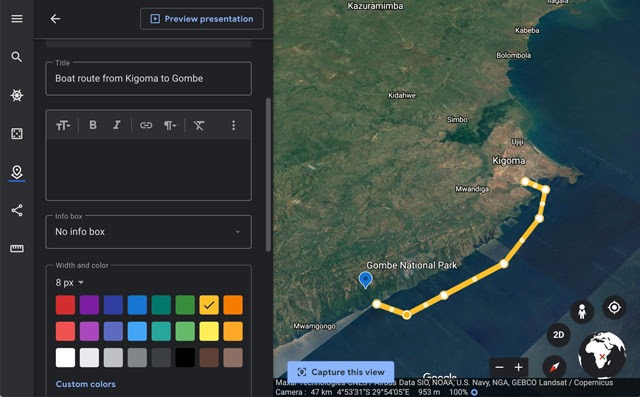
Step 3: Create a Custom Path Manually
- Click on the “+” button located at the top of the screen.
- Select “Path” from the menu.
- Enter a name for your custom path and select any additional settings as desired (e.G., Link, description, image).
Step 4: Draw Your Custom Path
- Use the mouse to draw your custom path on the map.
- Click on each point of interest to add it to your path.
- Once complete, click on the “OK” button to save your custom path.
- Access your saved path by clicking on the “Path” icon in the top navigation bar.
- Share your custom path with others by copying the KML file or sharing it via Google Drive.
Creating a Custom Path on Google Earth (Mobile App)
The Google Earth mobile app offers a more streamlined experience than the desktop version, making it easy to create and navigate custom paths on-the-go.
Step 1: Download And Install The Mobile App
- Search for “Google Earth” in the Apple App Store or Google Play Store.
- Download and install the app on your device.
Step 2: Create a New Path
- Launch the app and tap on the “+” button located at the bottom of the screen.
- Select “New” from the menu.
- Choose to create your new path on Google Drive or locally (KML file).
Step 3: Draw Your Custom Path
- Use the touchscreen to draw your custom path on the map.
- Tap on each point of interest to add it to your path.
- Once complete, tap on the “Save” button to save your custom path.
- Access your saved path by tapping on the name of the path in the top navigation bar.
- Share your custom path with others by copying the KML file or sharing it via Google Drive.
Conclusion
Creating a custom path on Google Earth is an intuitive and powerful tool that allows you to explore and navigate unfamiliar territories with ease. Whether using the desktop version or mobile app, this feature offers unparalleled flexibility and accuracy. With these step-by-step guides, you can now create your own custom paths and share them with others.
Frequently Asked Questions
- Q: What is Google Earth?
A: Google Earth is a free online service provided by Google that allows users to explore the world in 3D using satellite imagery, maps, and Street View. - Q: How do I download and install Google Earth Pro on my desktop?
A: Visit the Google Earth website and click on the “Download” button. Select the correct operating system (Windows or macOS) and follow the installation prompts. - Q: Can I create a custom path on the mobile app?
A: Yes, you can create a custom path using the Google Earth mobile app.
Additional Resources
For more information on Google Earth and its features, please visit the official website at www.Google.Com/earth.


