
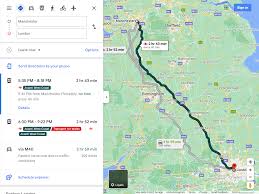
How to Create a Route on Google Maps: A Step-by-step Guide
Are you planning a road trip or a hike, but unsure how to get from point A to point B? Do you want to avoid traffic congestion and find the most efficient route? Look no further than Google Maps! With its powerful routing algorithm and intuitive interface, Google Maps can help you plan your journey with ease.
In this article, we will guide you through the process of creating a route on Google Maps using both mobile devices (smartphones and tablets) and computers. We will also explore how to create an itinerary with multiple stages and use Google Earth to visualize your route.
Why Use Google Maps?
Google Maps is one of the most popular mapping services in the world, with over 1 billion users worldwide. Its routing algorithm is based on real-time traffic data, ensuring that you get the most up-to-date information about road conditions, traffic congestion, and alternative routes. With Google Maps, you can:
- Plan your route from start to finish
- Avoid traffic congestion and construction delays
- Find the shortest or fastest route
- Get turn-by-turn directions
- Share your route with others
Creating a Route on Google Maps: Mobile Devices
To create a route on Google Maps using a mobile device (smartphone or tablet), follow these steps:
- Download The Google Maps App: Download and install the Google Maps app from the App Store (for iOS devices) or Google Play Store (for Android devices).
- Open The App: Launch the app and tap on the blue arrow icon to start navigating.
- Enter Your Starting Point: Tap on the “Where” field and enter your starting location, either by typing in an address or searching for a specific place.
- Choose Your Destination: Select your desired destination from the list of options.
- Select Your Mode of Transportation: Choose how you want to travel (e.G., Driving, walking, cycling) and select the corresponding icon.
- Personalize Your Route: Tap on the three vertical dots icon in the top-right corner to access additional settings. You can choose to avoid highways, tolls, or ferries.
Creating a Route on Google Maps: Computers
To create a route on Google Maps using a computer, follow these steps:
- Open Google Maps: Go to the Google Maps website and sign in with your account.
- Click on The Navigation Menu: Click on the blue arrow icon in the top-left corner to start navigating.
- Enter Your Starting Point: Enter your starting location by typing in an address or searching for a specific place.
- Choose Your Destination: Select your desired destination from the list of options.
- Select Your Mode of Transportation: Choose how you want to travel (e.G., Driving, walking, cycling) and select the corresponding icon.
- Personalize Your Route: Click on the “Options” menu to access additional settings. You can choose to avoid highways, tolls, or ferries.
Creating an Itinerary With Multiple Stages
To create an itinerary with multiple stages on Google Maps, follow these steps:
- Create a New Route: Follow the same steps as above to create a new route.
- Add Additional Stages: Click on the “Add destination” button to add more stops to your route.
- Reorder Your Stages: Use the drag-and-drop feature to reorder your stages in any order you prefer.
Using Google Earth
Google Earth is a powerful tool that allows you to visualize your route in 3D. To use Google Earth, follow these steps:
- Download And Install Google Earth Pro: Download and install the Google Earth Pro application for Windows, macOS, or Linux.
- Open Google Earth Pro: Launch the application and sign in with your account.
- Create a New Route: Follow the same steps as above to create a new route.
- Visualize Your Route: Use the 3D view to visualize your route and explore your surroundings.
Conclusion
Creating a route on Google Maps is easy and straightforward, whether you’re using a mobile device or computer. With its powerful routing algorithm and intuitive interface, Google Maps can help you plan your journey with ease. Whether you’re planning a road trip, hike, or bike ride, Google Maps has got you covered.
Frequently Asked Questions
- Q: How do I Create a Route on Google Maps?
A: To create a route on Google Maps, follow the steps outlined in this article. - Q: Can I Use Google Maps on my Computer?
A: Yes, you can use Google Maps on your computer by going to the Google Maps website and signing in with your account. - Q: How do I Add Multiple Stages to my Route?
A: To add multiple stages to your route, click on the “Add destination” button and follow the same steps as above. - Q: Can I Use Google Earth to Visualize my Route?
A: Yes, you can use Google Earth to visualize your route in 3D.
I hope this article has been helpful! Let me know if you have any further questions or need more assistance with creating a route on Google Maps.


