
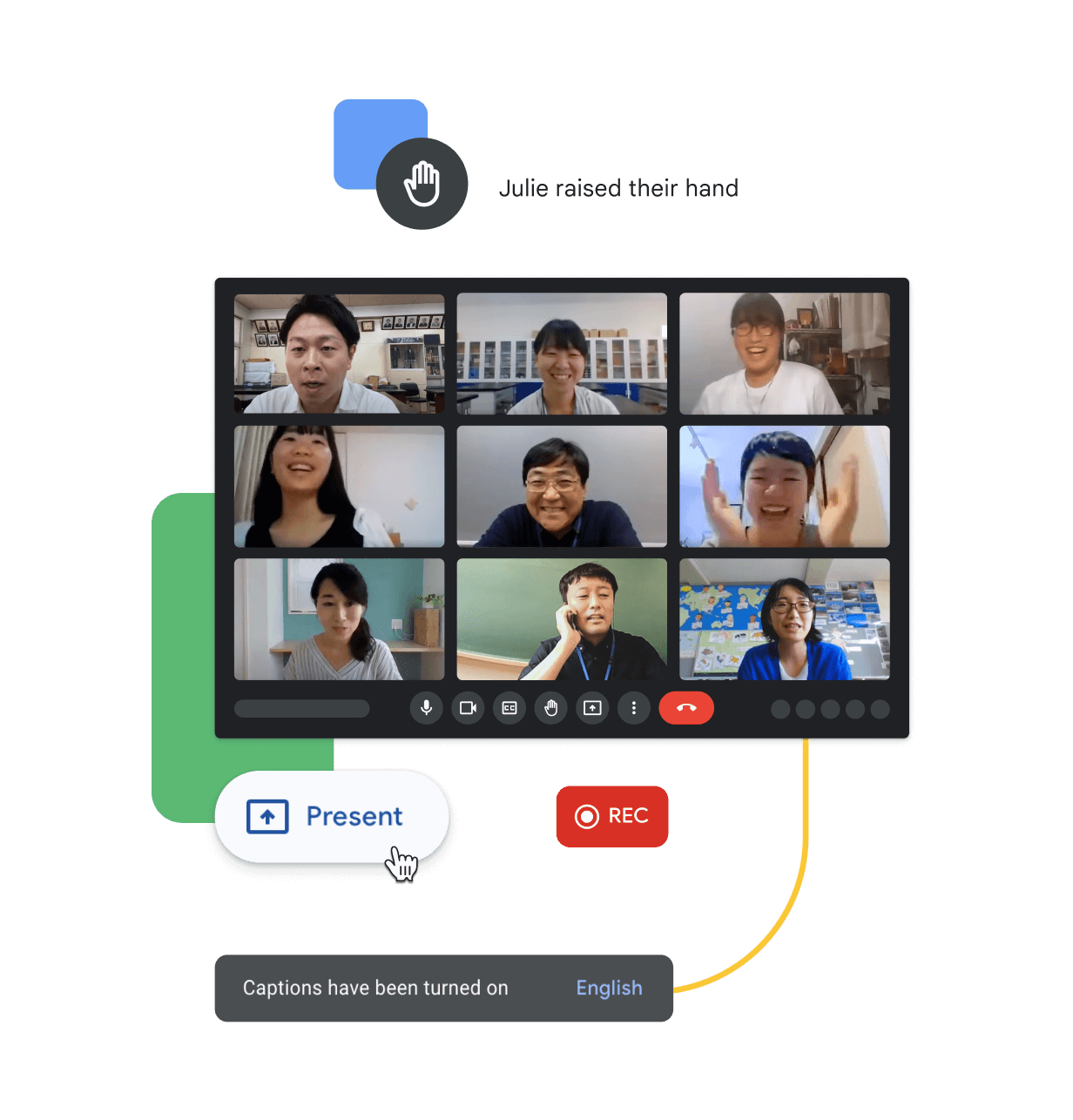
Presenting on Google Meet: A Step-by-step Guide
Are you looking to take your online meetings to the next level? Look no further than Google Meet, a powerful video conferencing tool that allows you to present, collaborate, and communicate with ease. In this comprehensive guide, we’ll walk you through the process of presenting on Google Meet, covering everything from initiating a new meeting to sharing presentations, audio, and even video.
Getting Started
Before we dive into the nitty-gritty details, let’s get familiar with the basics. To present on Google Meet, you’ll need to have a Google account and be logged in to the platform. Once you’re set up, you can initiate a new meeting by clicking on the “New Meeting” button.
Presenting on Google Meet From Your Computer
To present on Google Meet from your computer, follow these simple steps:
- Initiate a New Meeting: Click on the “New Meeting” button to start a new video conference.
- Choose The Presentation Option: Select the “Presentation” option from the menu.
- Select The Source of Sharing: Choose whether you want to share a specific Chrome tab, your entire monitor, or a window of an application (e.G., PowerPoint).
- Share Your Presentation: Click on the “Share” button to start sharing your presentation with others.
- Copy And Share The Meeting Link: Copy the meeting link and share it with participants.
Presenting on Google Meet With Audio
To present on Google Meet with audio, follow these steps:
- Initiate a New Meeting: Click on the “New Meeting” button to start a new video conference.
- Choose The Presentation Option: Select the “Presentation” option from the menu.
- Select The Source of Sharing: Choose whether you want to share a specific Chrome tab, your entire monitor, or a window of an application (e.G., PowerPoint).
- Share Your Audio And Presentation: Click on the “Share” button to start sharing both your audio and presentation with others.
Presenting on Google Meet And Seeing Participants
To present on Google Meet and see participants, follow these steps:
- Initiate a New Meeting: Click on the “New Meeting” button to start a new video conference.
- Choose The Presentation Option: Select the “Presentation” option from the menu.
- Select The Source of Sharing: Choose whether you want to share a specific Chrome tab, your entire monitor, or a window of an application (e.G., PowerPoint).
- See Participants And Video Feed: You’ll be able to see participants’ video feeds in real-time.
Presenting on Google Meet From Your Phone
To present on Google Meet from your phone, follow these steps:
- Initiate The App: Open the Google Meet app on your Android or iOS device.
- Tap on New Meeting: Tap on the “New Meeting” button to start a new video conference.
- Select The Presentation Option: Select the “Presentation” option from the menu.
- Start Presenting: Tap on the “Start” button to begin sharing your presentation with others.
Tips And Tricks
- To end a meeting, click on the red “End Meeting” button.
- To mute or unmute your audio, click on the microphone icon.
- To share files during a meeting, click on the file-sharing icon.
- To use breakout rooms, click on the three dots next to the participant’s name and select “Breakout Room”.
Frequently Asked Questions
- Q: What is Google Meet?
A: Google Meet is a video conferencing tool that allows you to hold meetings, collaborate, and communicate with others. - Q: How do I Initiate a New Meeting on Google Meet?
A: Click on the “New Meeting” button to start a new video conference. - Q: Can I Present on Google Meet From my Phone?
A: Yes, you can present on Google Meet from your Android or iOS device. - Q: How do I Share Audio During a Presentation on Google Meet?
A: Click on the “Share” button and select the option to share audio. - Q: Can I See Participants’ Video Feeds in Real-time?
A: Yes, you can see participants’ video feeds while presenting.
Conclusion
Presenting on Google Meet is a breeze with these simple steps. Whether you’re presenting from your computer or phone, we’ve got you covered. With its powerful features and user-friendly interface, Google Meet is the perfect tool for taking your online meetings to the next level.


