
How to Take a Screenshot on Whatsapp
Are you tired of sending sensitive messages or sharing personal photos on WhatsApp, only to have them accidentally screenshot by the recipient? Worry no more! Today, we’ll show you how to take a screenshot on WhatsApp while maintaining your digital security.
Why Can’t I Simply Use The Screenshot Feature?
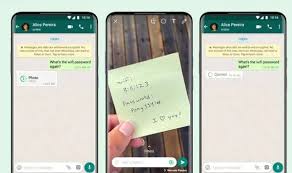
Unfortunately, WhatsApp doesn’t provide an option to disable screenshots for specific messages or conversations. However, there’s a workaround that involves using the “View Once” feature, which allows recipients to view media files only once before they’re deleted from their device.
How to Take a Screenshot on Whatsapp (Android)
To take a screenshot on WhatsApp for Android devices:
- Open WhatsApp and initiate a conversation with the recipient.
- Select the message you want to send using the “View Once” feature.
- Tap the paperclip icon to attach a photo or video.
- Choose the file from your gallery.
- Add any desired captions or stickers.
- Tap the “Send” button.
How to Take a Screenshot on Whatsapp (iPhone)
To take a screenshot on WhatsApp for iPhone devices:
- Open WhatsApp and initiate a conversation with the recipient.
- Select the message you want to send using the “View Once” feature.
- Tap the + icon in the bottom-left corner.
- Choose the file from your photos or videos.
- Add any desired captions or stickers.
- Tap the “Send” button.
How to Take a Screenshot on Whatsapp (PC)
To take a screenshot on WhatsApp for PC devices:
- Open WhatsApp Web or the desktop app.
- Log in with your account and open the conversation.
- Select the message you want to send using the “View Once” feature.
- Click the paperclip icon to attach a photo or video.
- Choose the file from your computer.
- Add any desired captions or stickers.
- Click the “Send” button.
Understanding Whatsapp’s Screenshot Policy
WhatsApp allows users to take screenshots of conversations, but it’s essential to note that these screenshots will be visible to all participants in the conversation. If you want to maintain complete secrecy, consider using the “View Once” feature for sensitive messages or media files.
Best Practices For Secure Messaging on Whatsapp
To ensure your digital security when sending sensitive information on WhatsApp:
- Use the “View Once” feature whenever possible.
- Avoid sharing personal photos or videos without a valid reason.
- Keep your WhatsApp account secure by using strong passwords and enabling two-factor authentication.
- Regularly review your conversation history to identify any potential security risks.
Conclusion
Taking a screenshot on WhatsApp can be a convenient way to share information, but it’s essential to consider the security implications of doing so. By understanding WhatsApp’s policies and best practices for secure messaging, you can protect your digital identity and maintain confidentiality when sending sensitive messages or sharing personal photos.
Faqs
Q: Can I disable screenshots on specific conversations?
A: Unfortunately, no. WhatsApp doesn’t provide an option to disable screenshots for specific conversations.
Q: How do I know if someone has taken a screenshot of our conversation?
A: You won’t receive any notifications if someone takes a screenshot of your conversation.
Q: Is it possible to recover deleted messages on WhatsApp?
A: No, once you delete a message, it’s permanently gone and cannot be recovered.
Q: Can I use the “View Once” feature for all types of media files?
A: Yes, but keep in mind that recipients will only see the file once before it’s deleted from their device.
Q: Are there any other apps that offer secure messaging features similar to WhatsApp?
A: Yes, several apps like Signal and Telegram provide end-to-end encryption and secure messaging features.


