
How to Prevent Sharing of Posts on Facebook
As a Facebook user, you’re probably aware that your personal posts can be shared by others with just a single click. However, there are situations where you might want to prevent sharing of specific posts or even all your future posts. In this article, we’ll explore the ways to achieve this.
Why Prevent Sharing of Posts?
There could be several reasons why you’d want to prevent sharing of posts on Facebook. Perhaps you’ve posted something personal and don’t want it shared with others. Maybe you’re concerned about maintaining your online privacy. Whatever the reason, we’ve got you covered.
Preventing Sharing From Smartphone or Tablet
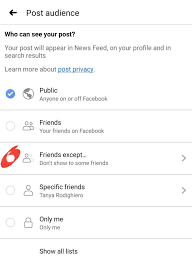
If you want to prevent sharing of posts on Facebook using a smartphone or tablet, follow these simple steps:
- Open the official Facebook app on your device (Android or iOS/iPadOS).
- Log in to your account if necessary.
- Tap on the three horizontal lines (≡) and select “Your name” from the dropdown menu.
- Scroll down to the bottom of the screen, then tap on “Settings & Privacy.”
- Select “Settings,” followed by “Account Settings.”
- Choose “Privacy” from the options listed.
- Under “Who can see your posts?”, select the option that restricts sharing (e.G., “Friends only”).
- Tap “Save changes” to apply the new settings.
Preventing Sharing From Computer
If you prefer using a computer, you can follow similar steps:
- Log in to your Facebook account via the official website.
- Click on your profile picture or name at the top right corner of the page.
- Select “Settings & Privacy” from the dropdown menu.
- Choose “Account Settings,” then click on “Privacy.”
- Under “Who can see your posts?”, select the option that restricts sharing (e.G., “Friends only”).
- Click “Save changes” to apply the new settings.
Preventing Sharing of Someone Else’s Posts
If you want to prevent sharing of someone else’s posts, it’s essential to understand that Facebook allows users to share content only if it meets certain guidelines. However, if a post is deemed inappropriate or violates Facebook’s community standards, reporting the issue can help remove the content.
- Click on the three dots (⋯) next to the post you want to report.
- Select “Report” from the dropdown menu.
- Choose the reason for reporting the post (e.G., Nudity, violence, intimidation).
- Follow the prompts to complete the reporting process.
Preventing Sharing of Your Histories
If you’re concerned about sharing your Facebook histories with others, follow these steps:
- Access Facebook on a smartphone or tablet using the official app.
- Tap on the three horizontal lines (≡) and select “Your name” from the dropdown menu.
- Scroll down to the bottom of the screen, then tap on “Settings & Privacy.”
- Select “Settings,” followed by “Account Settings.”
- Choose “Privacy” from the options listed.
- Under “Who can see your posts?”, select the option that restricts sharing (e.G., “Friends only”).
- Repeat this process for the “Want to consent to other people to share your public histories in their timeline?” setting.
Preventing Sharing of Your Histories on Computer
If you prefer using a computer, follow these steps:
- Log in to your Facebook account via the official website.
- Click on your profile picture or name at the top right corner of the page.
- Select “Settings & Privacy” from the dropdown menu.
- Choose “Account Settings,” then click on “Privacy.”
- Under “Who can see your posts?”, select the option that restricts sharing (e.G., “Friends only”).
- Repeat this process for the “Want to consent to other people to share your public histories in their timeline?” setting.
Conclusion
Preventing sharing of posts on Facebook is essential for maintaining online privacy and control over personal content. By following these simple steps, you can restrict sharing of specific posts or all future posts using both smartphone and computer devices.
Frequently Asked Questions (FAQs)
- Q: Can I Prevent Someone From Sharing my Post if It’s Already Been Shared?
A: Unfortunately, Facebook doesn’t provide a direct way to un-share content that has already been shared by others. - Q: Will Restricting Sharing Affect The Visibility of my Posts?
A: Restricting sharing will prevent others from sharing your posts but won’t directly impact their visibility on your timeline or friends’ timelines. - Q: Can I Report a Post For Violating Community Standards if It’s Not Removed?
A: Yes, reporting a post can help Facebook review the content and take necessary actions. However, only they can decide whether to remove the content. - Q: How do I Prevent Sharing of my Histories on Both Smartphone And Computer Devices?
A: Follow the steps outlined in this article for each device type.


