
How to Print a Mail: A Step-by-step Guide
As our lives become increasingly digital, printing emails has become an essential task. Whether you need to print an important message or simply want to have a physical copy of your correspondence, this guide will walk you through the process step by step.
Why Print Emails?
Printing emails can be useful in various situations:
- You may need to refer to an email later on and don’t want to scroll through your inbox.
- You might want to print out an important message for safekeeping or to share with someone else.
- Printing emails can also be helpful if you’re working offline or don’t have access to your computer.
Printing Emails on PC
To print an email on your PC, follow these steps:
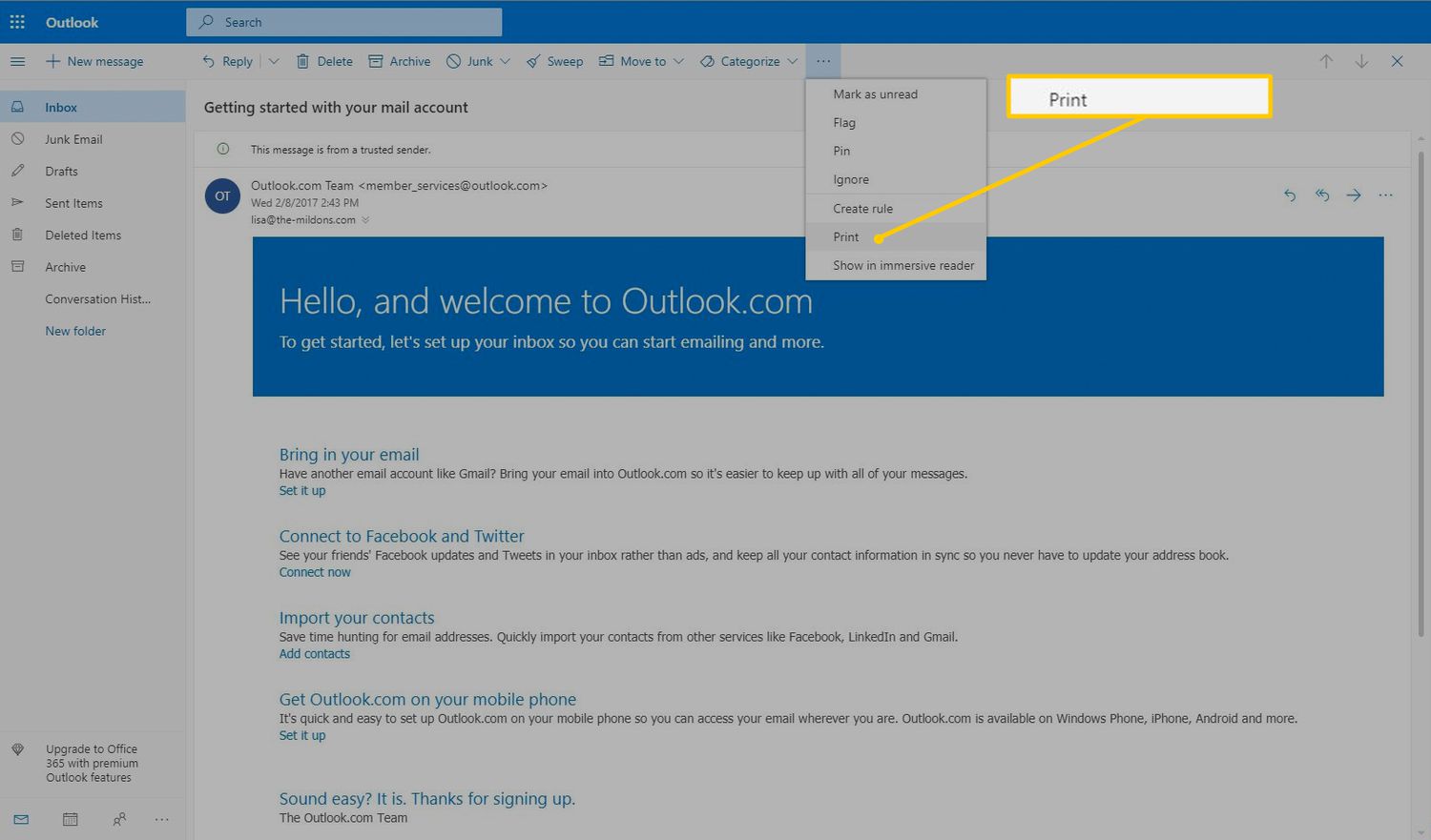
- Open Your Email Client: Open the email client software (such as Microsoft Outlook or Mozilla Thunderbird) and navigate to the email you want to print.
- Click on The Printer Icon: Look for the printer icon in the top-right corner of the screen and click on it. This will open a menu with several options, including printing the email.
- Select The Printer: Choose the printer you want to use from the list of available printers.
- Configure Print Settings: You can adjust the print settings as needed (e.G., Number of copies, paper size, etc.). Then click “Print” to start the printing process.
Printing Emails on Mac
To print an email on your Mac, follow these steps:
- Open Mail: Open the Mail app and navigate to the email you want to print.
- Click on The Printer Icon: Look for the printer icon in the top-right corner of the screen and click on it. This will open a menu with several options, including printing the email.
- Select The Printer: Choose the printer you want to use from the list of available printers.
- Configure Print Settings: You can adjust the print settings as needed (e.G., Number of copies, paper size, etc.). Then click “Print” to start the printing process.
Printing Emails on Mobile Devices
To print an email on your mobile device, follow these steps:
- Open The Email App: Open the email app and navigate to the email you want to print.
- Look For The Printer Icon: Look for the printer icon in the top-right corner of the screen. This icon may vary depending on the email client or app you’re using.
- Select The Printer: Choose the printer you want to use from the list of available printers.
- Configure Print Settings: You can adjust the print settings as needed (e.G., Number of copies, paper size, etc.). Then click “Print” to start the printing process.
Additional Tips And Considerations
When printing emails, keep in mind:
- Make Sure Your Printer is Connected And Configured Correctly: Ensure that your printer is properly set up on your device or network.
- Check The Print Settings Before Printing: Double-check the print settings (e.G., Number of copies, paper size) to ensure they’re correct.
- Consider Using a Usb Drive or Cloud Storage Instead of Printing: If you don’t need a physical copy of the email, consider saving it to a USB drive or storing it in the cloud instead.
Conclusion
Printing emails can be a useful task when done correctly. By following these step-by-step guides and considering additional tips, you’ll be able to print your emails with ease. Whether you’re working on a PC, Mac, or mobile device, printing emails is a straightforward process that allows you to refer to important messages later on.
Frequently Asked Questions (FAQs)
Here are some frequently asked questions related to printing emails:
- Q: Can I Print an Entire Conversation on my Iphone?
A: Unfortunately, the current version of iOS doesn’t support printing entire conversations directly. - Q: How do I Configure my Printer For Email Printing?
A: Make sure your printer is properly set up on your device or network. You can check your printer’s documentation or online resources for specific configuration instructions. - Q: Can I Print Emails From Other Email Clients Besides Gmail And Outlook?
A: Yes, most email clients allow you to print emails using the standard printing mechanism. However, some features might vary depending on the client used. - Q: Is it Possible to Print Emails in Color?
A: Yes, many printers support printing emails in color. Check your printer’s settings or consult its documentation for more information.
Additional Resources
For further assistance or detailed instructions, check out these additional resources:


