
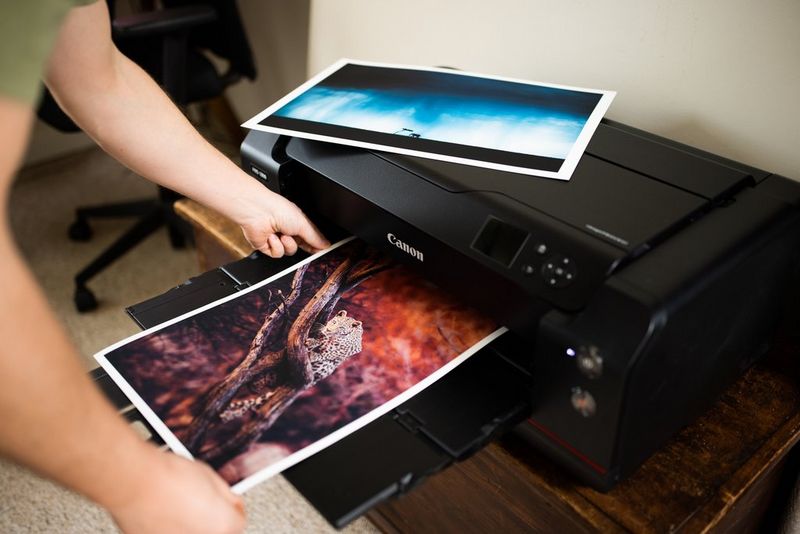
How to Print Bigger: A Step-by-step Guide
Are you tired of trying to read small text on your screen? Do you wish there was a way to print bigger without sacrificing image quality? Look no further! In this comprehensive guide, we’ll show you how to print bigger on various devices, including Windows, macOS, Android, and iOS.
Why Print Bigger?
Printing bigger can be a lifesaver when dealing with small text or images. Whether you’re trying to read a PDF document or print a photo, printing bigger ensures that the content is visible and legible. This guide will walk you through the process of printing bigger on different devices, so you can enjoy crystal-clear prints.
Printing Bigger on Windows
If you’re using Windows, printing bigger is relatively straightforward. Here’s how to do it:
- Open The Printer Properties: Go to your computer’s Settings and select Devices. Then, click on Printers & scanners.
- Select Your Printer: Choose the printer you want to use from the list of available printers.
- Click on Properties: Click on the Properties button next to the printer name.
- Adjust The Print Quality: In the Printer Properties window, look for the Print Quality section. You can adjust the print quality to High or Extra high for better image resolution.
- Set The Paper Size: Make sure the paper size is set to A4 or Letter, depending on your preference.
- Print Bigger: To print bigger, go to the File menu and select Properties. In the Print dialog box, click on the Properties button next to the printer name. Then, adjust the Scaling factor to 150% or higher.
Printing Bigger on Macos
Printing bigger on a Mac is similar to printing on Windows:
- Open The Printer Preferences: Go to System Preferences and select Printers & Scanners.
- Select Your Printer: Choose the printer you want to use from the list of available printers.
- Click on Options & Supplies: Click on the Options & Supplies button next to the printer name.
- Adjust The Paper Size: Make sure the paper size is set to A4 or Letter, depending on your preference.
- Print Bigger: To print bigger, go to the File menu and select Print. In the Print dialog box, click on the Show Details button. Then, adjust the Scale factor to 150% or higher.
Printing Bigger on Android
Printing bigger on an Android device is relatively easy:
- Open The Printer Settings: Go to your phone’s Settings and select Printing.
- Select Your Printer: Choose the printer you want to use from the list of available printers.
- Click on Options: Click on the Options button next to the printer name.
- Adjust The Paper Size: Make sure the paper size is set to A4 or Letter, depending on your preference.
- Print Bigger: To print bigger, go to the File menu and select Print. In the Print dialog box, click on the Scaling factor and adjust it to 150% or higher.
Printing Bigger on Ios
Printing bigger on an iOS device is a bit more complex:
- Download The Desqueeze App: Download the Desqueeze app from the App Store.
- Open The Desqueeze App: Open the Desqueeze app and select the image you want to print bigger.
- Adjust The Scaling Factor: Adjust the scaling factor to 150% or higher.
- Print Bigger: Tap on the Print button to print the image.
Tips And Tricks
Here are some additional tips and tricks for printing bigger:
- Use a high-quality printer for best results.
- Adjust the paper size to A4 or Letter for optimal printing.
- Experiment with different scaling factors (150% or higher) to find the perfect print quality.
- Consider using a photo editing app like Desqueeze to adjust image resolution before printing.
Conclusion
Printing bigger is now easier than ever! With these step-by-step guides, you can print bigger on various devices, including Windows, macOS, Android, and iOS. Whether you’re trying to read small text or print a high-quality photo, printing bigger ensures that the content is visible and legible. Try out these tips and tricks today!
Frequently Asked Questions (FAQs)
- Q: How do I Know if my Printer Supports Printing Bigger?
A: Check your printer’s manual or manufacturer’s website for specifications on print quality and scaling factor. - Q: Can I Print Bigger on Any Device?
A: Yes, you can print bigger on most devices, including Windows, macOS, Android, and iOS. - Q: How do I Adjust The Paper Size to A4 or Letter?
A: Check your printer’s manual or manufacturer’s website for instructions on adjusting paper size. - Q: Can I Use a Photo Editing App Like Desqueeze to Print Bigger?
A: Yes, you can use a photo editing app like Desqueeze to adjust image resolution before printing. - Q: How do I Know if The Scaling Factor is Set Correctly?
A: Experiment with different scaling factors (150% or higher) to find the perfect print quality. - Q: Can I Print Bigger on Any Printer Type?
A: Yes, you can print bigger on most printer types, including inkjet and laser printers. - Q: How do I Adjust The Print Quality For Better Image Resolution?
A: Adjust the print quality to High or Extra high in your printer’s settings.
We hope this guide has helped you learn how to print bigger!


