
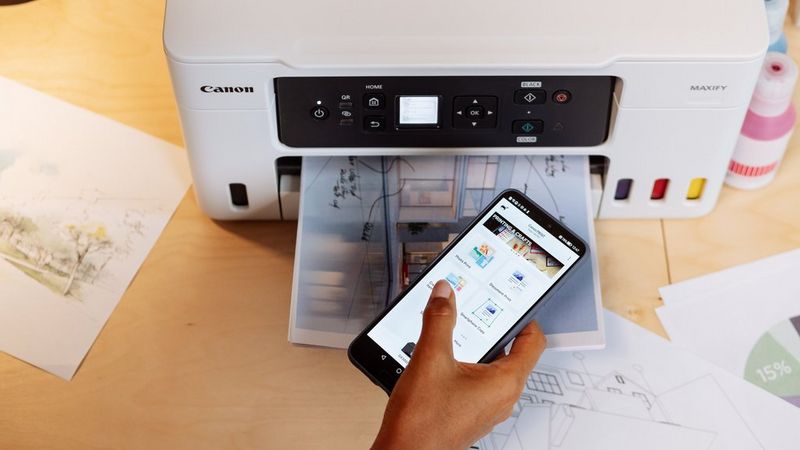
Printing From Mobile to Canon Printer: A Step-by-step Guide
Are you tired of carrying a laptop or computer just to print out documents, photos, or other files? With the rise of mobile devices and advanced printer technology, it’s now possible to print directly from your smartphone to a Canon printer. In this article, we’ll guide you through the process of printing from mobile to Canon printer using various methods.
Method 1: Printing Via Wi-fi
To start, ensure that your Canon printer is connected to the same Wi-Fi network as your smartphone. This will enable seamless communication between the two devices. Here’s how to proceed:
- Connect your smartphone to the same Wi-Fi network as the Canon printer.
- Ensure the printer is turned on and set up for wireless printing.
- Download and install the Canon Print Service app from the Google Play Store or Apple App Store, depending on your device.
- Open the document, photo, or webpage you want to print from your smartphone.
- Tap on the share icon (usually represented by three dots or a square with an arrow) and select “Print.”
- Choose your Canon printer from the list of available devices.
- Select the printing options according to your requirements, such as paper size, color, and resolution.
- Confirm your selection by tapping on the “Print” button.
Method 2: Printing Via Airprint (For Iphone Users)
If you’re using an iPhone, you can take advantage of Apple’s AirPrint technology. Here’s how:
- Open the document, photo, or webpage you want to print from your iPhone.
- Tap on the share icon (usually represented by a square with an arrow) and select “Print.”
- Choose your Canon printer from the list of available devices.
- Select the printing options according to your requirements, such as paper size, color, and resolution.
- Confirm your selection by tapping on the “Print” button.
Method 3: Printing Via Cloud (For Remote Printing)
In case you don’t have a direct Wi-Fi connection between your smartphone and Canon printer, there’s an alternative method:
- Download and install the Canon Print Service app from the Google Play Store or Apple App Store.
- Connect your smartphone to the same internet network as the Canon printer.
- Open the document, photo, or webpage you want to print from your smartphone.
- Tap on the share icon (usually represented by three dots or a square with an arrow) and select “Print.”
- Choose your Canon printer from the list of available devices.
- Select the printing options according to your requirements, such as paper size, color, and resolution.
- Confirm your selection by tapping on the “Print” button.
Method 4: Printing Via Otg Cable (For Android Users)
If you’re using an Android device, there’s another way to print wirelessly:
- Download and install the Canon Print Service app from the Google Play Store.
- Connect your smartphone to the same internet network as the Canon printer.
- Open the document, photo, or webpage you want to print from your smartphone.
- Tap on the share icon (usually represented by three dots or a square with an arrow) and select “Print.”
- Choose your Canon printer from the list of available devices.
- Select the printing options according to your requirements, such as paper size, color, and resolution.
- Confirm your selection by tapping on the “Print” button.
Conclusion
Printing from mobile to Canon printer has never been easier. With these methods, you can access a wide range of print options directly from your smartphone, eliminating the need for a computer or laptop. Whether you’re using Wi-Fi, AirPrint, Cloud, or an OTG cable, printing is now just a few taps away.
Frequently Asked Questions
Q: Do I need to have a Canon printer connected to my home network to print wirelessly?
A: Yes, both the smartphone and Canon printer must be connected to the same Wi-Fi network for wireless printing to work.
Q: Can I use any type of paper or media with my Canon printer?
A: Check your Canon printer’s specifications to see what types of paper and media are supported.
Q: How do I troubleshoot issues with wireless printing?
A: Restart both devices, check the Wi-Fi connection, and ensure that the Canon printer is set up for wireless printing.
Q: Can I print wirelessly using an OTG cable?
A: Yes, but this method may not be as stable or efficient as wireless printing via Wi-Fi or AirPrint.
Q: How do I update my Canon Print Service app?
A: Check your device’s app store for updates and follow the installation instructions.
Q: Can I use any type of file format with my Canon printer?
A: Check your Canon printer’s specifications to see what types of file formats are supported.


