
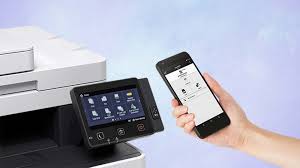
The Ultimate Guide to Printing From Your Smartphone
Are you tired of having to transfer files from your smartphone to your computer just to print them? Well, you’re in luck! With the advancements in technology, it’s now possible to print directly from your smartphone without the need for a computer. In this article, we’ll guide you through the process of printing from both Android and iPhone devices, as well as provide tips on how to do so without Wi-Fi.
Printing From an Android Device
If you’re using an Android device, you can take advantage of Google Cloud Print to print documents and photos directly from your phone. This service was designed to work seamlessly with printers that have Chrome OS systems, but due to improvements in the operating system, it’s now available for all Android devices.
To get started, make sure your printer is connected to the same Wi-Fi network as your smartphone. Then, follow these steps:
- Open the Settings app on your phone and select “Other connections.”
- Tap on “Print” and then select the pre-configured print service.
- Tap on the icon with three dots (⋯) in the top-right corner of the screen to add a new printer.
- Enter the IP address of your printer, which can be found in the printer’s manual or by searching online.
- Select the printer you want to use and tap on it to connect.
Once connected, you can print documents and photos directly from your phone by opening the document or photo and tapping on the share icon ().
Printing From an Iphone
If you’re using an iPhone, things are a bit different. To print from your iPhone, you’ll need a printer that supports Apple’s AirPrint technology. This service allows for wireless communication between your iPhone and printer.
To get started, follow these steps:
- Open the document or photo you want to print.
- Tap on the share icon ().
- Select “Print” from the menu.
- Choose the printer you want to use that supports AirPrint.
- Select the print options (such as paper size and orientation) and tap on the “Print” button.
If your printer doesn’t support AirPrint, don’t worry! There are alternative apps available that can help you print directly from your iPhone without the need for a computer.
Printing Without Wi-fi
What if you don’t have access to Wi-Fi or a router? Don’t worry, there are still ways to print from your smartphone without Wi-Fi. Here are a few options:
- Wi-fi Direct: If your printer supports Wi-Fi Direct, you can connect it directly to your phone without the need for an intermediate network.
- Usb Otg: If your smartphone and printer support USB OTG (On-The-Go), you can connect them directly using a USB cable.
- Printershare App: You can use the PrinterShare app on your iPhone or Android device to print directly from your phone without Wi-Fi.
Conclusion
Printing from your smartphone has never been easier! With Google Cloud Print and AirPrint technology, you can print documents and photos directly from your phone without the need for a computer. Whether you’re using an Android or iPhone device, we’ve got you covered with step-by-step instructions on how to get started. And if you don’t have access to Wi-Fi, don’t worry – there are still ways to print from your smartphone without it.
Frequently Asked Questions
- Q: Do I Need a Computer to Print From my Smartphone?
A: No, you can print directly from your smartphone using Google Cloud Print or AirPrint technology. - Q: Can I Use Any Printer With my Smartphone?
A: Not all printers are compatible with smartphones. Make sure your printer supports the relevant technology (Google Cloud Print for Android or AirPrint for iPhone). - Q: How do I Connect my Printer to my Smartphone Without Wi-fi?
A: You can use Wi-Fi Direct, USB OTG, or a third-party app like PrinterShare. - Q: Can I Print Photos And Documents From my Phone Directly?
A: Yes, you can print photos, documents, and other files directly from your phone using the relevant technology. - Q: Do I Need to Download Any Software or Apps to Print From my Smartphone?
A: Depending on your device and printer, you may need to download a third-party app or use a built-in feature like Google Cloud Print or AirPrint. - Q: Can I Share Printers Between Devices?
A: Yes, many printers allow sharing between devices using Wi-Fi Direct or other technologies. - Q: How do I Troubleshoot Printing Issues From my Smartphone?
A: Check your phone’s settings and printer manual for troubleshooting tips and guides. - Q: Are There Any Security Concerns When Printing From a Smartphone?
A: As with any device, be sure to follow best practices for security and use reputable apps and services.
Sources
- Google Cloud Print documentation
- Apple AirPrint support page
- PrinterShare app website


