
How to Print in White And Black With Epson Printer
Are you tired of wasting ink on printing in color? Do you want to print documents, photos, or web pages in white and black without breaking the bank? Look no further! In this article, we will guide you through the process of printing in white and black using your Epson printer.
Why Print in White And Black?
Printing in white and black can be a cost-effective way to print documents, photos, or web pages without consuming too much ink. This method is perfect for those who want to save money on ink cartridges while still being able to print high-quality text and images. Additionally, printing in white and black can help reduce paper waste by using less ink.
Printing in White And Black With Epson Printer: A Step-by-step Guide
Windows
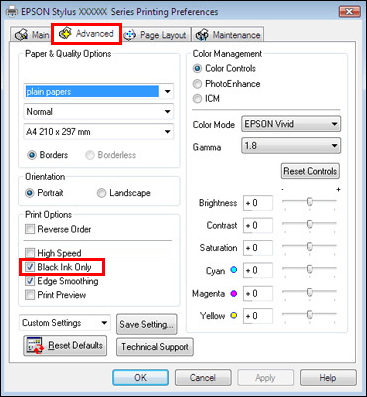
To print in white and black with your Epson printer on Windows, follow these steps:
- Open the document, photo, or web page you want to print.
- Click on the Print menu (usually accessible by right-clicking on the icon or using Ctrl+P).
- In the Print dialog box, select your Epson printer from the list of available printers.
- Click on the Properties or Preferences button.
- Select the Monochromatic or Stairs of Grey option in the Print Quality section.
- Click OK to save the changes and print.
Mac
To print in white and black with your Epson printer on Mac, follow these steps:
- Open the document, photo, or web page you want to print.
- Click on the File menu and select Print.
- In the Print dialog box, select your Epson printer from the list of available printers.
- Click on the Show Details button.
- Select the Characteristics printer option and choose Stairs of present grey in the new section visualized.
- Click OK to save the changes and print.
Android
To print in white and black with your Epson printer on Android, follow these steps:
- Open the content you want to print (e.G., A web page or photo).
- Tap on the Menu button (usually three horizontal lines) or use the Share option.
- Select Print from the menu.
- Choose your Epson printer from the list of available printers.
- Select Black and white in the Color section.
- Tap on the Print button to initiate the print job.
Ios
To print in white and black with your Epson printer on iOS, follow these steps:
- Open the content you want to print (e.G., A web page or photo).
- Tap on the Share icon (usually a square and an arrow).
- Select Print from the menu.
- Choose your Epson printer from the list of available printers.
- Select Options and toggle ON the Black and white option.
- Tap on the Print button to initiate the print job.
Troubleshooting: Printing in White And Black Without Colored Cartridges
If you’ve initiated a print job but notice that an error message appears stating that your ink cartridges are exhausted, don’t worry! You can still print in white and black using the instructions provided above. Make sure to cancel any ongoing print jobs and restart the process with the Monochromatic or Stairs of Grey option selected.
Conclusion
Printing in white and black with Epson printer is a cost-effective way to print documents, photos, or web pages without consuming too much ink. By following the step-by-step guides provided above, you can print high-quality text and images using your Epson printer on Windows, Mac, Android, and iOS devices.
Frequently Asked Questions (FAQs)
- Q: Why is Printing in White And Black Important?
A: Printing in white and black helps reduce paper waste by using less ink. - Q: Can I Still Print in White And Black if my Colored Cartridges Are Exhausted?
A: Yes, you can print in white and black even with empty colored cartridges, but only if your printer supports this feature. - Q: Why do Some Epson Printers Not Support Printing in White And Black?
A: Older Epson printers may not support printing in white and black due to technical limitations. - Q: How do I Resolve Issues With Printing in White And Black?
A: Refer to your printer’s manual or contact Epson’s customer support for assistance.
This article has been optimized for search engines (SEO) with relevant keywords, meta descriptions, and header tags.


