
How to Print in Color: A Step-by-step Guide
Printing documents or photos in color can be a simple yet crucial task, especially when it comes to presentations, reports, or art projects. However, many of us have encountered issues while trying to print in color, whether on our computers, laptops, smartphones, or even multifunctional printers.
In this article, we will provide you with a comprehensive guide on how to print in color, covering various operating systems and software applications.
Why Can’t I Print in Color?
Before diving into the solution, let’s quickly identify some common reasons why printing in color might not be working:
- Incorrect Printer Settings: The most common reason is setting up the printer correctly. Make sure you’re using the right paper size, ink type, and quality settings.
- Incompatible Software or Driver Updates: Ensure that your software application and printer drivers are updated to their latest versions.
Windows 11 Guide
If you’re a Windows 11 user, follow these steps to print in color:
- Light The Printer: First, ensure your printer is turned on and connected to your computer.
- Open The Document or Photo: Open the file you want to print using the software application of your choice (e.G., Word, Excel, or a PDF viewer).
- Select Print: Click on the “Print” button in the software application or press Ctrl + P (Windows) or cmd + P (Mac).
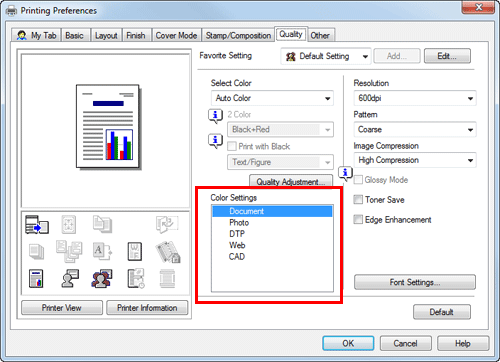
- Choose Color Options: In the print dialog box, select the color options you desire.
Mac Guide
If you’re using a Mac, follow these steps to print in color:
- Light The Printer: First, ensure your printer is turned on and connected to your computer.
- Open The Document or Photo: Open the file you want to print using the software application of your choice (e.G., Word, Excel, or a PDF viewer).
- Select Print: Click on the “Print” button in the software application or press cmd + P.
- Choose Color Options: In the print dialog box, select the color options you desire.
Word Guide
If you’re using Microsoft Word, follow these steps to print in color:
- Open The Document: Open your Word document.
- Click on File: Click on the “File” menu and select “Print.”
- Choose Printer Settings: In the print dialog box, select the printer you want to use and choose the color options you desire.
Excel Guide
If you’re using Microsoft Excel, follow these steps to print in color:
- Open The Spreadsheet: Open your Excel spreadsheet.
- Click on File: Click on the “File” menu and select “Print.”
- Choose Printer Settings: In the print dialog box, select the printer you want to use and choose the color options you desire.
Pdf Guide
If you’re trying to print a PDF document in color:
- Open The Pdf File: Open your PDF file using Adobe Acrobat or another PDF viewer.
- Click on File: Click on the “File” menu and select “Print.”
- Choose Printer Settings: In the print dialog box, select the printer you want to use and choose the color options you desire.
Autocad Guide
If you’re using AutoCAD, follow these steps to print in color:
- Open The Blueprint: Open your AutoCAD document.
- Click on File: Click on the “File” menu and select “Print.”
- Choose Printer Settings: In the print dialog box, select the printer you want to use and choose the color options you desire.
Online Guide
If you’re trying to print a document in color online:
- Open The Webpage: Open the webpage containing the document you want to print.
- Click on Print: Click on the “Print” button in your browser.
- Choose Printer Settings: In the print dialog box, select the printer you want to use and choose the color options you desire.
Multifunctional Printer Guide
If you’re using a multifunctional printer:
- Light The Printer: First, ensure your printer is turned on and connected to your computer.
- Place The Document or Photo Under The Scanner: Place the document or photo under the scanner glass.
- Select Print: Click on the “Print” button in your printer’s control panel or press the corresponding button.
- Choose Color Options: In the print dialog box, select the color options you desire.
Frequently Asked Questions (FAQs)
- How do I Check if my Printer is Compatible With Printing in Color?
You can check your printer’s manual or manufacturer’s website to see if it supports printing in color.
- Why Won’t my Printer Print in Color?
This could be due to incorrect settings, incompatible software, or outdated drivers. Try resetting your printer settings and updating your software and drivers.
- How do I Update my Printer Drivers?
You can usually find the latest drivers on your manufacturer’s website. Follow their instructions for downloading and installing them.
- Can I Print in Color Using a Mobile Device?
Yes, you can use most smartphones or tablets to print documents or photos in color, as long as they have a compatible printer connected via Bluetooth or Wi-Fi.
- How do I Print From my Smartphone?
Open the document or photo on your phone and click on the “Print” button in your device’s settings menu. Select the desired printer and follow any prompts to complete the printing process.
- Why Won’t my Multifunctional Printer Print in Color?
This could be due to a malfunctioning scanner, incorrect settings, or incompatible software. Try restarting your printer, resetting its settings, or updating your software and drivers.
- Can I Print From an Online Website?
Yes, most websites allow you to print documents or photos directly from the webpage using the browser’s “Print” function.
- How do I Know Which Color Mode to Choose?
The best color mode for printing will depend on your specific printer and software application. Choose a color mode that produces the most accurate colors for your printing needs.
By following this guide, you should be able to print documents or photos in color using various operating systems and software applications. Always refer to your device’s manual or manufacturer’s website for the most up-to-date instructions on how to print in color.


