
How to Print Labels: A Comprehensive Guide
Are you tired of searching for ways to print labels at home? Do you need to catalog items in your shop or prepare packages for dispatch? Look no further! In this article, we will explore the various methods to print labels using popular software and online services.
Getting Started With Word
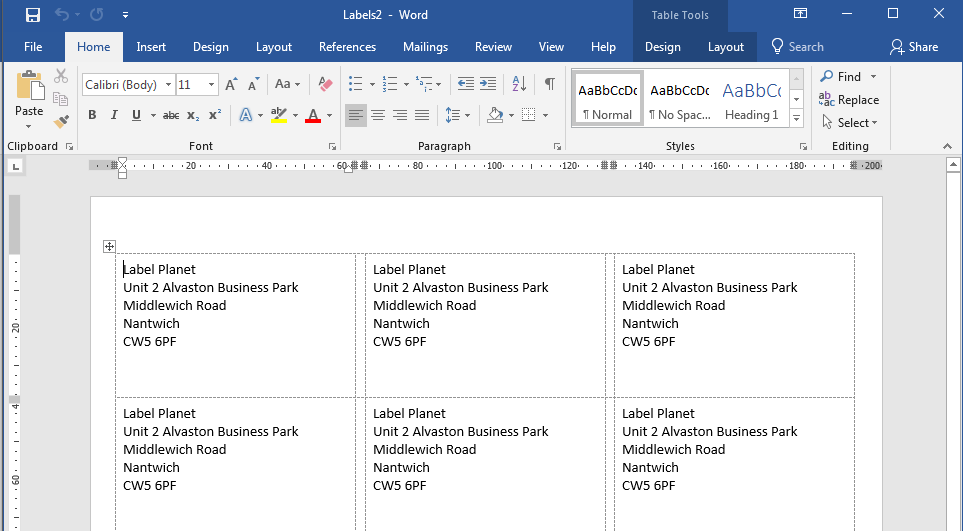
Microsoft Word is a powerful tool that can be used to create professional-looking labels. To get started, follow these steps:
- Open Microsoft Word: Download and install Microsoft Word on your computer if you don’t have it already.
- Create a New Document: Click on the “New” button in the top left corner of the screen to create a new document.
- Choose a Template: Select a pre-designed template from the available options or click on the “Empty Document” button to start from scratch.
- Add Text And Images: Use the menus and tools provided by Word to add text, images, and other design elements to your label.
- Print Your Label: Once you’re happy with your design, go to the “File” menu and click on “Print” to print your label.
Printing Labels With Excel
If you’re familiar with Microsoft Excel, you can use it to create labels as well. The process is similar to printing labels with Word:
- Open Microsoft Excel: Launch Excel on your computer.
- Create a New Spreadsheet: Click on the “New” button in the top left corner of the screen to create a new spreadsheet.
- Choose a Template: Select a pre-designed template from the available options or click on the “Empty Spreadsheet” button to start from scratch.
- Add Data And Design Elements: Use Excel’s menus and tools to add data, images, and other design elements to your label.
- Print Your Label: Once you’re happy with your design, go to the “File” menu and click on “Print” to print your label.
Printing Labels Online
If you don’t have Microsoft Word or Excel installed on your computer, or if you prefer to use online services, there are several options available:
- Visaprint: VisaPrint is an online service that allows you to design and print labels directly from their website.
- Canva: Canva is a popular online graphic design platform that offers a wide range of templates and tools for creating labels.
- Labeldoo: LabelDoo is another online service that specializes in printing labels, including coil labels.
- Avery: Avery is an online label-printing service that allows you to create and print labels directly from their website.
Tips And Tricks
Here are some tips and tricks to keep in mind when printing labels:
- Use a Clear Font: Choose a font that’s easy to read, especially if you’re printing small text.
- Don’t Overcrowd The Label: Leave enough space between design elements to ensure your label looks professional.
- Test Your Design: Before printing, test your design on paper or using an online preview tool to catch any errors.
Conclusion
Printing labels doesn’t have to be a complicated process. With Microsoft Word and Excel, you can create professional-looking labels from the comfort of your own home. Online services like VisaPrint, Canva, LabelDoo, and Avery offer additional options for printing labels quickly and easily.
Frequently Asked Questions (FAQs)
- Q: What Software do I Need to Print Labels?
A: You can use Microsoft Word or Excel on your computer, or online services like VisaPrint, Canva, LabelDoo, or Avery. - Q: How do I Design a Label in Microsoft Word?
A: Choose a template from the available options, add text and images as desired, and print your label using the “File” menu. - Q: What’s The Difference Between Printing Labels With Excel And Word?
A: The process is similar, but Excel offers more advanced features for data manipulation and analysis. - Q: How Long Does it Take to Receive my Printed Labels From Online Services?
A: Turnaround times vary depending on the service you choose, but most online services offer fast shipping options. - Q: Can I Use a Different Font or Layout For my Label?
A: Yes! Most software and online services allow you to customize your label design using various fonts, layouts, and other design elements. - Q: How do I Know if my Label Will Fit on a Sheet of Paper?
A: Use the “Print Preview” feature in Word or Excel, or check the dimensions of your label against the size of the paper you’re using. - Q: Can I Print Multiple Copies of The Same Label?
A: Yes! Most software and online services allow you to print multiple copies of the same label with ease.
Conclusion
Printing labels is a simple process that can be done at home or using online services. Whether you choose Microsoft Word, Excel, VisaPrint, Canva, LabelDoo, or Avery, there are plenty of options available for creating professional-looking labels quickly and easily.


