
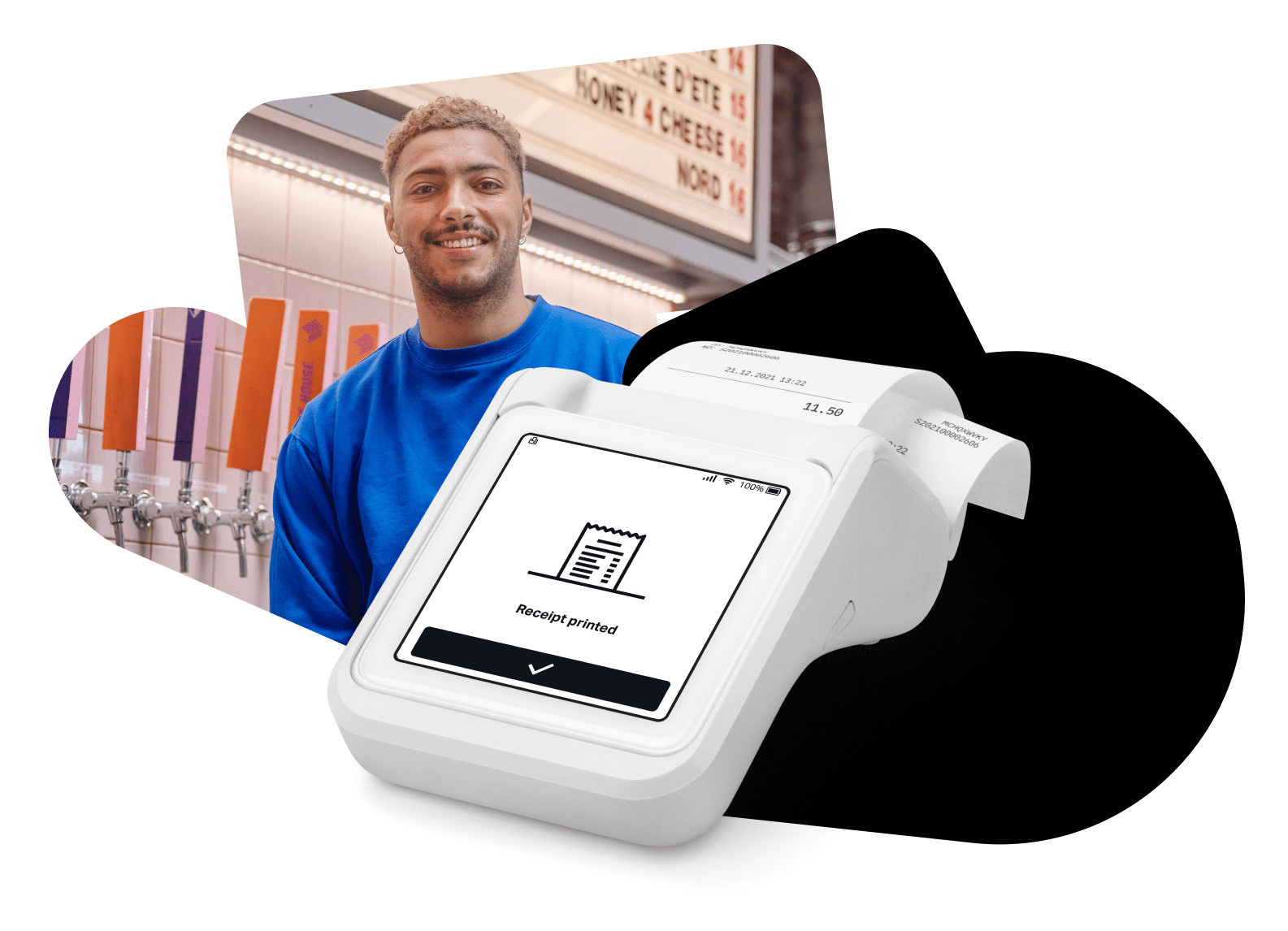
Printing a Sumup Receipt: A Step-by-step Guide
Are you an entrepreneur looking to print receipts from your SumUp transactions? Or perhaps you’re just curious about how to do it? Look no further! In this article, we’ll guide you through the simple steps of printing a SumUp receipt, whether it’s from a SMS, app, or email.
Why Print a Sumup Receipt?
Before we dive into the instructions, let’s quickly discuss why printing a SumUp receipt might be useful. Whether you’re using SumUp for commercial activities or just need to keep track of your transactions, having a printed copy can be helpful for various reasons:
- For accounting and tax purposes
- To verify transactions with customers
- As a backup in case of digital file loss
Printing a Sumup Receipt From an Sms
If you’ve received a SumUp receipt via SMS, printing it is relatively straightforward. Here’s how to do it:
- Connect Your Printer: Ensure that your printer is connected to your phone either through Wi-Fi or USB.
- Open The Messages App: On your smartphone, open the Messages app and find the message containing the SumUp receipt.
- Tap on The Link to Open The Receipt: Tap on the link provided in the message to view the receipt details.
- Select Share And Print: If you’re using an Android device, tap on the three dots at the top right corner of the screen, followed by the “Share” option and then “Print”. If you’re using an iPhone or iPad, tap on the sharing icon and select “Print”.
- Choose Your Printer: Select the printer from which you want to print the receipt.
- Customize if Needed: You can also adjust the number of copies or modify the page layout before printing.
Printing a Sumup Receipt From an App
If you’ve received a SumUp receipt via the app, the process is similar:
- Open The Sumup App: Launch the SumUp app on your smartphone.
- Select Sales: Go to the “Sales” section and choose the transaction for which you want to print the receipt.
- Forward Receipt: Tap on the three dots next to the transaction, followed by “Forward Receipt”.
- Choose How to Forward: Select whether you want to print directly from your device (if it’s connected to a printer), share in other apps, use Bluetooth, or save to Google Drive or iCloud Drive.
Printing a Sumup Receipt From an Email
If you’ve received the receipt via email:
- Download The Receipt as a Pdf: On your Android device, tap on the three dots at the top right corner of the screen, followed by “Share” and then “PDF”. On your iPhone or iPad, open the email with Safari and tap on the sharing icon, followed by “Options” and then “PDF”.
- Save The Pdf: Save the receipt as a PDF file.
- Transfer The File to Your PC: You can transfer the file from your phone to your PC using various methods (e.G., USB cable, cloud storage).
Printing The Receipt
Once you have the PDF on your PC:
- Open The Receipt: Open the PDF document containing the SumUp receipt.
- Print The Receipt: Select the printer and print settings as desired.
And that’s it! With these simple steps, you can easily print a SumUp receipt from an SMS, app, or email.
Conclusion
Printing a SumUp receipt is a straightforward process that can be completed in a few minutes. Whether you need to print receipts for accounting purposes, verify transactions with customers, or have a backup copy, this guide has provided the steps necessary to do so.
Frequently Asked Questions (FAQs)
- Q: What Are The Requirements For Printing a Sumup Receipt?
A: You’ll need to connect your printer to your phone via Wi-Fi or USB. - Q: How do I Print a Sumup Receipt From an Sms?
A: Open the Messages app, tap on the link provided in the message, and select Share and Print. - Q: Can I Print a Sumup Receipt Directly From The App?
A: Yes, you can print directly from the app by selecting Forward Receipt and choosing to print directly or use another option. - Q: How do I Transfer a Pdf File From my Phone to my Pc?
A: You can transfer the file using various methods such as USB cable, cloud storage, or Bluetooth.
I hope this article has provided you with the necessary information to print a SumUp receipt with ease!


