
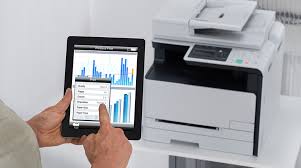
How to Print Wirelessly: A Comprehensive Guide
Are you tired of dealing with tangled cables and limited printing options? Look no further! In this article, we will explore the world of wireless printing and guide you through the process of setting up and using a wireless printer.
What is Wireless Printing?
Wireless printing, also known as Wi-Fi printing or cloud printing, allows you to print documents and images from any device connected to your home network without the need for cables. This technology has become increasingly popular in recent years due to its convenience and flexibility.
Types of Wireless Printers
There are several types of wireless printers available on the market, including:
- Wi-fi Enabled Printers: These printers have a built-in Wi-Fi module that allows them to connect directly to your home network.
- Cloud-enabled Printers: These printers can print documents and images from cloud services such as Google Drive or Dropbox.
- Wireless Printer Hubs: These devices allow you to connect multiple wireless printers to your home network, making it easier to share printing capabilities among family members.
Setting Up a Wireless Printer
To set up a wireless printer, follow these steps:
- Connect The Printer to Your Computer: Connect the printer to your computer using a USB cable or wirelessly using a Wi-Fi module.
- Install The Printer Driver: Install the printer driver software on your computer to enable communication between the printer and your device.
- Configure The Printer Settings: Configure the printer settings, such as the network name and password, to match your home network.
Wireless Printer Brands
Some popular wireless printer brands include:
- Canon: Canon offers a range of wireless printers, including inkjet and laser models.
- Epson: Epson’s wireless printers are known for their high print quality and ease of use.
- HP: HP’s wireless printers offer advanced features such as cloud printing and mobile printing capabilities.
Wireless Printing on Different Devices
To print wirelessly from different devices, follow these steps:
- PC (Windows): Install the printer driver software and configure the printer settings to match your home network.
- Mac: Use the built-in Print & Scan application to add the wireless printer to your Mac.
- Android Device: Download and install a mobile printing app from the Google Play Store, such as HP Smart or Canon PRINT Inkjet/SELPHY.
- Iphone/ipad: Use the AirPrint feature to print wirelessly from your Apple device.
Troubleshooting Wireless Printing Issues
If you encounter issues with wireless printing, try the following troubleshooting steps:
- Check The Printer Settings: Ensure that the printer is configured correctly and is connected to the same network as your device.
- Restart The Printer And Device: Restart both the printer and the device to ensure a fresh connection.
- Update The Printer Driver Software: Update the printer driver software to the latest version to resolve any connectivity issues.
Conclusion
Wireless printing has become an essential feature for many households and businesses, offering convenience, flexibility, and ease of use. By following the steps outlined in this article, you can set up a wireless printer and start printing wirelessly from your device. Remember to troubleshoot any issues that may arise and update your printer driver software regularly.
Faqs
- Q: What is The Range of a Wireless Printer?
A: The range of a wireless printer depends on the specific model, but most printers have a range of up to 30 feet (9 meters). - Q: Can I Print Wirelessly From Multiple Devices at Once?
A: Yes, you can print wirelessly from multiple devices at once by setting up a wireless printer hub or using cloud-enabled printing services. - Q: How do I Troubleshoot Issues With my Wireless Printer?
A: To troubleshoot issues with your wireless printer, try restarting the printer and device, checking the printer settings, and updating the printer driver software. - Q: Can I Print Wirelessly From a Mac?
A: Yes, you can print wirelessly from a Mac using the built-in Print & Scan application or by installing a mobile printing app such as HP Smart or Canon PRINT Inkjet/SELPHY. - Q: What is Airprint And How Does it Work?
A: AirPrint is a feature that allows you to print wirelessly from your Apple device directly to a compatible printer without the need for cables or software installation. - Q: Can I Use my Wireless Printer With a Vpn?
A: Yes, most wireless printers can be used with a VPN (Virtual Private Network) but it may require additional configuration. - Q: How do I Update my Wireless Printer Driver Software?
A: To update your wireless printer driver software, visit the manufacturer’s website and follow the instructions for downloading and installing the latest version of the software. - Q: Can I Use my Wireless Printer With a Nas (Network-Attached Storage) Device?
A: Yes, most wireless printers can be used with a NAS device but it may require additional configuration.


