
Protecting Your Child From Inappropriate Online Content: A Comprehensive Guide
As a parent, it’s natural to feel concerned about the online content your child is exposed to. With the increasing accessibility of the internet, it’s easier than ever for children to stumble upon mature themes, explicit language, and other forms of objectionable material. In this article, we’ll explore various methods for blocking unwanted websites on different devices, including PCs, Macs, smartphones, and tablets.
Why Blocking Unwanted Websites is Essential
In today’s digital age, it’s crucial to protect your child from online threats that can have long-term consequences on their emotional, mental, and physical well-being. By limiting access to certain websites, you can:
- Prevent exposure to explicit content
- Reduce the risk of cyberbullying
- Minimize the likelihood of online predators targeting your child
- Promote a safer and more controlled online environment
Blocking Unwanted Websites on PC (Windows)
If you’re using a Windows device, you can block unwanted websites using the built-in Family Safety feature. Here’s how:
- Click on the Start button and select Settings.
- Go to Accounts > Family & other users.
- Select your child’s account and click on the “Create a family” button.
- Follow the prompts to set up the Family Safety feature.
- Configure the website restrictions according to your preferences.
Blocking Unwanted Websites on Mac
On a Mac, you can use the built-in Screen Time feature to block unwanted websites. Here’s how:
- Click on the Apple menu and select System Preferences.
- Go to Screen Time > Options.
- Select the “Set up screen time” option.
- Configure the website restrictions according to your preferences.
Blocking Unwanted Websites on Smartphone And Tablet
If you’re using a smartphone or tablet, there are various apps available that can help block unwanted websites. Some popular options include:
- Blocksite: A free app that allows you to block specific websites across all devices.
- Qustodio: A parental control app that offers website blocking features among other things.
Blocking Unwanted Websites on Google Chrome
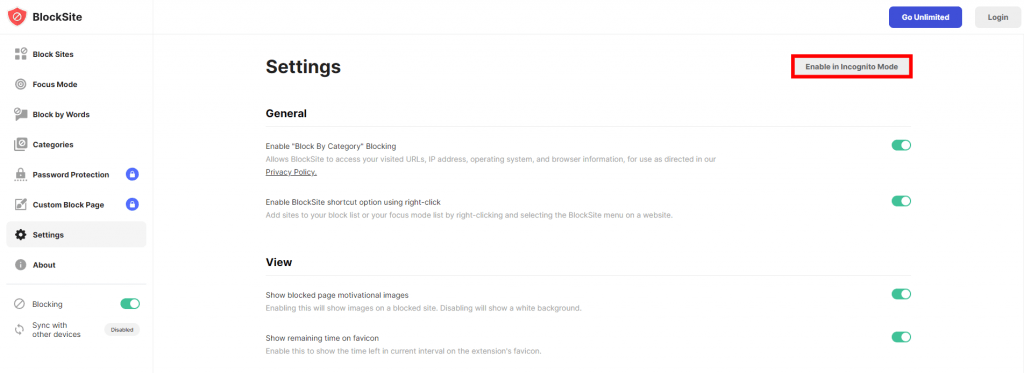
On Google Chrome, you can use extensions like BlockSite to block unwanted websites. Here’s how:
- Open the Chrome Web Store and search for BlockSite.
- Install the extension and follow the prompts to set up the website blockers.
- Configure the website restrictions according to your preferences.
Blocking Unwanted Websites on Android
On an Android device, you can use the built-in Safe Navigation feature to block unwanted websites. Here’s how:
- Open the Google Chrome app and tap on the three dots in the top right corner.
- Select Settings > Privacy & safety > Safe Navigation.
- Configure the website restrictions according to your preferences.
Blocking Unwanted Websites on Iphone And Ipad
On an iPhone or iPad, you can use the built-in Screen Time feature to block unwanted websites. Here’s how:
- Open the Settings app and select Screen Time.
- Tap on Options > Content & Privacy Restrictions.
- Select the “Set up screen time” option.
- Configure the website restrictions according to your preferences.
Conclusion
Protecting your child from online threats is an ongoing process that requires vigilance and attention to detail. By understanding how to block unwanted websites on different devices, you can create a safer online environment for your child.


