
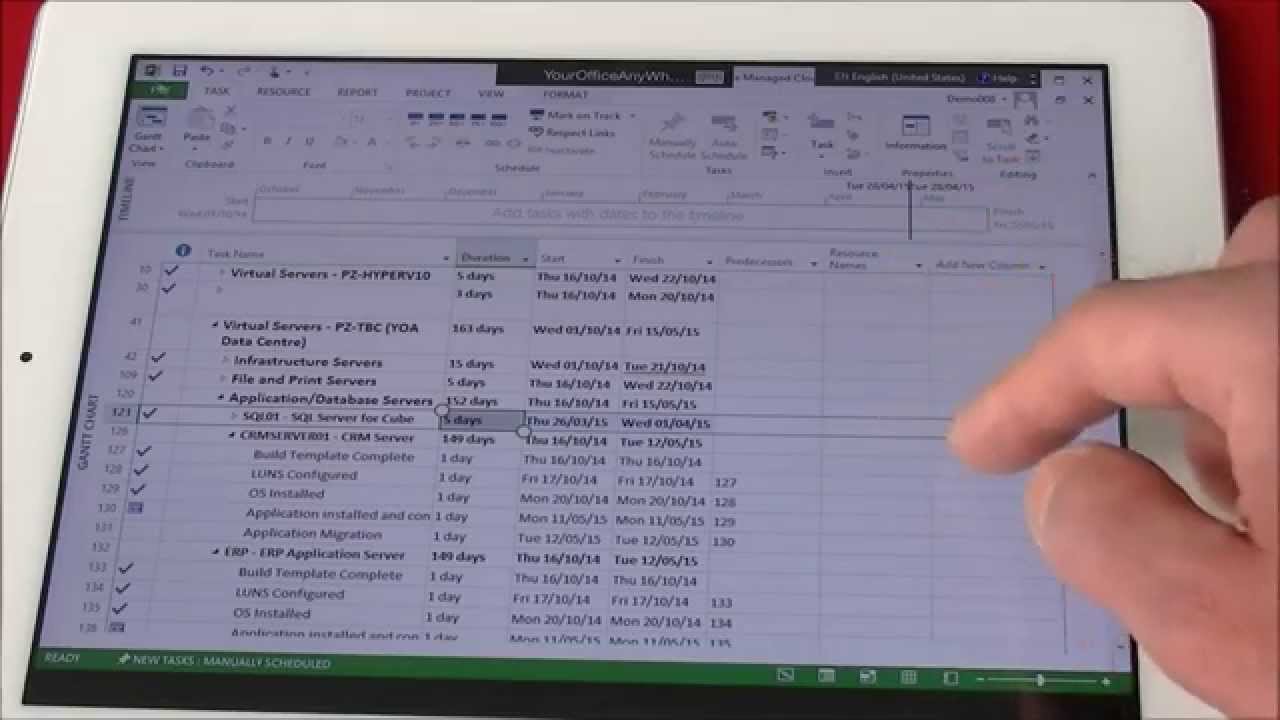
How to Project Your Ipad’s Screen Onto a TV or Computer
Are you tired of being confined to your small iPad screen? Do you want to share your favorite movies, games, or presentations with a wider audience? Look no further! In this article, we will explore the various ways to project your iPad’s screen onto a TV or computer.
Why Project Your Ipad’s Screen?
Projecting your iPad’s screen can be incredibly useful in many situations. Whether you’re giving a presentation, playing a game with friends, or simply watching a movie together, projecting your iPad’s screen can make the experience more enjoyable and immersive.
Method 1: Using Airplay
One of the easiest ways to project your iPad’s screen is by using Apple’s AirPlay technology. This allows you to wirelessly stream your iPad’s screen onto a compatible TV or computer.
- Step 1: Make sure both your iPad and the device you want to project onto are connected to the same Wi-Fi network.
- Step 2: Open the Control Center on your iPad by swiping down from the top right corner of the screen.
- Step 3: Tap the “Screen Mirroring” icon, then select the device you want to project onto (e.G., Apple TV or a compatible computer).
- Step 4: Enter the code displayed on the other device if prompted, and you’ll see your iPad’s screen mirrored on it.
Method 2: Using Google Cast
If you’re not using an Apple device, you can still use Google Cast to project your iPad’s screen onto a TV or computer. This method is similar to AirPlay but uses Google’s technology instead.
- Step 1: Ensure that both your iPad and the device you want to project onto are connected to the same Wi-Fi network.
- Step 2: Open the Google Home app on your iPad, then tap the “Cast screen” button.
- Step 3: Select the device you want to project onto (e.G., A Chromecast-enabled TV or computer).
- Step 4: Confirm the code displayed on the other device if prompted, and your iPad’s screen will be projected onto it.
Method 3: Using Reflector
If you don’t have AirPlay or Google Cast capabilities, you can use an app like Reflector to project your iPad’s screen onto a computer. This method is more technical but still relatively easy to set up.
- Step 1: Download and install the Reflector app on both your iPad and the computer you want to project onto.
- Step 2: Open the Reflector app on the computer, then select “Start Mirroring.”
- Step 3: On your iPad, open the Control Center, tap the “Screen Recording” icon, and select the Reflector app as the output destination.
- Step 4: Confirm the code displayed on the computer if prompted, and your iPad’s screen will be projected onto it.
Method 4: Using Physical Cables
If you prefer a more traditional approach, you can use physical cables to connect your iPad directly to a TV or monitor. This method requires some technical knowledge but is still relatively straightforward.
- Step 1: Identify the ports available on both your iPad and the device you want to project onto.
- Step 2: Purchase an adapter that matches the port types (e.G., HDMI, VGA, or USB-C).
- Step 3: Connect the cables according to the manufacturer’s instructions.
- Step 4: Configure the device to recognize the input from your iPad.
Tips And Precautions
Before attempting to project your iPad’s screen, keep in mind the following tips and precautions:
- Some apps may block streaming or mirroring due to copyright concerns.
- Ensure that both devices are connected to the same Wi-Fi network for wireless methods.
- Physical cables can be cumbersome but provide a stable connection.
Conclusion
Projecting your iPad’s screen onto a TV or computer is easier than you think. With these four methods, you can share your favorite content with others and enjoy a more immersive experience. Remember to consider the limitations and precautions mentioned earlier to ensure a smooth and enjoyable process.
FAQs
- Q: Can I Project my Ipad’s Screen Onto Any Device?
A: While most devices are compatible, some may have specific requirements or limitations. - Q: How do I Resolve Issues With Mirroring or Streaming?
A: Check the manufacturer’s instructions for troubleshooting tips and contact their support team if needed. - Q: Can I Use Physical Cables to Connect my Ipad Directly to a TV or Monitor?
A: Yes, but ensure you have the correct adapters and follow proper cable management practices. - Q: Are There Any Apps That Can Help me Project my Ipad’s Screen Onto a Computer?
A: Apps like Reflector can facilitate this process, but be aware of their limitations and compatibility issues.
The Best Way to Project Your iPad Screen Onto a TV or Computer is by using AirPlay, Google Cast, Reflector, or physical cables. Each method has its own advantages and disadvantages, so choose the one that best suits your needs. Remember to consider the tips and precautions mentioned earlier to ensure a smooth and enjoyable experience.


