
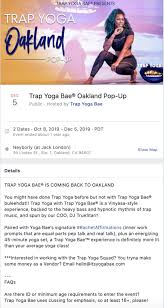
Promoting Your Event on Facebook: A Step-by-step Guide
Are you looking to promote your event on Facebook? With millions of users worldwide, promoting an event on Facebook can be a great way to reach a large audience and increase visibility. In this guide, we will walk you through the steps to create and promote an event on Facebook using both a smartphone and a computer.
Creating an Event on Facebook From a Smartphone
To start creating an event on Facebook from your smartphone, follow these steps:
- Initiate The Facebook App: Open the Facebook app on your Android or iOS device.
- Access Your Account: Log in to your account using your credentials.
- Create a New Event: Tap on the Events tab and then select the “+” icon to create a new event.
- Choose The Type of Event: Select whether you want to create an online or offline event.
- Fill in The Details: Fill in the event name, date, time, location, and description.
- Set Privacy Options: Choose who can see your event (public, friends, etc.).
- Add a Cover Photo: Upload a cover photo for your event.
Creating an Event on Facebook From a Computer
To create an event on Facebook from a computer, follow these steps:
- Log in to Your Account: Log in to your account using your credentials.
- Access The Events Tab: Click on the “Events” tab and then select the “+” icon to create a new event.
- Choose The Type of Event: Select whether you want to create an online or offline event.
- Fill in The Details: Fill in the event name, date, time, location, and description.
- Set Privacy Options: Choose who can see your event (public, friends, etc.).
- Add a Cover Photo: Upload a cover photo for your event.
Optimizing Your Event
To optimize your event, make sure to:
- Use an Eye-catching Title: Use a title that accurately represents your event.
- Write a Detailed Description: Write a detailed description of your event, including relevant keywords.
- Add a Cover Photo: Upload a cover photo for your event.
Inviting People And Sharing Your Event
To invite people to your event and share it on Facebook, follow these steps:
- Access The Events Tab: Access the events tab on your profile or page.
- Select The Event: Select the event you want to share.
- Choose a Sharing Option: Choose how you want to share your event (share on Facebook, messenger, etc.).
Promoting Your Event
To promote your event, consider the following options:
- Sponsorship: Consider sponsoring your event using Facebook’s sponsorship feature.
- Budget: Set a budget for your advertising campaign.
- Duration: Choose the duration of your advertising campaign.
Faqs
- Q: Can I Create an Event on Facebook Without Paying?
A: Yes, you can create an event on Facebook without paying. - Q: How do I Promote my Event on Facebook?
A: To promote your event on Facebook, consider using Facebook’s sponsorship feature or promoting it on your page or profile. - Q: Can I Change The Privacy Settings of an Existing Event?
A: Yes, you can change the privacy settings of an existing event by duplicating it and making changes to the new event. - Q: How do I Add a Cover Photo to my Event?
A: To add a cover photo to your event, click on the “Add a cover photo” button in the event settings. - Q: Can I Share an Event on Facebook Without Inviting People?
A: Yes, you can share an event on Facebook without inviting people by selecting the “Share” option instead of “Invite”. - Q: How do I Promote an Event on Facebook to Payment?
A: To promote an event on Facebook to payment, consider using Facebook’s sponsorship feature and setting a budget for your advertising campaign. - Q: Can I Cancel an Event Once it Has Been Created?
A: Yes, you can cancel an event once it has been created by selecting the “Cancel” option in the event settings. - Q: How do I Report an Issue With my Facebook Event?
A: To report an issue with your Facebook event, contact Facebook’s support team using their help center.
Conclusion
Promoting your event on Facebook can be a great way to reach a large audience and increase visibility. By following the steps outlined in this guide, you can create and promote an event on Facebook using both a smartphone and a computer. Remember to optimize your event by using an eye-catching title, writing a detailed description, and adding a cover photo. Don’t forget to invite people and share your event on Facebook to gain greater visibility.


