
How to Protect a Folder on Mac
Are you tired of sharing sensitive information with friends and relatives only to have them access your personal files? Do you want to protect your important folders with a password without using complicated software? You’re in luck! In this article, we’ll show you how to use built-in macOS tools and free external solutions to safeguard your data.
Using Built-in Macos Tools
MacOS offers a simple and effective way to protect folders using built-in utilities. One such tool is the “Disk Utility” (also known as “Utility Disk”). This utility allows you to create an encrypted image disk that can store sensitive files and folders.
Step 1: Create an Encrypted Image Disk
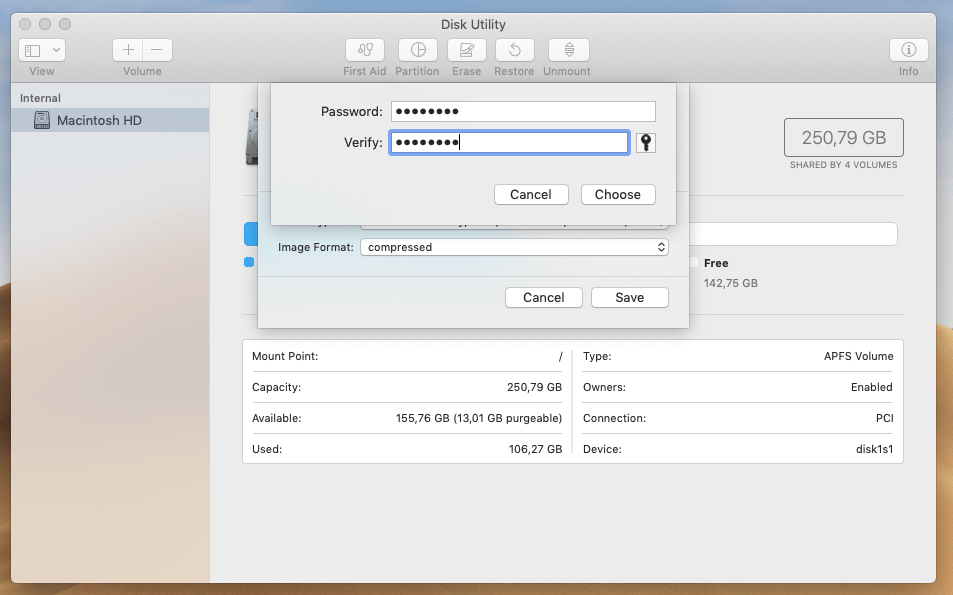
To begin, open the Disk Utility app from the Launchpad or Applications folder. Select the “New” button in the top menu bar and choose “Empty Image.” In the resulting window, select the “Image Disc Sparse Bundle” option. Choose a partition scheme (e.G., Single partition) and select AES 128-bit encryption.
Step 2: Set Password And Volume Name
Enter a password to protect your image disk. This will be used to encrypt all data stored within it. You can also assign a name to the image disk, which will appear in the Finder.
Step 3: Mount And Add Files
Once the image disk is created, you can mount it by double-clicking on its icon in the Finder. Enter your password to access the contents. Drag files or folders from other locations into the mounted image disk as if it were a regular folder.
Using Veracrypt For Extra Security
While built-in macOS tools are sufficient for many users, those seeking additional security can use free third-party software like VeraCrypt. This program allows you to create encrypted volumes protected by password, perfect for storing sensitive data.
Step 1: Download And Install Melted (for Macos)
Before using VeraCrypt, you need to install the required utility called MELTED for macOS. You can download it from the official website and follow the installation instructions.
Step 2: Create an Encrypted Volume
Launch VeraCrypt and select “Create” in the top menu bar. Choose a volume type (e.G., Standard) and encryption method (AES). Set the password and confirm it to protect your encrypted volume.
Step 3: Add Files to Your Encrypted Volume
Once your encrypted volume is created, you can add files or folders by selecting them from the Finder and dragging them into the VeraCrypt interface. You’ll need to enter your password to access the contents of your encrypted volume.
Conclusion
Protecting a folder on Mac is a simple process that can be accomplished using built-in utilities or free external solutions like VeraCrypt. By following these steps, you can safeguard your sensitive data and ensure it remains confidential. Whether you’re dealing with personal files, financial information, or other confidential content, take control of your digital security today!
Frequently Asked Questions
-
What is The Purpose of Using Built-in Macos Tools?
Using built-in tools like Disk Utility ensures that your data is protected without relying on external software. -
How do I Create an Encrypted Image Disk?
To create an encrypted image disk, use the Disk Utility app and follow the steps outlined above. -
What Are The Benefits of Using Veracrypt?
VeraCrypt offers extra security features, such as AES encryption and password protection for your sensitive data. -
Is There a Risk to Using External Software Like Veracrypt?
While there’s always some level of risk when using external software, reputable programs like VeraCrypt have been extensively tested and reviewed by experts. -
How do I Ensure That my Encrypted Volume Remains Secure?
To maintain security, use a strong password, keep your operating system up-to-date, and avoid sharing access to your encrypted volume with others. -
Can I Recover Deleted Files From an Encrypted Image Disk?
No, deleted files are gone forever once erased from an encrypted image disk. Be cautious when deleting sensitive information! -
How do I Report Vulnerabilities in Macos or Other Software?
If you discover any vulnerabilities in macOS or other software, follow established channels to notify the developers or relevant authorities. -
What Should I do if my Password is Compromised or Forgotten?
If your password is compromised or you’ve forgotten it, immediately change your password using built-in tools or consult with experts for assistance.


