
How to Issue a Video on Youtube: A Step-by-step Guide
Are you eager to share your videos with the world, but not sure how to issue them on YouTube? Look no further! In this article, we will guide you through the process of uploading and sharing your videos on the popular video-sharing platform.
Understanding Youtube’s Requirements
Before we dive into the step-by-step guide, it’s essential to understand YouTube’s requirements for uploading and sharing videos. To upload a video, you need to have a Google account, which can be used to access other Google services like Gmail and Google Drive.
Step 1: Accessing Your Youtube Account
To issue a video on YouTube, you first need to access your YouTube account. You can do this by visiting the YouTube website and signing in with your Google account credentials.
How to Issue a Video on Youtube: Public or Private?
When uploading a video, you have two options: Public or private. If you choose public, your video will be visible to anyone who searches for it. On the other hand, if you choose private, only people you invite can view your video.
Step 2: Uploading Your Video
Once you’re logged in, click on the “Create” button and select “Upload a video.” You’ll then need to choose the video you want to upload from your computer or mobile device. Make sure it’s in the correct format (MP4, AVI, etc.) And resolution.
Adding Details to Your Video
After selecting your video, add a title, description, and tags to help people find your content. You can also choose whether your video is public or private, as well as set the visibility options for your video.
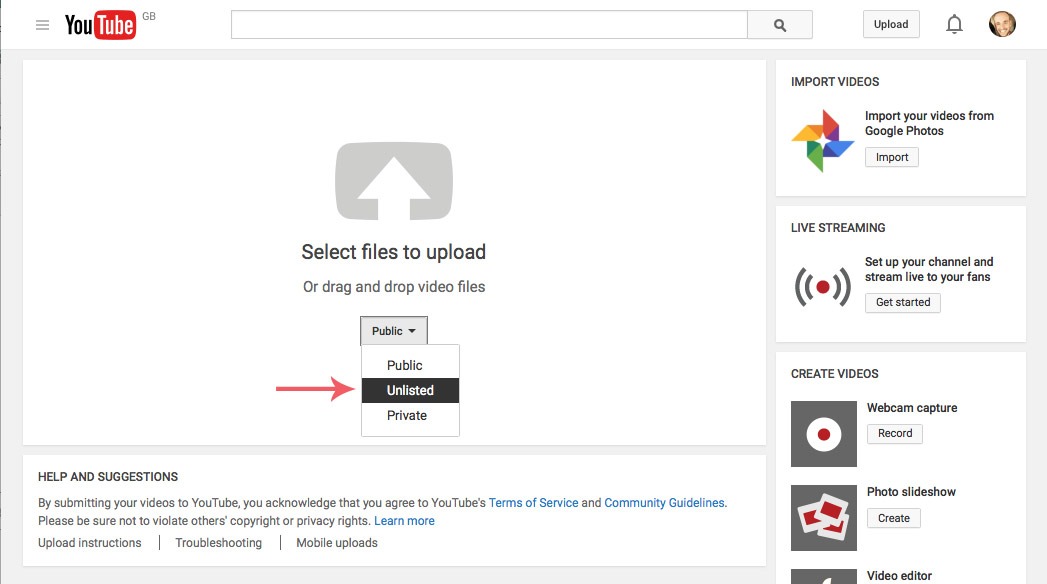
Visibility Options: Public, Private, or No List
You have three visibility options when uploading a video:
- Public: Your video will be visible to anyone who searches for it.
- Private: Only people you invite can view your video.
- No List: Your video will not appear in YouTube’s search results.
Step 3: Setting Up Video Details
In the “Details” section, you’ll need to add a title and description to your video. You can also choose whether your video is public or private, as well as set the visibility options for your video.
Adding Subtitles And Closed Captions
If your video has audio in multiple languages, you can add subtitles and closed captions to make it more accessible to viewers worldwide.
Step 4: Choosing Video Visibility Options
In the “Visibility” section, choose whether your video is public or private. If you choose private, only people you invite can view your video.
Uploading a Video From Your Smartphone or Tablet
If you’re using a smartphone or tablet to upload a video, download the YouTube app and sign in with your Google account credentials. Then, follow the same steps as above to upload your video.
Issuing a Video on Youtube: Additional Tips
- Make sure your video meets YouTube’s content guidelines.
- Use relevant keywords and tags to help people find your content.
- Engage with your viewers by responding to comments and creating a community around your channel.
Conclusion
Uploading and sharing videos on YouTube is an exciting way to showcase your creativity and reach a global audience. By following these step-by-step instructions, you’ll be able to issue a video on YouTube in no time!
Frequently Asked Questions (FAQs)
- Q: What Are The Requirements For Uploading a Video on Youtube?
A: You need a Google account and a video file that meets YouTube’s content guidelines. - Q: Can I Upload Videos From my Smartphone or Tablet?
A: Yes, you can download the YouTube app and sign in with your Google account credentials to upload a video. - Q: How do I Set up Subtitles And Closed Captions For my Video?
A: In the “Details” section, click on “Add subtitles and closed captions” to add multiple language options. - Q: Can I Issue a Video That’s Not Public or Private?
A: Yes, you can choose the “No list” option to make your video invisible to YouTube’s search results. - Q: How do I Monetize my Videos on Youtube?
A: To monetize your videos, you need to meet YouTube’s requirements for their Partner Program (1,000 subscribers, 4,000 watch hours in the last 12 months). - Q: Can I Issue a Video on Facebook or Instagram From Youtube?
A: Yes, you can copy and share your video link on both platforms. - Q: How do I Report Issues With my Video on Youtube?
A: Click on the “Report” button in the upper-right corner of your video page to report any issues. - Q: Can I Request a Video Deletion From Youtube?
A: Yes, you can submit a deletion request by clicking on the “Request removal” button in the upper-right corner of your video page.
Additional Resources
- YouTube’s Help Center
- YouTube’s Creator Academy
- YouTube’s Community Guidelines


