
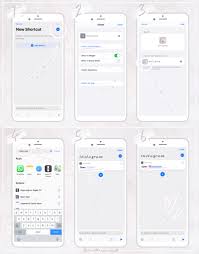
How to Add a Photo to Your Smartphone’s Home Screen
Are you tired of cluttering your smartphone’s home screen with unnecessary icons? Do you want to add some personality to your device without sacrificing functionality? Look no further! In this article, we will guide you through the process of adding a photo to your smartphone’s home screen on both Android and iPhone devices.
Why Add a Photo to Your Home Screen?
Before we dive into the nitty-gritty, let’s explore why you might want to add a photo to your home screen. Perhaps you want to showcase a favorite memory or image that inspires you. Maybe you’re looking for a way to personalize your device without installing a new app. Whatever the reason, adding a photo to your home screen can be a great way to make your phone feel more like yours.
Android Devices: How to Add a Photo to Your Home Screen
If you have an Android device, you can easily add a photo to your home screen using a widget. Here’s how:
- Find The Widget: Long-press on an empty spot on your home screen and select “Widgets” from the menu.
- Choose The Google Photos Widget: Scroll through the list of available widgets until you find the Google Photos widget.
- Select Your Photo: Choose a photo from your gallery or take a new one, and select it as the image to display in the widget.
- Customize The Widget: You can resize the widget and choose how many photos to display.
Samsung Devices: How to Add a Photo to Your Home Screen
If you have a Samsung device, the process is similar:
- Long-press on The Home Screen: Select the “+” icon at the bottom right corner of the screen.
- Choose The Widget: Select “Widget” from the menu and choose the Google Photos widget.
- Select Your Photo: Choose a photo from your gallery or take a new one, and select it as the image to display in the widget.
Iphone Devices: How to Add a Photo to Your Home Screen
If you have an iPhone, things are a bit different:
- Find The Photos Widget: Tap and hold on an empty spot on your home screen until the icons start shaking.
- Select The Widget: Tap on the “+” icon at the top right corner of the screen.
- Choose Your Photo: Select a photo from your gallery or take a new one, and choose it as the image to display in the widget.
Alternative Options: Using Apps
If you want more control over your home screen or prefer to use an app, there are several options available:
- Photo Widget: Simple: This free app allows you to add a photo to your home screen with various customization options.
- Widget Photo: Another popular option that offers a range of features and design options.
Tips And Tricks
Here are some additional tips to keep in mind when adding a photo to your home screen:
- Use High-quality Images: Choose high-quality images that will display clearly on your device’s screen.
- Customize The Widget: Experiment with different sizes, shapes, and colors to find a look that suits your style.
- Be Mindful of Clutter: Don’t overload your home screen with too many widgets or icons – keep it clean and simple!
Conclusion
Adding a photo to your smartphone’s home screen can be a great way to personalize your device without sacrificing functionality. Whether you choose the Google Photos widget on Android or use an app on iPhone, there are plenty of options available to suit your needs. Remember to stay organized and keep your home screen clutter-free for a seamless user experience.
Frequently Asked Questions
- How do I Remove a Photo From my Home Screen?: Long-press on the widget and select “Remove” or drag it to the trash icon.
- Can I Add Multiple Photos to my Home Screen?: Yes, many widgets allow you to display multiple photos. Experiment with different options to find what works best for you.
References
I hope this article has been helpful in guiding you through the process of adding a photo to your smartphone’s home screen. Happy customizing!


