
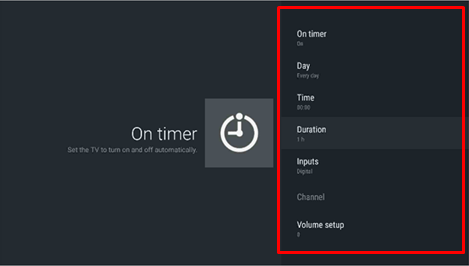
How to Set a Timer on Your Tv: A Step-by-step Guide
In today’s fast-paced world, it’s easy to get caught up in our daily routines and forget about the little things that can make a big difference. One such thing is setting a timer on your TV to turn it off automatically when you’re not watching it. In this article, we’ll explore how to set a timer on various TV brands, including LG, Samsung, TCL, Hisense, Saba, Telefunken, and Philips.
Why Set a Timer on Your Tv?
Setting a timer on your TV can be beneficial in several ways:
- It helps you save energy by turning off the TV when not in use.
- It prevents accidental TV usage during sleep or when you’re away from home.
- It can also help extend the lifespan of your TV by reducing wear and tear.
Setting a Timer on Your LG TV
To set a timer on your LG TV, follow these steps:
- Access the Settings menu by pressing the Home button on your remote control.
- Select General or System settings.
- Choose Hour and then Timer to select the timer option.
- You can choose to turn off the TV after a set period of time (e.G., 10 Minutes) or schedule it for later that day.
Setting a Timer on Your Samsung TV
To set a timer on your Samsung TV, follow these steps:
- Access the Settings menu by pressing the Home button on your remote control.
- Select General or Management system settings.
- Choose Hour or Timer to select the timer option.
- You can choose to turn off the TV after a set period of time (e.G., 10 Minutes) or schedule it for later that day.
Setting a Timer on Your Tcl TV
To set a timer on your TCL TV, follow these steps:
- Access the Settings menu by pressing the Home button on your remote control.
- Select System and then Sleep to select the sleep timer option.
- Choose an interval (e.G., 10 Minutes) for the timer.
Setting a Timer on Your Hisense TV
To set a timer on your Hisense TV, follow these steps:
- Access the Settings menu by pressing the Home button on your remote control.
- Select System and then Sleep to select the sleep timer option.
- Choose an interval (e.G., 30 Minutes) for the timer.
Setting a Timer on Your Saba TV
To set a timer on your Saba TV, follow these steps:
- Access the Settings menu by pressing the Home button on your remote control.
- Select System and then Sleep to select the sleep timer option.
- Choose an interval (e.G., 10 Minutes) for the timer.
Setting a Timer on Your Telefunken TV
To set a timer on your Telefunken TV, follow these steps:
- Access the Settings menu by pressing the Home button on your remote control.
- Select System and then Stand-by to select the stand-by timer option.
- Choose an interval (e.G., 10 Minutes) for the timer.
Setting a Timer on Your Philips TV
To set a timer on your Philips TV, follow these steps:
- Access the Settings menu by pressing the Home button on your remote control.
- Select System and then Sleep to select the sleep timer option.
- Choose an interval (e.G., 10 Minutes) for the timer.
Conclusion
Setting a timer on your TV is a simple yet effective way to save energy, prevent accidental TV usage, and extend the lifespan of your device. By following the steps outlined in this article, you can set a timer on various TV brands, including LG, Samsung, TCL, Hisense, Saba, Telefunken, and Philips.
Frequently Asked Questions (FAQs)
Q: Why should I set a timer on my TV?
A: Setting a timer on your TV helps you save energy, prevent accidental TV usage, and extend the lifespan of your device.
Q: How do I set a timer on my LG TV?
A: To set a timer on your LG TV, access the Settings menu, select General or System settings, choose Hour and then Timer to select the timer option, and choose an interval (e.G., 10 Minutes) for the timer.
Q: How do I set a timer on my Samsung TV?
A: To set a timer on your Samsung TV, access the Settings menu, select General or Management system settings, choose Hour or Timer to select the timer option, and choose an interval (e.G., 10 Minutes) for the timer.
Q: How do I set a timer on my TCL TV?
A: To set a timer on your TCL TV, access the Settings menu, select System and then Sleep to select the sleep timer option, and choose an interval (e.G., 10 Minutes) for the timer.
Q: How do I set a timer on my Hisense TV?
A: To set a timer on your Hisense TV, access the Settings menu, select System and then Sleep to select the sleep timer option, and choose an interval (e.G., 30 Minutes) for the timer.
Q: How do I set a timer on my Saba TV?
A: To set a timer on your Saba TV, access the Settings menu, select System and then Sleep to select the sleep timer option, and choose an interval (e.G., 10 Minutes) for the timer.
Q: How do I set a timer on my Telefunken TV?
A: To set a timer on your Telefunken TV, access the Settings menu, select System and then Stand-by to select the stand-by timer option, and choose an interval (e.G., 10 Minutes) for the timer.
Q: How do I set a timer on my Philips TV?
A: To set a timer on your Philips TV, access the Settings menu, select System and then Sleep to select the sleep timer option, and choose an interval (e.G., 10 Minutes) for the timer.


