
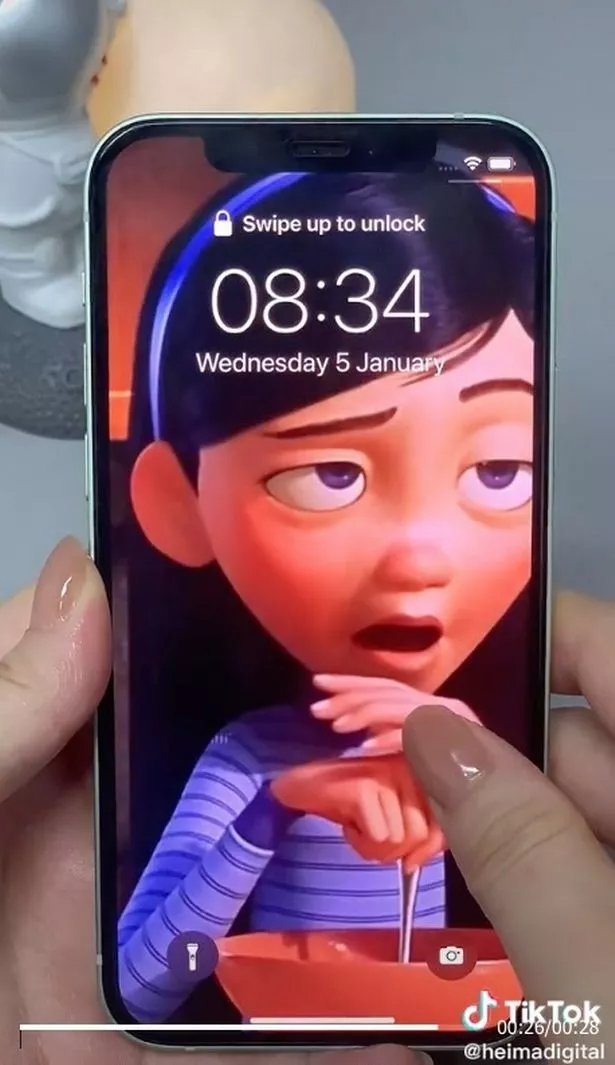
How to Use a Video as Wallpaper on Iphone
Are you tired of using static wallpapers on your iPhone? Do you want to add some excitement to your device’s background? Well, you’re in luck because we’re about to show you how to use a video as wallpaper on your iPhone!
What You Need to Know Before Getting Started
Before we dive into the tutorial, there are a few things you should know. Firstly, unfortunately, it’s not possible to use a video directly as wallpaper on your iPhone. However, we can use a clever workaround using the Live Photos feature.
Live Photos is a technology introduced by Apple that allows you to capture short videos with each photo taken on your iPhone. These videos are called Live Photos and they can be used as wallpapers, but only if they’re converted into a Live Photo format first.
Converting a Video Into a Live Photo
To convert a video into a Live Photo, you’ll need an app that can perform this operation for you. One such app is IntoLive – Create Wallpapers. This app is free to download and use, and it’s specifically designed to help you create stunning wallpapers from your videos.
Here’s how to download and install the app:
- Open the App Store on your iPhone.
- Tap on the “Search” tab at the bottom of the screen.
- Type in “IntoLive – Create Wallpapers” and select the app from the search results.
- Tap the “Get” button next to the app’s icon.
- Wait for the app to download and install on your device.
Using Intolive to Convert a Video Into a Live Photo
Once you’ve installed the app, follow these steps:
- Open the IntoLive app and tap on the “Start” button.
- Tap OK to allow the app to access your camera roll.
- Select the video that you want to convert into a Live Photo from your camera roll.
- Tap on the “Create” button to start the conversion process.
- Wait for the app to finish converting your video into a Live Photo.
Taking a Live Photo Directly
Alternatively, you can take a Live Photo directly using your iPhone’s built-in camera app. Here’s how:
- Open the Camera app and select the “Photo” mode.
- Tap on the “Live Photos” option at the top of the screen.
- Take a photo as usual, but this time, it will be captured in Live Photos format.
Setting a Live Photo as Wallpaper
Now that you’ve converted your video into a Live Photo or taken one directly using your iPhone’s camera app, it’s time to set it as wallpaper!
Here’s how:
- Open the Photos app and select the Live Photo that you want to use.
- Tap on the “Share” icon at the bottom of the screen.
- Select the “Use as Wallpaper” option.
- Choose whether you want to use the Live Photo as wallpaper for your home screen, lock screen, or both.
And that’s it! You’ve successfully used a video as wallpaper on your iPhone!
Alternative Options
If you don’t have an iPhone 6s or later model, you can still set a Live Photo as wallpaper using alternative options. Here are a few:
- Use the iOS 16 version of the Settings app to select a Live Photo as wallpaper.
- Download and install a third-party app that allows you to use Live Photos as wallpapers.
Conclusion
We hope this tutorial has been helpful in showing you how to use a video as wallpaper on your iPhone. Remember, with great power comes great responsibility, so be sure to use this feature wisely!
Frequently Asked Questions
Here are some frequently asked questions about using videos as wallpapers on your iPhone:
- Q: Can I Use Any Video as Wallpaper?
A: Unfortunately, no. You can only use videos that have been converted into Live Photos format. - Q: How do I Convert a Video Into a Live Photo?
A: You’ll need to use an app like IntoLive – Create Wallpapers to perform this operation for you. - Q: Can I Take a Live Photo Directly Using my Iphone’s Camera App?
A: Yes, you can! Simply open the Camera app and select the “Photo” mode, then tap on the “Live Photos” option at the top of the screen. - Q: How do I Set a Live Photo as Wallpaper?
A: Open the Photos app, select the Live Photo that you want to use, then tap on the “Share” icon and select the “Use as Wallpaper” option. - Q: Can I Use a Video From Youtube or Another Online Source as Wallpaper?
A: Unfortunately, no. You can only use videos that have been saved to your iPhone’s camera roll.
We hope these answers have helped clarify things for you!


