
The Ultimate Guide to Using Autotune on Audacity: A Step-by-step Tutorial
Are you a music enthusiast looking to add that extra sparkle to your voice or instrument recordings? Look no further than Autotune, the popular pitch correction software. In this article, we’ll show you how to use Autotune on Audacity, a free and user-friendly audio editing software.
Why Use Autotune on Audacity?
While Audacity is primarily an audio editing software, it doesn’t come with built-in Autotune functionality. However, there are several plugins available that can add this feature to your Audacity experience. We’ll explore two popular options: GSnap and Graillon 2.
Gsnap: A User-friendly Autotune Plugin
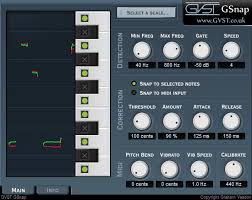
GSnap is one of the most widely used Autotune plugins for Audacity. It’s easy to install, user-friendly, and offers a range of features that make it perfect for beginners and pros alike.
To get started with GSnap, follow these steps:
- Download And Install Gsnap: Visit the official GSnap website and download the plugin for your operating system (Windows, macOS, or Linux).
- Install Gsnap in Audacity: Open Audacity, go to Effects > Add/Manage Extensions, and select GSnap from the list of available plugins.
- Configure Gsnap: Click on the GSnap icon in the Audacity toolbar and adjust the settings as needed.
Using Gsnap: A Step-by-step Guide
Once you’ve installed GSnap, follow these steps to use it:
- Record a Track: Record a new track using Audacity or import an existing one.
- Select The Track: Choose the track you want to apply Autotune effects to.
- Apply Autotune: Go to Effects > GSnap and select the desired preset (e.G., Subtle, Snappy, etc.).
- Adjust Settings: Adjust the settings as needed to achieve your desired sound.
- Preview And Apply: Click Play to preview the effects and then click Apply to save them.
Graillon 2: A Professional-grade Autotune Plugin
If you’re looking for a more advanced Autotune plugin, Graillon 2 is an excellent option. This professional-grade plugin offers a range of features, including pitch correction, time-stretching, and resampling.
To get started with Graillon 2, follow these steps:
- Download And Install Graillon 2: Visit the official Auburn Sounds website and download the free edition (or purchase the full version).
- Install Graillon 2 in Audacity: Open Audacity, go to Effects > Add/Manage Extensions, and select Graillon 2 from the list of available plugins.
- Configure Graillon 2: Click on the Graillon 2 icon in the Audacity toolbar and adjust the settings as needed.
Other Autotune Plugins For Audacity
While GSnap and Graillon 2 are two popular options, there are other Autotune plugins available for Audacity. Here are a few more:
- KeroVee: A professional-grade pitch correction plugin with advanced features.
- AAS Autotune: A user-friendly plugin with a range of presets and settings.
- MAutoPitch: A simple-to-use plugin from MeldaProduction that’s perfect for beginners.
Conclusion
Using Autotune on Audacity is easier than you think. With GSnap or Graillon 2, you can add professional-grade pitch correction effects to your audio recordings. Whether you’re a beginner or an experienced producer, these plugins offer the flexibility and features you need to achieve your creative goals.
Frequently Asked Questions
- Q: What is Autotune?
A: Autotune is a software plugin that corrects pitch errors in audio recordings. - Q: Which Audacity Plugins Work With Autotune?
A: GSnap, Graillon 2, KeroVee, AAS Autotune, and MAutoPitch are some popular options. - Q: How do I Install These Plugins?
A: Visit the official websites for each plugin to download and follow the installation instructions. - Q: Can I Use Autotune on my Mobile Device?
A: Yes! There are several mobile apps available that offer Autotune functionality, such as BeatStars and Auto-Tune Pro. - Q: What’s The Difference Between Gsnap And Graillon 2?
A: GSnap is a user-friendly plugin with basic features, while Graillon 2 offers advanced features and more professional-grade capabilities.
Conclusion
Using Autotune on Audacity can elevate your audio productions to new heights. With these step-by-step guides and FAQs, you’re well-equipped to explore the world of pitch correction and take your music to the next level. Happy editing!


