
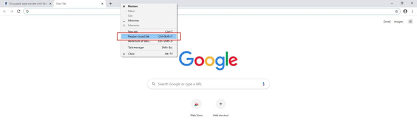
How to Reset Google Chrome’s Homepage
Are you tired of seeing unwanted websites as your homepage every time you open Google Chrome? Do you want to reset it back to its default settings or personalize it with your favorite websites? Look no further! In this article, we will guide you through the process of resetting and personalizing Google Chrome’s homepage on both computer and mobile devices.
Why Does This Happen?
You might have installed a program that changed your browser’s settings without your knowledge. Some software may download additional applications or modify your browser’s settings during installation. In some cases, malware can also alter your browser’s settings to redirect you to unwanted websites.
How to Remove Browser Hijackers
If you suspect that a browser hijacker is responsible for changing your homepage, you can remove it using Adwcleaner, a free antimalware tool. For Windows users, download Adwcleaner from its official website and follow the instructions to scan and remove any unwanted software.
How to Reset Google Chrome’s Homepage on Computer
Resetting Google Chrome’s homepage is easy and only takes a few minutes. Here are the steps:
- Open Google Chrome: Launch Google Chrome on your computer.
- Click on The Three Dots: Click on the three vertical dots in the top right corner of the browser window.
- Select Settings: From the drop-down menu, select “Settings.”
- Scroll Down to Appearance: Scroll down to the “Appearance” section and toggle off the switch next to “Show Home button.”
- Close All Tabs: Close all open tabs in Chrome.
- Restart Google Chrome: Restart Google Chrome by closing it completely.
How to Reset Google Chrome’s Homepage on Mobile Devices
Resetting Google Chrome’s homepage on mobile devices is also easy:
- Open Google Chrome: Launch Google Chrome on your Android or iOS device.
- Tap The Three Dots: Tap the three vertical dots in the top right corner of the browser window.
- Select Settings: From the drop-down menu, select “Settings.”
- Scroll Down to Home Page: Scroll down to the “Home page” section and tap on it.
- Select Google Chrome’s Default Homepage: Select Google Chrome’s default homepage as your new home page.
How to Personalize Google Chrome’s Homepage
If you want to personalize Google Chrome’s homepage, you can do so by adding or removing websites from the list of suggested sites:
- Click on The Three Dots: Click on the three vertical dots in the top right corner of the browser window.
- Select Settings: From the drop-down menu, select “Settings.”
- Scroll Down to Appearance: Scroll down to the “Appearance” section and toggle off the switch next to “Show Home button.”
- Add a New Page: Click on the “Add a new page” button and enter the URL of your desired website.
- Save Changes: Save your changes by clicking on the “Add” button.
How to Remove Extensions
If you suspect that an extension is responsible for changing your homepage, you can remove it:
- Click on The Three Dots: Click on the three vertical dots in the top right corner of the browser window.
- Select Settings: From the drop-down menu, select “Settings.”
- Scroll Down to Extensions: Scroll down to the “Extensions” section and click on the “Stir up” button next to any unwanted extension.
Conclusion
Resetting Google Chrome’s homepage is easy and only takes a few minutes. By following these steps, you can reset your homepage back to its default settings or personalize it with your favorite websites. Remember to always be cautious when installing software and check for browser hijackers regularly to prevent any unwanted changes to your browser.
Frequently Asked Questions
- Q: How do I Remove a Browser Hijacker?
A: You can use Adwcleaner, a free antimalware tool, to scan and remove any unwanted software. - Q: Can I Reset Google Chrome’s Homepage on Mobile Devices?
A: Yes, you can reset Google Chrome’s homepage on Android or iOS devices by following the steps above. - Q: How do I Personalize Google Chrome’s Homepage?
A: You can add or remove websites from the list of suggested sites by clicking on the “Add a new page” button and entering the URL of your desired website. - Q: Can I Reset Google Chrome’s Engine to Its Default Settings?
A: Yes, you can reset Google Chrome’s engine to its default settings by clicking on the “Settings” icon next to the search bar and selecting “Google” as your new search engine. - Q: How do I Prevent Browser Hijackers From Changing my Homepage?
A: You can use Adwcleaner regularly to scan for any unwanted software, and be cautious when installing software and check for browser hijackers regularly to prevent any unwanted changes to your browser. - Q: Can I Reset Google Chrome’s Settings to Their Default Values?
A: Yes, you can reset Google Chrome’s settings to their default values by clicking on the “Settings” icon next to the search bar and selecting “Reset and clear browsing data.” - Q: How do I Update Google Chrome to Its Latest Version?
A: You can check for updates by clicking on the three vertical dots in the top right corner of the browser window, then select “About Google Chrome.” - Q: Can I Reset Google Chrome’s Bookmarks And Browsing History?
A: Yes, you can reset Google Chrome’s bookmarks and browsing history by clicking on the “Settings” icon next to the search bar and selecting “Reset and clear browsing data.”


