
How to Contact The Command on Twitch: A Step-by-step Guide
As a streamer or channel owner on Twitch, you may want to issue automated messages in your chat when conveying direct messages, but don’t know how to proceed. You’ve attempted to create custom commands to augment viewer involvement, but haven’t found the right option yet. Worry not, dear reader! This guide will explain how to contact the command on Twitch, providing you with all the necessary instructions to achieve your goal.
Information Preliminaries
Before diving into the tutorial, let’s provide some preliminary information regarding Twitch commands. Twitch offers a set of base commands that can be used in any channel user chat. For instance, viewers can access the chat and type /mods to view the moderators of a specific channel. Additionally, there are series of base commands for streamers and moderators that can help capsize chat settings or limit/block specific users.
Streamelements: A Service For Creating Custom Commands
To create custom commands and add them to your Twitch channel, you’ll need to use external services like StreamElements or Streamlabs. These services offer free instruments that not only monitor channel statistics but also augment viewer involvement. In this guide, we’ll focus on StreamElements.
Streamelements: A Step-by-step Guide
- Accessing Streamelements: Connect to the official StreamElements website and sign up with your Twitch account credentials.
- Setting Up Streamelements: Select the “Twitch” option from the menu and enter your Twitch account details.
- Assigning Roles: Assign the moderator role to the StreamElements bot by accessing your Twitch channel dashboard, selecting “Community,” and adding a new role for StreamElements.
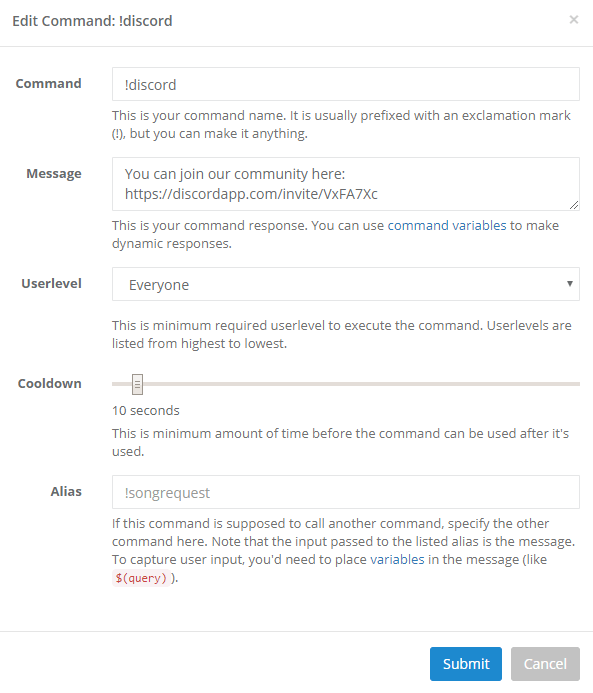
- Adding Command: In the StreamElements dashboard, select “Command” and add a new command by filling in the required fields (command name, response message, etc.).
- Configuring Options: Configure advanced options such as command cooldowns, user levels, and more.
Streamlabs: Another Option For Creating Custom Commands
While Streamlabs is another famous extension for Twitch that offers analytical functions and allows you to personalize your profile, it doesn’t support creating custom commands. To create a command vowel on Twitch using Streamlabs, follow the steps outlined in this guide.
How to Contact The Command Vowels on Twitch
To contact the command vowels on Twitch, use StreamElements. Connect to the official StreamElements website and sign up with your Twitch account credentials. Access the “Fidelity” channel section and create a new article by clicking on the “+Create New Article” button. Assign an effect sound to the article, insert the data of the command vowel you’re creating in the “Name Article” field, and specify the number of points required to reproduce the command.
Accessing The Chatbot
Access the chatbot section, select “Command” and “Personalized Commands,” then click on the “+Add New Command” button. Insert the name of the command vowel into the “Command Name” field and type the response message in the corresponding field.
Streamlabs: An Alternative For Contacting Commands
While StreamElements is not available as a mobile app, Streamlabs does offer a mobile application that allows you to stream on Twitch using your smartphone and manage your live streams. However, it doesn’t support creating custom commands.
Conclusion
In conclusion, contacting the command on Twitch requires external services like StreamElements or Streamlabs. While both options are viable, StreamElements offers more functionality for creating custom commands. By following this guide, you should now have a better understanding of how to create and contact custom commands on Twitch.
Faqs
- Q: Can I Use Streamelements or Streamlabs With my Mobile Phone?
A: Yes, Streamlabs offers a mobile application for streaming on Twitch using your smartphone. - Q: How do I Add a New Command in Streamelements?
A: Access the StreamElements dashboard, select “Command,” and click on the “+Add New Command” button to create a new custom command. - Q: Can I Use Streamelements or Streamlabs With my Desktop Computer?
A: Yes, both services are available for use with your desktop computer. - Q: How do I Assign Roles in Streamelements?
A: Access the Twitch channel dashboard, select “Community,” and add a new role for StreamElements. - Q: Can I Create Custom Commands on Twitch Using Streamlabs?
A: No, while Streamlabs offers various features, creating custom commands is not supported. - Q: How do I Configure Options in Streamelements?
A: Access the StreamElements dashboard and select “Command” to configure advanced options such as command cooldowns, user levels, and more. - Q: Can I Contact The Command Vowels on Twitch Using Streamlabs?
A: No, this feature is only available through StreamElements. - Q: How do I Add a New Article in Streamelements For Creating Custom Commands?
A: Access the “Fidelity” channel section and click on the “+Create New Article” button to create a new article for your custom command.


