
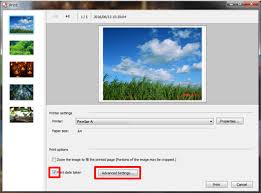
How to Add a Date on a Photo: A Step-by-step Guide
Are you wondering how to add a date on a photo? Well, you’ve come to the right place! In this article, we’ll guide you through the process of adding a date on a photo using various devices and software. Whether you’re using an Android or iOS device, or a PC or Mac, we’ve got you covered.
Why Add a Date on a Photo?
Before we dive into the step-by-step guide, let’s quickly discuss why adding a date on a photo is important. Adding a date on a photo helps to:
- Identify when the photo was taken
- Organize photos by date
- Share photos with others and provide context
How to Add a Date on a Photo: Android
If you’re using an Android device, here’s how to add a date on a photo:
- Open Google Photos: Open the Google Photos app on your Android device.
- Select The Photo: Select the photo you want to add a date on by tapping on it.
- Tap The Three Dots: Tap the three dots at the top right corner of the screen.
- Select Details: Select “Details” from the menu.
- Add Date: Tap on the “Date” field and select the date you want to add.
Alternatively, you can also use other apps like Gallery or Photos to add a date on a photo.
How to Add a Date on a Photo: Samsung
If you’re using a Samsung device, here’s how to add a date on a photo:
- Open Gallery: Open the Gallery app on your Samsung device.
- Select The Photo: Select the photo you want to add a date on by tapping on it.
- Tap The Three Dots: Tap the three dots at the top right corner of the screen.
- Select Details: Select “Details” from the menu.
- Add Date: Tap on the “Date” field and select the date you want to add.
How to Add a Date on a Photo: Xiaomi
If you’re using an Xiaomi device, here’s how to add a date on a photo:
- Open Gallery: Open the Gallery app on your Xiaomi device.
- Select The Photo: Select the photo you want to add a date on by tapping on it.
- Tap The Three Dots: Tap the three dots at the top right corner of the screen.
- Select Details: Select “Details” from the menu.
- Add Date: Tap on the “Date” field and select the date you want to add.
How to Add a Date on a Photo: Huawei
If you’re using a Huawei device, here’s how to add a date on a photo:
- Open Gallery: Open the Gallery app on your Huawei device.
- Select The Photo: Select the photo you want to add a date on by tapping on it.
- Tap The Three Dots: Tap the three dots at the top right corner of the screen.
- Select Details: Select “Details” from the menu.
- Add Date: Tap on the “Date” field and select the date you want to add.
How to Add a Date on a Photo: Iphone
If you’re using an iPhone, here’s how to add a date on a photo:
- Open Photos: Open the Photos app on your iPhone.
- Select The Photo: Select the photo you want to add a date on by tapping on it.
- Tap Edit: Tap “Edit” at the top right corner of the screen.
- Select Text: Select “Text” from the menu.
- Add Date: Type in the date you want to add.
How to Add a Date on a Photo: PC
If you’re using a PC, here’s how to add a date on a photo:
- Open Xnconvert: Open XnConvert software on your PC.
- Select The Photo: Select the photo you want to add a date on by dragging and dropping it into the software.
- Add Date: Select “Text” from the menu and type in the date you want to add.
How to Add a Date on a Photo: Mac
If you’re using a Mac, here’s how to add a date on a photo:
- Open Preview: Open the Preview app on your Mac.
- Select The Photo: Select the photo you want to add a date on by clicking on it.
- Tap Edit: Tap “Edit” at the top right corner of the screen.
- Select Text: Select “Text” from the menu.
- Add Date: Type in the date you want to add.
How to Add a Date on a Photo: Paint
If you’re using Microsoft Paint, here’s how to add a date on a photo:
- Open Paint: Open Microsoft Paint software on your PC or Mac.
- Select The Photo: Select the photo you want to add a date on by clicking on it.
- Add Text: Click on “Tools” and select “Text”.
- Type Date: Type in the date you want to add.
How to Add a Date on a Photo: Trailer
If you’re using the Trailer app on your Mac, here’s how to add a date on a photo:
- Open Trailer: Open the Trailer app on your Mac.
- Select The Photo: Select the photo you want to add a date on by clicking on it.
- Tap Edit: Tap “Edit” at the top right corner of the screen.
- Add Text: Select “Text” from the menu.
- Type Date: Type in the date you want to add.
Conclusion
Adding a date on a photo is an easy and straightforward process, regardless of whether you’re using an Android or iOS device, or a PC or Mac. By following these step-by-step guides, you’ll be able to add a date on your photos in no time!
Faqs
- Q: How do I Add a Date on a Photo if I Don’t Know The Exact Date it Was Taken?
A: If you don’t know the exact date the photo was taken, you can try to estimate the date based on other clues such as the clothes people are wearing or the events that may have occurred in the background. - Q: Can I Add a Date on a Photo if It’s Already Been Edited?
A: Yes, you can still add a date on a photo even if it has already been edited. Just follow the same steps outlined above. - Q: How do I Make Sure The Date is Accurate?
A: To ensure the accuracy of the date, double-check the information provided by the device or software you’re using. If possible, also verify the date with other sources such as the camera’s EXIF data or a timestamp from another source. - Q: Can I Add Multiple Dates on One Photo?
A: Yes, some devices and software allow you to add multiple dates on one photo. However, this may vary depending on the specific device or software being used. - Q: How do I Save The Changes After Adding a Date on a Photo?
A: To save the changes, simply click “Save” or select the option to save the edited photo. - Q: Can I Add a Date on a Video as Well?
A: Yes, you can also add a date on a video by following similar steps as those outlined above for photos. - Q: How do I Edit The Font And Color of The Text if It’s Already Been Added?
A: Depending on the device or software being used, you may be able to edit the font and color of the text after it has already been added. Check the specific instructions for your device or software. - Q: Can I Add a Date on a Photo if It’s in Black And White?
A: Yes, you can still add a date on a photo even if it’s in black and white. Just follow the same steps outlined above.
We hope this guide has been helpful! If you have any further questions or need more assistance, feel free to ask.


