
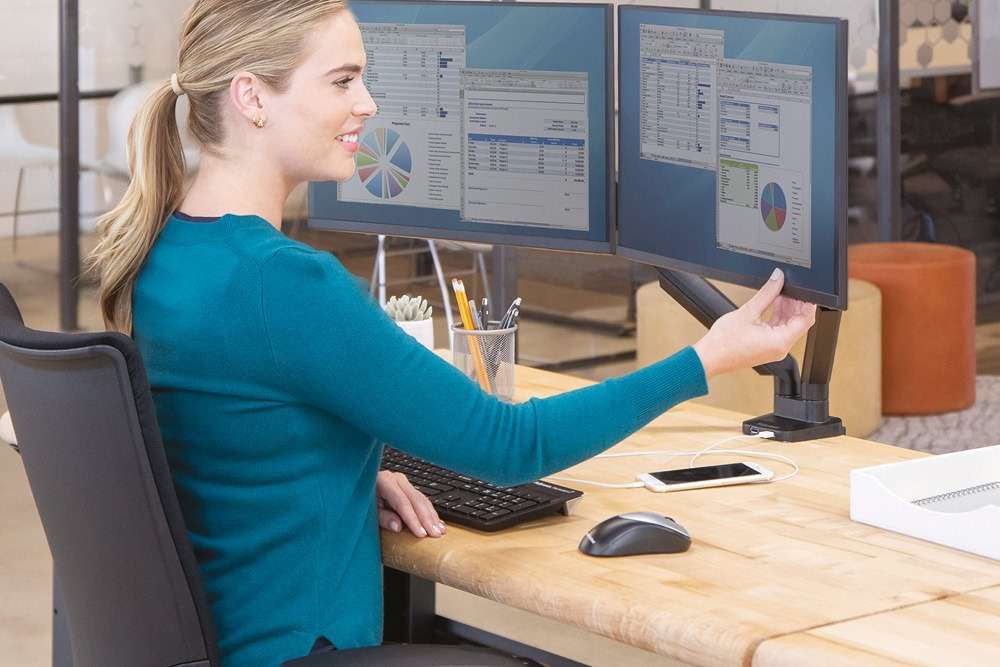
Unlocking Productivity: How to Use a Double Monitor on Your Computer
Are you tired of juggling multiple applications on your computer screen? Do you wish you had more space to work efficiently? Look no further! Using a double monitor can be a game-changer for productivity, and it’s easier than you think. In this article, we’ll guide you through the process of setting up a double monitor on various devices, including Windows 10, Mac, smartphone, and tablet.
Why Use a Double Monitor?
Using a double monitor can significantly improve your workflow by allowing you to have multiple applications open at the same time. This means you can multitask with ease, switch between tasks quickly, and increase your overall productivity.
Contacting The Double Monitor on Windows 10
If you’re using Windows 10, you’re in luck! The operating system comes with a built-in feature called Snap Assist that allows you to organize open windows on the desktop in an easy and swift manner. To access this feature:
- Click on the Start button (the icon of the flag disposed in the lower left corner of the monitor).
- Search for Settings Multitasking in the menu that opens.
- Select the first result of the search.
- In the window that appears, click on Assign windows and the other three to follow.
Assigning Windows
Once you’ve accessed Snap Assist, open two or more windows (it doesn’t matter which ones). Then, position your cursor on the top part of a window to drag it to one of the monitors. Ideally, aim for the monitor while selecting the window. As soon as you release the mouse button, a brief animation will highlight the area of the monitor with transparency, indicating that you can release the finger from the mouse button.
Split-screen Mode
To split the screen into two windows of equal size:
- Click on the cursor in the middle line between the two monitors.
- Hold down the left mouse button and drag it to one side.
- Release the mouse button, and voilà! Your monitor will be divided into two equal parts.
Redimensioning Windows
If you want to redimension the windows:
- Position your cursor on the middle line between the two monitors.
- Hold down the left mouse button and drag it to one side.
- Release the mouse button, and voilà! Your monitor will be divided into two equal parts.
Alternative Methods
You can also use keyboard shortcuts to achieve the same result:
- Win+Right Arrow to assign a window on the right
- Win+Left Arrow to assign a window on the left
- Win+Arrow Up/Down to redimension windows
Contacting The Double Monitor on Mac
Using a double monitor on your Mac is just as easy. The operating system includes a feature called Split Screen that allows you to divide the screen into two windows of equal size.
- Open two applications.
- Click on the green dot in the top left corner of one window.
- A menu will appear with an icon with two arrows pointing in opposite directions (or just a + symbol).
- If the application supports split-screen mode, click on it to assign it to the other monitor.
Collegating Two Monitors to Your Computer
To connect two monitors to your computer:
- You’ll need two monitors and two cables (which can be HDMI, DisplayPort, DVI, or another type).
- Connect the cables to both ports of your video card.
- Access the control panel on your operating system and decide which monitor will serve as the primary monitor.
Contacting The Double Monitor on Smartphone And Tablet
While it’s not possible to use a double monitor in the classical sense on smartphones and tablets, there are workarounds:
- On Android devices:
- Make sure you’re running at least version 7.0 Of the operating system.
- Open two applications simultaneously by accessing the multitasking menu (usually represented by an icon).
- Choose the option to open one application in split-screen mode and choose the second application.
Contacting The Double Monitor on Ipad
To use a double monitor on your iPad:
- Make sure you’re running at least iOS 9.
- Open two applications simultaneously by accessing the multitasking menu (usually represented by an icon).
- Choose the option to open one application in split-screen mode and choose the second application.
Conclusion
Using a double monitor can significantly improve your productivity by allowing you to multitask with ease. With these simple steps, you can unlock this feature on various devices, including Windows 10, Mac, smartphone, and tablet. Say goodbye to juggling multiple applications on a single screen and hello to increased efficiency!
Frequently Asked Questions (FAQs)
- Q: Can I Use a Double Monitor With All Applications?
A: Unfortunately, not all applications support split-screen mode. - Q: How Can I Redimension Windows?
A: You can hold down the left mouse button and drag it to one side or use keyboard shortcuts (Win+Arrow Up/Down). - Q: Can I Use a Double Monitor on my Smartphone or Tablet?
A: While not possible in the classical sense, there are workarounds available for Android devices and iPads. - Q: Is Using a Double Monitor Worth It?
A: Absolutely! Using a double monitor can significantly improve your productivity by allowing you to multitask with ease. - Q: Can I Use Multiple Monitors With Different Screen Resolutions?
A: Yes, but make sure the screens are compatible and have similar resolutions for optimal performance. - Q: How do I Assign Windows on Windows 10?
A: Use Snap Assist by clicking on the Start button and searching for Settings Multitasking. - Q: Can I Use a Double Monitor With Multiple Applications Open at The Same Time?
A: Yes, you can open multiple applications simultaneously on your Mac or Android device using split-screen mode. - Q: Is There an Official Way to Implement a Double Monitor on Ios Devices?
A: Unfortunately, no, but there are third-party browser apps that allow you to use two windows at the same time.


