
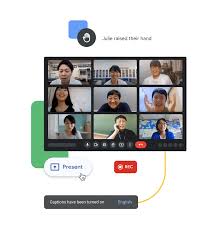
How to Use Google Meet’s Green Screen Feature: A Step-by-step Guide
Are you tired of using a bland background during video conferences on Google Meet? Do you want to add some personality to your virtual meetings? Look no further! In this article, we will guide you through the process of using Google Meet’s Green Screen feature, also known as the Chroma Key effect.
What is The Green Screen Feature?
The Green Screen feature allows you to replace the background of your video conference with a custom image or video. This can be useful for businesses that want to brand their virtual meetings or for individuals who want to add some flair to their online gatherings.
Requirements For Using The Green Screen Feature
Before we dive into the step-by-step guide, make sure you meet the following requirements:
- You must have a device running Android 5.0 Or later or iOS 12 or later.
- You must be using Google Meet on your device.
- You must have a stable internet connection.
Using The Green Screen Feature on Mobile Devices
If you want to use the Green Screen feature on your smartphone or tablet, follow these steps:
- Open Google Meet: Open the Google Meet app on your mobile device.
- Start a Video Call: Start a new video call or join an existing one.
- Tap on The Three Dots: Tap on the three dots icon in the top right corner of the screen.
- Choose a Background: Choose from pre-made backgrounds or upload your own image by tapping on the (+) icon.
- Select The Green Screen Option: Select the Green Screen option to apply the effect.
Using The Green Screen Feature on PC
If you want to use the Green Screen feature on your computer, follow these steps:
- Open Google Meet in Chrome: Open Google Meet in the Chrome browser.
- Start a Video Call: Start a new video call or join an existing one.
- Click on The Three Dots: Click on the three dots icon in the bottom right corner of the screen.
- Choose Effects: Choose the Effects option from the menu.
- Select The Green Screen Option: Select the Green Screen option to apply the effect.
Tips And Tricks
- Make sure your device meets the requirements for using the Green Screen feature.
- Use a stable internet connection to avoid any disruptions during the video call.
- Experiment with different backgrounds and images to find the one that works best for you.
Common Questions And Answers
- Q: What is The Difference Between Google Meet’s Green Screen Feature And Other Video Conferencing Platforms?
A: The Green Screen feature on Google Meet allows you to replace the background of your video conference with a custom image or video, while other platforms may have similar features but with more limitations. - Q: Can I Use my Own Images as Backgrounds in Google Meet?
A: Yes, you can upload your own images as backgrounds in Google Meet by tapping on the (+) icon or clicking on the postcard symbol. - Q: How do I Apply The Green Screen Effect During a Live Video Call?
A: To apply the Green Screen effect during a live video call, tap on the three dots icon and select the Green Screen option.
Conclusion
Using Google Meet’s Green Screen feature is a great way to add some personality to your virtual meetings. By following these simple steps, you can replace the background of your video conference with a custom image or video, making it easier for businesses and individuals to brand their online gatherings.


