
How to Add Music to Your Imovie Videos: A Step-by-step Guide
Are you looking for a way to add music to your iMovie videos without breaking the bank? Look no further! In this article, we will guide you through the process of adding music to your iMovie videos using various methods. Whether you’re on a Mac or an iPhone/iPad, we’ve got you covered.
Understanding The Importance of Music in Your Videos
Music plays a crucial role in setting the tone and mood of your video. It can make or break the viewing experience, depending on how well it complements the visual content. With iMovie, you have several options to add music to your videos, including using built-in effects, importing music from other apps, and even adding background sounds.
Method 1: Using Built-in Effects in Imovie
The first method is to use the built-in effects in iMovie. To do this:
- Open Imovie: Launch the iMovie app on your Mac or iPhone/iPad.
- Create a New Project: Click on “Create New” and select “Film” from the menu.
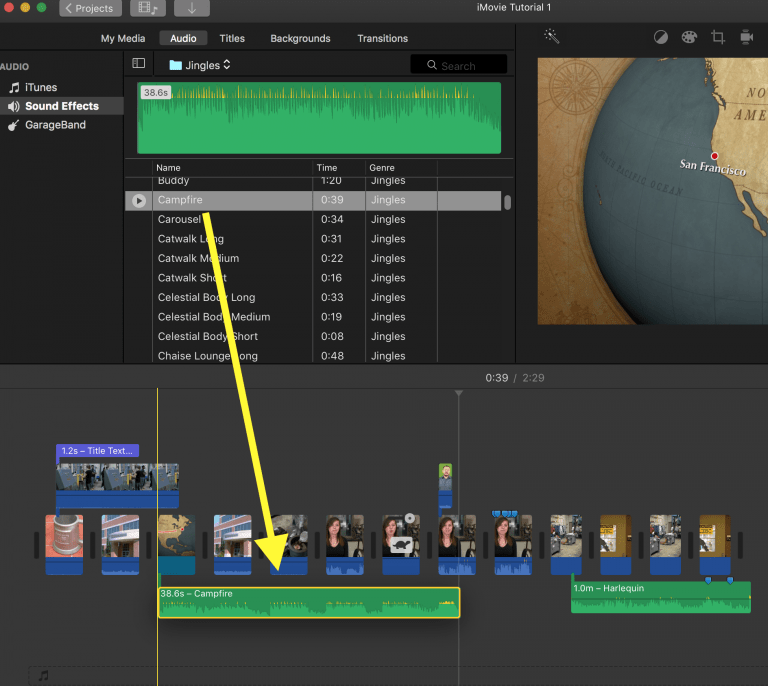
- Add Audio: Go to the “Audio” tab and click on the “+” button.
- Choose an Effect: Select an effect from the built-in library, such as music or sound effects.
- Drag And Drop: Drag the selected effect into your video timeline.
Method 2: Importing Music From Other Apps
The second method is to import music from other apps, such as GarageBand or Music. To do this:
- Open Imovie: Launch the iMovie app on your Mac.
- Import Music: Go to “File” > “Import” and select the music file you want to add.
- Drag And Drop: Drag the imported music into your video timeline.
Method 3: Adding Background Sounds
The third method is to add background sounds to your iMovie videos. To do this:
- Open Imovie: Launch the iMovie app on your Mac or iPhone/iPad.
- Create a New Project: Click on “Create New” and select “Film” from the menu.
- Add Audio: Go to the “Audio” tab and click on the “+” button.
- Choose a Sound Effect: Select a background sound effect from the built-in library.
- Drag And Drop: Drag the selected sound effect into your video timeline.
Method 4: Using Music From Apple Music
The fourth method is to use music from Apple Music. To do this:
- Open Imovie: Launch the iMovie app on your iPhone/iPad.
- Create a New Project: Click on “Create” and select “Film” from the menu.
- Add Audio: Go to the “Audio” tab and click on the “+” button.
- Choose Apple Music: Select an Apple Music song from the built-in library.
- Drag And Drop: Drag the selected song into your video timeline.
Method 5: Using Music From Youtube
The fifth method is to use music from YouTube. To do this:
- Open Imovie: Launch the iMovie app on your Mac or iPhone/iPad.
- Create a New Project: Click on “Create New” and select “Film” from the menu.
- Add Audio: Go to the “Audio” tab and click on the “+” button.
- Choose Youtube Music: Select a YouTube music video from the built-in library.
- Drag And Drop: Drag the selected song into your video timeline.
Tips And Tricks
- Use high-quality music that complements the tone and mood of your video.
- Experiment with different audio effects, such as fade-ins and fade-outs.
- Keep the background noise level consistent to avoid distractions.
- Use royalty-free music to avoid copyright issues.
Conclusion
Adding music to your iMovie videos is a breeze! Whether you use built-in effects, import music from other apps, or add background sounds, the options are endless. With these step-by-step guides, you’ll be able to create professional-looking videos that will captivate your audience.
Frequently Asked Questions (FAQs)
- Q: Can I Add Music to my Imovie Video Using an Iphone/ipad?
A: Yes! You can add music to your iMovie video using an iPhone/iPad. - Q: How do I Import Music From Garageband or Music?
A: To import music from GarageBand or Music, go to “File” > “Import” and select the music file you want to add. - Q: Can I Use Apple Music Songs in my Imovie Video?
A: Yes! You can use Apple Music songs in your iMovie video by selecting an Apple Music song from the built-in library. - Q: How do I Add Background Sounds to my Imovie Video?
A: To add background sounds, go to the “Audio” tab and click on the “+” button, then select a sound effect from the built-in library. - Q: Can I Use Music From Youtube in my Imovie Video?
A: Yes! You can use music from YouTube in your iMovie video by selecting a YouTube music video from the built-in library. - Q: How do I Edit Audio Levels And Effects in Imovie?
A: To edit audio levels and effects, go to the “Audio” tab and click on the “+” button, then select an effect or adjust the level as desired. - Q: Can I Use Royalty-free Music in my Imovie Video?
A: Yes! You can use royalty-free music in your iMovie video by selecting a song from a reputable source, such as YouTube or SoundCloud. - Q: How do I Export my Imovie Video With The Added Music?
A: To export your iMovie video with the added music, go to “File” > “Export” and select the desired output format.


