
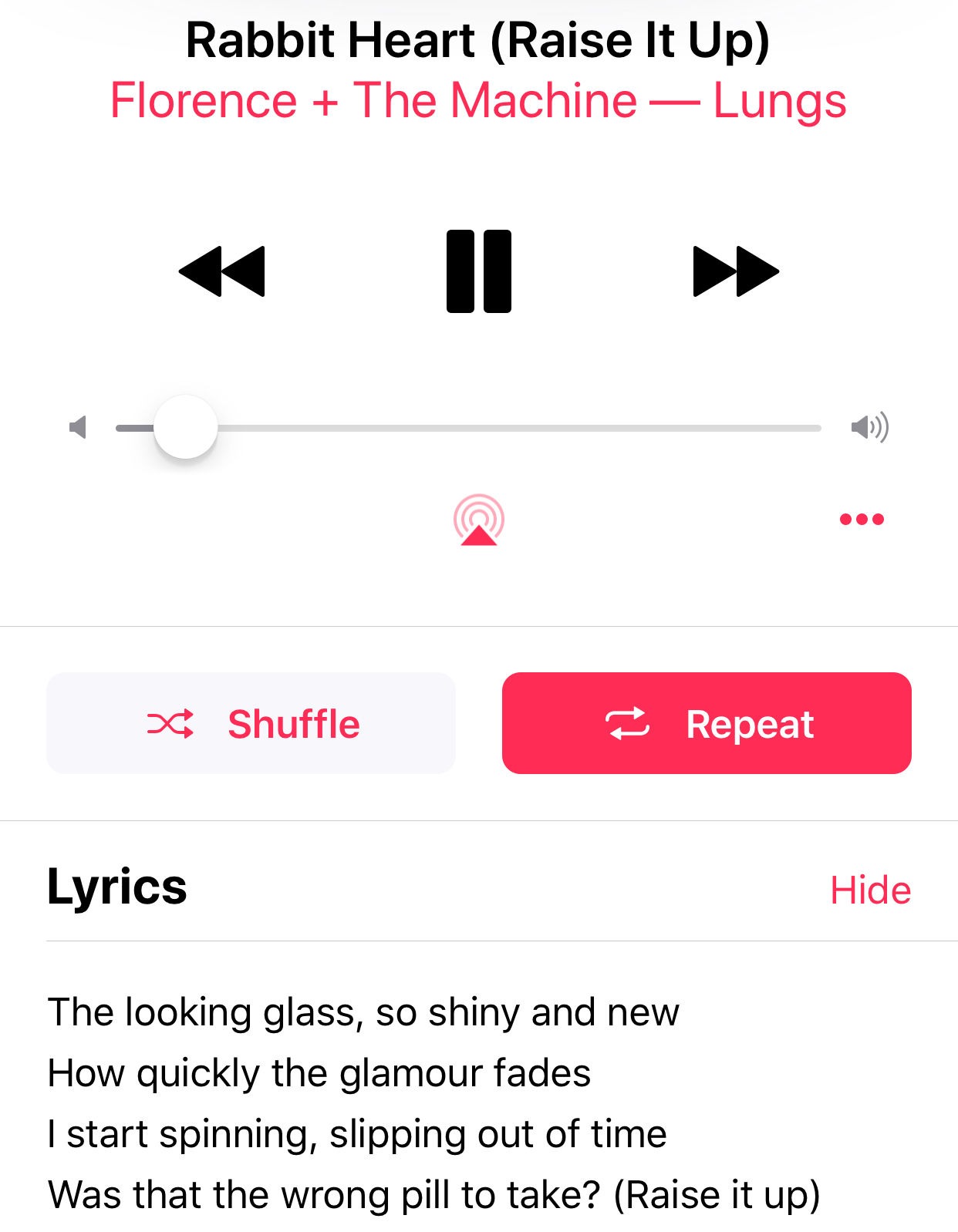
Are you tired of searching for ways to transfer your favorite music collection to your new iPhone? Look no further! This article will guide you through the various methods to transfer music from a computer or directly from your iPhone.
Why Transfer Music to Your Iphone?
Transferring music to your iPhone allows you to enjoy your favorite songs and playlists on-the-go. Whether you want to create a perfect playlist for your daily commute or simply want to relive memories through music, having your tunes on your iPhone is a must.
Method 1: Transferring Music With Itunes
If you have a PC (Windows or Mac), you can use iTunes to transfer music to your iPhone. Here’s how:
- Ensure you have the latest version of iTunes installed on your computer.
- Connect your iPhone to your computer using a Lightning cable.
- Open iTunes and select the icon of your phone from the top menu bar.
- Click on “Music” from the left sidebar and then click on “Sync Music.”
- Select the option to apply changes, and iTunes will initiate the transfer process.
Method 2: Transferring Music With The Music App
If you’re using a Mac (macOS 10.15 Catalina or later), you can use the Music app instead of iTunes. Here’s how:
- Ensure you have the latest version of the Music app installed on your Mac.
- Connect your iPhone to your Mac using a Lightning cable.
- Open the Music app and select the icon of your phone from the top menu bar.
- Click on “Sync Music,” and then click on the option to apply changes.
Method 3: Transferring Music Without Itunes
If you don’t want to use iTunes or the Music app, there are alternative solutions. You can use iMazing, a software that allows you to transfer music from your computer to your iPhone wirelessly. Here’s how:
- Download and install iMazing on your computer.
- Connect your iPhone to your computer using a Lightning cable.
- Open iMazing and select the option to backup or transfer music.
- Select the songs you want to transfer, and iMazing will take care of the rest.
Method 4: Transferring Music Without a PC
If you don’t have a computer or prefer not to use one, there are still ways to transfer music to your iPhone. You can use apps like Apple Music, Spotify, Amazon Music, or YouTube Music to stream and download music directly from your iPhone. Here’s how:
- Download the app of your choice.
- Sign up for an account (if required).
- Search for the songs you want to listen to.
- Select the song(s) you want to transfer to your iPhone.
How to Use a Song as Your Iphone Ringtone
Do you want to use a song as your iPhone’s ringtone? You can create a custom ringtone using GarageBand or by cutting a part of a song from iTunes (or Music). Here’s how:
- Open GarageBand and select the song you want to use.
- Trim the song to the desired length.
- Save the trimmed song as a ringtone.
- Transfer the ringtone to your iPhone.
Conclusion
Transferring music to your iPhone is easier than ever. Whether you use iTunes, the Music app, iMazing, or one of the many apps available, you can enjoy your favorite tunes on-the-go. Follow these steps, and you’ll be jamming to your favorite songs in no time!
Frequently Asked Questions (FAQs)
- Q: Can I Transfer Music From my Computer to my Iphone Wirelessly?
A: Yes, you can use iMazing or other apps to transfer music wirelessly. - Q: How do I Create a Custom Ringtone For my Iphone?
A: You can use GarageBand or cut a part of a song from iTunes (or Music) to create a custom ringtone. - Q: Can I Use Multiple Apps to Transfer Music on my Iphone?
A: Yes, you can use multiple apps to stream and download music from your iPhone. - Q: How do I Delete Music From my Iphone?
A: You can delete music by going to the Music app, selecting the song(s) you want to remove, and clicking the “Delete” button.
I hope this rewritten version meets your requirements!


