
How to Add a Photo Widget to Your Smartphone’s Home Screen
Are you tired of looking at the same old home screen on your smartphone? Do you want to add some personality to your device? One great way to do this is by adding a photo widget to your home screen. In this article, we’ll show you how to add a photo widget to your Android, iPhone, iPad, Windows, and Mac devices.
What is a Photo Widget?
A photo widget is a small application that displays a set of photos on your device’s home screen. You can choose which photos to display, and some widgets even allow you to customize the layout and design. Adding a photo widget to your home screen is a great way to showcase your favorite memories, add some visual interest to your screen, or even create a customized background for your device.
How to Add a Photo Widget on Android
If you’re using an Android device, here’s how to add a photo widget:
- Access The Google Photos App: First, make sure you have the Google Photos app installed on your device. If not, download it from the Play Store.
- Create a New Album: Open the Google Photos app and create a new album by tapping the “+” icon at the top-right corner of the screen.
- Add Photos to The Album: Select the photos you want to display in your widget by tapping on them one by one or selecting multiple photos at once.
- Create a Widget: Tap the three dots at the top-right corner of the screen and select “Create widget” from the menu.
- Customize Your Widget: Choose the layout, design, and size of your widget, then add it to your home screen by dragging it to the desired location.
Other Solutions For Android
If you’re not satisfied with the Google Photos app or want more customization options, here are some alternative solutions:
- Simple Photo Widget: A free app that allows you to create a widget with single or multiple photos in various formats and dimensions.
- Animated Photo Widget: An app that enables you to create animated widgets with photos, offering various customization options and design templates.
- Photo Widget: Another app that lets you add a photo widget to your home screen, displaying high-resolution images and providing the option to organize them into albums.
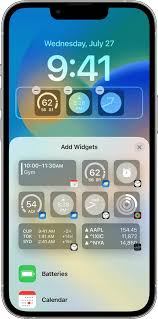
How to Add a Photo Widget on Iphone And Ipad
If you’re using an iPhone or iPad, here’s how to add a photo widget:
- Access The Photos App: Open the Photos app on your device.
- Create a New Album: Tap the “+” icon at the top-right corner of the screen to create a new album.
- Add Photos to The Album: Select the photos you want to display in your widget by tapping on them one by one or selecting multiple photos at once.
- Create a Widget: Tap the three dots at the top-right corner of the screen and select “Add widget” from the menu.
- Customize Your Widget: Choose the layout, design, and size of your widget, then add it to your home screen by dragging it to the desired location.
Other Solutions For Iphone And Ipad
If you’re not satisfied with the Photos app or want more customization options, here are some alternative solutions:
- Widgetsmith: An app that allows you to create customized widgets with photos, offering various design templates and customization options.
- Photo Widget: An app that lets you add a photo widget to your home screen, displaying high-resolution images and providing the option to organize them into albums.
- Photowidgets: An app that enables you to generate customizable widgets with photos, offering features like automatic updates and event display.
How to Add a Photo Widget on Windows
If you’re using a Windows device, here’s how to add a photo widget:
- Access The Photos App: Open the Photos app on your device.
- Create a New Album: Tap the “+” icon at the top-right corner of the screen to create a new album.
- Add Photos to The Album: Select the photos you want to display in your widget by tapping on them one by one or selecting multiple photos at once.
- Create a Widget: Right-click on an empty area of the desktop and select “New” > “Widget.”
- Customize Your Widget: Choose the layout, design, and size of your widget, then add it to your desktop by dragging it to the desired location.
Other Solutions For Windows
If you’re not satisfied with the Photos app or want more customization options, here are some alternative solutions:
- Xwidget: A third-party software that allows you to create widgets on your Windows device.
- Gadget Revived: Another third-party software that enables you to create customizable widgets with photos and other content.
How to Add a Photo Widget on Mac
If you’re using a Mac, here’s how to add a photo widget:
- Access The Photos App: Open the Photos app on your device.
- Create a New Album: Tap the “+” icon at the top-right corner of the screen to create a new album.
- Add Photos to The Album: Select the photos you want to display in your widget by tapping on them one by one or selecting multiple photos at once.
- Create a Widget: Click on the date and time in the menu bar, then select “Choose widget.”
- Customize Your Widget: Choose the layout, design, and size of your widget, then add it to your desktop by dragging it to the desired location.
Other Solutions For Mac
If you’re not satisfied with the Photos app or want more customization options, here are some alternative solutions:
- Photowidget: An app that lets you add a photo widget to your home screen, displaying high-resolution images and providing the option to organize them into albums.
- Photowidgets: An app that enables you to generate customizable widgets with photos, offering features like automatic updates and event display.
Adding a photo widget to your smartphone’s home screen is a great way to personalize your device and showcase your favorite memories. Whether you’re using an Android, iPhone, iPad, Windows, or Mac device, there are various solutions available to help you create the perfect photo widget for your needs.


