
As a business owner, promoting your products on social media can be an effective way to reach a wider audience and increase sales. One popular platform for this is Instagram, with its visually-driven feed and large user base. However, if you’re new to the world of social media marketing, navigating Instagram’s features can be daunting.
In this guide, we’ll show you how to contact prices on Instagram, using the platform’s built-in shopping feature. We’ll take you through the steps to create a business profile, add products to your shop window, and tag prices directly in your posts.
Why Use The Shopping Feature?
Before we dive into the step-by-step instructions, let’s quickly discuss why using Instagram’s shopping feature is beneficial for businesses.
- Increased Visibility: By adding a shopping tab to your profile, you can showcase your products directly on your page, making it easier for customers to find and purchase from you.
- Streamlined Checkout Process: With the shopping feature, customers can browse your products, select items they want to buy, and complete their purchases without leaving Instagram.
- Easy Tracking: You can monitor sales, views, and engagement on your shopping tab, helping you refine your marketing strategy.
Preliminary Information
Before we proceed with the step-by-step guide, let’s cover some essential information about the shopping feature:
- The shopping feature was introduced by Instagram in 2018 to enable businesses to add tags with prices directly in their posts.
- To activate this feature, you need to create a business profile and connect it to your Facebook page, which must have a shop window with products for sale.
- The activation of the shopping feature is free.
Creating a Business Profile on Instagram
To take advantage of the shopping feature, you’ll first need to create a business profile on Instagram. Here’s how:
- Create a Facebook Page: If you haven’t already, create a Facebook page specifically for your business. This will serve as the foundation for your Instagram business profile.
- Connect Your Facebook Page to Instagram: Open the Instagram app and go to Settings > Account > Switch to Business Profile. From there, select “Connect to Facebook” and follow the prompts to link your Facebook page.
Connecting a Facebook Page to Your Instagram Profile
If you’ve already created a Facebook page for your business, you can connect it to your Instagram profile by following these steps:
- Open the Instagram app and go to Settings > Account > Switch to Business Profile.
- Tap on “Connect to Facebook” and select the Facebook page you want to link to your Instagram account.
Adding Products to Your Shop Window
Once you’ve connected your Facebook page to your Instagram business profile, it’s time to add products to your shop window. Here’s how:
- Open the Instagram app and go to Settings > Account > Switch to Business Profile.
- Tap on “Shop” and select “Add Product.”
- Enter the product details, including the price, description, and image.
How to Tag Prices in Your Posts
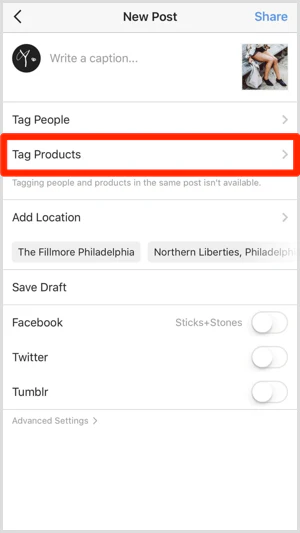
Now that you’ve added products to your shop window, it’s time to tag prices directly in your posts. Here’s how:
- Open the Instagram app and go to the “Create a Post” screen.
- Select the shopping feature by tapping on the shopping bag icon.
- Choose the product you want to feature and select the price and any other relevant details.
- Add the post as usual, and your customers will see the price tag directly in the feed.
Conclusion
Contacting prices on Instagram is a straightforward process that requires creating a business profile, adding products to your shop window, and tagging prices directly in your posts using the shopping feature. By following these steps, you can increase visibility for your business, streamline the checkout process, and track sales and engagement more easily.
Faqs
- What Are The Requirements For Activating The Shopping Feature?
To activate the shopping feature, you must create a business profile on Instagram and connect it to your Facebook page. - How do I Add Products to my Shop Window?
You can add products to your shop window by tapping on “Shop” in your Instagram settings, selecting “Add Product,” and entering the product details. - Can I Change The Price of a Product After It’s Been Added to my Shop Window?
Yes, you can update the price of a product at any time by going to the “Edit Product” option in your shop window. - How do Customers Purchase Products From me Using The Shopping Feature?
Customers can browse your products, select items they want to buy, and complete their purchases without leaving Instagram.
I hope this guide has been helpful! If you have any further questions or need additional clarification on any of these steps, feel free to ask.


