
How to Record Your Screen on Any Device
Are you tired of trying to explain a complex process to someone, only to have them look confused? Do you want to create tutorials or videos that showcase your screen activity? Look no further! In this article, we will guide you through the steps of recording your screen on various devices, including smartphones, tablets, computers, and more.
Why Record Your Screen?
Recording your screen can be incredibly useful for a variety of purposes. Here are just a few examples:
- Create tutorials or guides to help others understand complex processes
- Demonstrate software or app features to potential customers
- Show off your gaming skills or create walkthroughs for popular games
- Enhance online courses or webinars by adding visual demonstrations
- Simply record your screen activity for personal use, such as reviewing your browsing history or tracking your work progress
Recording Your Screen on Android Devices
If you have an Android device, recording your screen is a relatively straightforward process. Here’s how:
- Check if The Feature is Available: Look for the “Screen Recording” feature in your device settings. If it’s not available, don’t worry – we’ll cover alternative methods below.
- Search For The App: Open the Google Play Store and search for the “Screen Recorder” or “Recording Monitor” app. Choose one that suits your needs.
- Download And Install: Download and install the chosen app. Follow the on-screen instructions to set it up.
- Record Your Screen: Launch the app, select the recording area, and start recording. You can usually find the record button in the top-right corner of the screen.
Recording Your Screen on Ios Devices
If you have an iPhone or iPad, recording your screen is also relatively easy:
- Check if The Feature is Available: Ensure that your device is running iOS 11 or later.
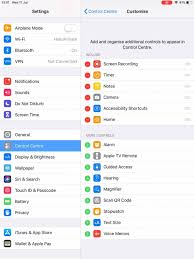
- Access The Control Center: Swipe up from the bottom of the screen (or swipe down from the top-right corner on newer devices) to access the Control Center.
- Look For The Screen Recording Icon: Tap the “Record” button, which should be visible in the Control Center.
- Start Recording: The recording will begin automatically after a three-second countdown.
Recording Your Screen on Windows Devices
If you’re using a Windows computer, here are your options:
- Use The Xbox Game Bar: This built-in feature can record video game footage, but it also works for other applications.
- Download And Install an App: Look for apps like OBS Studio or Camtasia, which offer more advanced features.
- Utilize Third-party Software: Consider using software specifically designed for screen recording, such as ScreenFlow or Bandicam.
Recording Your Screen on Mac Devices
If you’re a Mac user, you have two built-in options:
- Use The Quicktime Player: This app allows you to record your screen with ease.
- Employ The Instantaneous Monitor: A feature that comes pre-installed in macOS, perfect for quick recordings.
Alternative Methods And Tips
If the above methods don’t work for you or if you need more advanced features, consider these alternatives:
- Use third-party software like OBS Studio, Camtasia, or ScreenFlow.
- Utilize online screen recording tools, such as Loom or Screencast-O-Matic.
- Experiment with different apps and software to find the one that suits your needs.
Conclusion
Recording your screen is a simple yet powerful tool for creating tutorials, demonstrating app features, or simply capturing your screen activity. By following these steps, you’ll be able to record your screen on various devices, including Android, iOS, Windows, and Mac.
Frequently Asked Questions (FAQs)
- Q: What Are The Best Screen Recording Apps?
A: Some popular options include OBS Studio, Camtasia, ScreenFlow, and Bandicam. - Q: Can I Record my Screen on Multiple Devices at Once?
A: Yes, some software allows you to record your screen across multiple devices simultaneously. - Q: How do I Share my Recorded Video?
A: You can upload your recordings to YouTube, Vimeo, or other video sharing platforms, or share them via email or messaging apps. - Q: Can I Edit my Recorded Video Before Sharing It?
A: Yes, most screen recording software comes with built-in editing features or integrates seamlessly with popular video editing tools. - Q: Is Screen Recording Free on All Devices?
A: Some devices and apps may have limitations or require a subscription for advanced features, but basic screen recording is usually available for free. - Q: Can I Record my Screen Activity Without an App?
A: Yes, some devices come with built-in screen recording capabilities, such as the Xbox Game Bar on Windows or QuickTime Player on Mac.
I hope this article has helped you learn how to record your screen on various devices! If you have any further questions or need more assistance, feel free to ask.


