
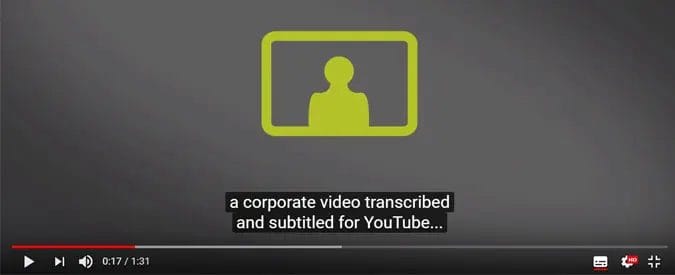
How to Activate Subtitles on Youtube: A Step-by-step Guide
Are you struggling to understand videos on YouTube due to language barriers? Look no further! In this article, we’ll guide you through the process of activating subtitles on YouTube, whether you’re using a PC, smartphone, tablet, or TV.
Why Activate Subtitles on Youtube?
Activating subtitles on YouTube can be a game-changer for those who struggle with language comprehension. With subtitling, you can fully grasp the content of your favorite videos without relying on translations or subtitles that may not accurately reflect the original language.
Activating Subtitles on Pc: A Step-by-step Guide
To activate subtitles on YouTube using a PC:
- Access Your Youtube Account: Log in to your YouTube account and navigate to the video you’d like to watch.
- Click on The Settings Icon: Click on the settings icon (represented by three dots) located in the bottom right corner of the video player.
- Select Subtitles/cc: From the dropdown menu, select “Subtitles/CC” to activate subtitles.
- Choose Your Language: Select your preferred language from the available options.
Activating Subtitles on Smartphone/tablet: A Step-by-step Guide
To activate subtitles on YouTube using a smartphone or tablet:
- Open The Youtube App: Launch the YouTube app on your device and navigate to the video you’d like to watch.
- Tap on The Settings Icon: Tap on the settings icon (represented by three dots) located in the bottom right corner of the screen.
- Select Subtitles/cc: From the dropdown menu, select “Subtitles/CC” to activate subtitles.
- Choose Your Language: Select your preferred language from the available options.
Activating Subtitles on Smart Tv: A Step-by-step Guide
To activate subtitles on YouTube using a smart TV:
- Open The Youtube App: Launch the YouTube app on your smart TV and navigate to the video you’d like to watch.
- Click on The Settings Icon: Click on the settings icon (represented by three dots) located in the bottom right corner of the screen.
- Select Subtitles/cc: From the dropdown menu, select “Subtitles/CC” to activate subtitles.
- Choose Your Language: Select your preferred language from the available options.
Activating Automatic Translation on Youtube
If you’re struggling to find subtitles in your preferred language, don’t worry! YouTube offers automatic translation for many languages. To enable automatic translation:
- Open The Youtube App: Launch the YouTube app on your device.
- Click on The Settings Icon: Tap on the settings icon (represented by three dots) located in the bottom right corner of the screen.
- Select Subtitles/cc: From the dropdown menu, select “Subtitles/CC” to activate subtitles.
- Choose Automatic Translation: Select your preferred language from the available options.
Using Vlc For External Subtitles
If you have external subtitles that you’d like to use with YouTube videos on a PC:
- Launch Vlc Media Player: Open VLC media player and navigate to the video you’d like to watch.
- Click on “Take”: Click on the “Take” option located in the menu bar.
- Enter The Youtube Video Url: Enter the URL of the YouTube video you’d like to watch.
- Add External Subtitles: Add your external subtitles using the VLsub functionality.
Conclusion
Activating subtitles on YouTube is a straightforward process that can greatly enhance your viewing experience. Whether you’re using a PC, smartphone, tablet, or smart TV, we’ve provided step-by-step guides to help you navigate the process. With automatic translation and external subtitles available, there’s no excuse not to enjoy your favorite videos with clarity and comprehension.
Frequently Asked Questions
- Q: Why Can’t I Find Subtitles in my Preferred Language?
A: Check that the video has subtitling enabled by checking the settings icon. - Q: Can I Use External Subtitles With Youtube Videos on a Pc?
A: Yes, you can use VLC media player to add external subtitles. - Q: How do I Activate Automatic Translation on Youtube?
A: Select your preferred language from the available options when activating subtitles. - Q: Can I Use Subtitles on Smart Tvs?
A: Yes, many smart TV models have built-in support for YouTube and subtitles. - Q: Why Are Subtitles Not Showing up on my Device?
A: Check that subtitles are enabled in your device’s settings or restart the app. - Q: Can I Customize The Appearance of Subtitles?
A: Yes, you can modify font size, style, and color to suit your preferences. - Q: Is Automatic Translation Always Available For Youtube Videos?
A: No, automatic translation is not available for all languages or video formats.
We hope this article has been helpful in guiding you through the process of activating subtitles on YouTube!


