
How to Activate T9 on Whatsapp: A Step-by-step Guide
Are you tired of continuous errors while messaging your friends on WhatsApp? Do you want to finish with any more misunderstandings that arise from incorrect typing? Then, maybe it’s time to activate the automatic correction feature, also known as T9. In this article, we will guide you through the process of activating T9 on both Android and iPhone devices.
Understanding T9
T9 is a predictive text input system that was popular in older phones without touch-screen displays. It used a QWERTY keyboard layout with letters placed on a grid of numeric keys (0-9). To enter a letter, you would press the corresponding key multiple times to navigate through the alphabet. Although this system has become obsolete, the automatic correction feature has remained active and is now more prevalent than ever.
Activating T9 on Android Devices
If you’re using an Android device with the Gboard keyboard (Google’s native keyboard), you can follow these steps:
- Open WhatsApp or any other app where you want to use T9.
- Tap the box to open the chat window and display the keyboard.
- Press the icon of the gearwheel (settings) in the top-right corner of the keyboard.
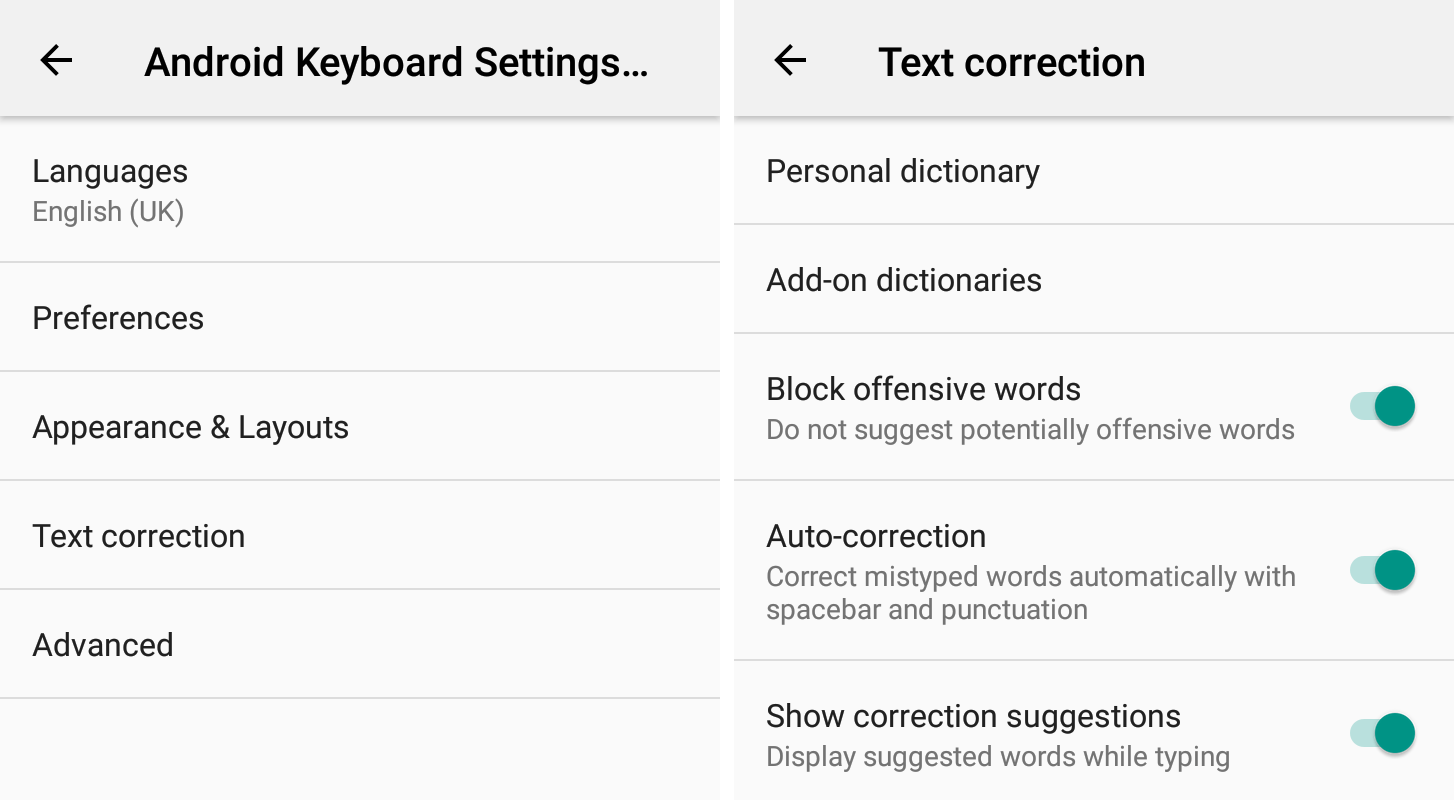
- Navigate to the “Correction text” section and tap on it.
- Here, you’ll find a list of functions that can be enabled or disabled with a toggle switch:
- Suggested corrections
- Automatic correction
- Automatic capitalization
- Spell check
- Smart punctuation
- Enable the desired features by toggling the switches to the “on” position.
- If you want to activate the swipe-to-type feature, tap on the “Trascinamento” option and select the keyboard controls.
Activating T9 on Iphone Devices
If you’re using an iPhone with Apple’s native keyboard:
- Open Settings and scroll down to the “General” section.
- Tap on “Keyboard.”
- In the “Keyboards” section, tap on “Text Replacement” and then select “Suggestions.”
- Here, you’ll find a list of functions that can be enabled or disabled:
- Auto-correction
- Predictive text
- Capitalization
- Spell checking
- Enable the desired features by tapping on them.
- If you want to enable swipe-to-type, tap on “Trascinamento” and select the keyboard controls.
Using T9 With Other Keyboards
If you’re using a proprietary keyboard like Samsung’s or another third-party keyboard, the steps may vary slightly:
- Open WhatsApp or any other app where you want to use T9.
- Tap the box to open the chat window and display the keyboard.
- Look for the wheel icon (settings) in the top-right corner of the keyboard.
- Tap on it to access the settings menu.
- Navigate to the “Forecast text” section and toggle the switch to enable suggestions and other features.
Tips And Tricks
- Make sure to check the keyboard’s settings menu for specific instructions, as they may vary depending on your device or keyboard type.
- If you want to disable T9, simply toggle the switches back to the “off” position in the correction text section.
- Experiment with different features and settings to find what works best for you.
Conclusion
Activating T9 on WhatsApp is a simple process that can help reduce errors and improve your overall messaging experience. By following these step-by-step guides, you’ll be able to enable this feature on both Android and iPhone devices, as well as other keyboards. Remember to always check the keyboard’s settings menu for specific instructions, and don’t hesitate to experiment with different features to find what works best for you.
Frequently Asked Questions
- What is T9?
T9 is a predictive text input system that uses a QWERTY keyboard layout with letters placed on a grid of numeric keys. - How do I Activate T9 on Whatsapp?
To activate T9, follow the step-by-step guides provided in this article for both Android and iPhone devices. - What Features Can I Enable or Disable With T9?
You can enable or disable automatic correction, suggested corrections, automatic capitalization, spell checking, smart punctuation, and swipe-to-type features. - Can I Use T9 With Other Keyboards?
Yes, you can activate T9 on most proprietary and third-party keyboards, but the steps may vary slightly depending on your device or keyboard type.


