
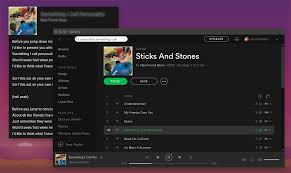
Are you tired of listening to your favorite songs without knowing their lyrics or background information? Look no further! In this article, we’ll show you how to contact the text on Spotify and access a wealth of knowledge about your favorite music.
What’s The Deal With Spotify’s Text Functionality?
Before we dive into the nitty-gritty, let’s get one thing straight: Spotify has a native function that allows users to visualize the text of songs in their library. This feature is available directly within the app, and you don’t need to subscribe to Spotify Premium or install third-party apps.
How Do I Access The Text Functionality on Spotify?
To access the text functionality on Spotify, follow these simple steps:
- Open the Spotify app on your smartphone or tablet.
- Search for a song, artist, or podcast using the search bar in the menu.
- Tap on the result that matches what you’re looking for.
- Initiate playback by tapping on the ▶︎ button.
- Scroll down to the bottom of the new screen and look for the “Texts” box (in English).
- Wait a few seconds, and the text of the song will appear in royal blue.
What If I Don’t See The Text Box?
Don’t worry if you don’t see the text box! This could mean that the text is not available on Spotify for that particular song. However, there are other solutions to access the text…
Other Solutions to Access The Text on Spotify
If the native function isn’t working for you, fear not! There are other ways to access the text on Spotify.
- Musixmatch: This is a third-party app available for both Android and iOS devices. It allows you to link your Spotify account and access the text of songs in real-time.
- Genius: Genius is another popular service that provides lyrics, information, and more about thousands of songs. You can access it directly within the Spotify app.
How Do I Use Musixmatch?
To use Musixmatch, follow these steps:
- Download the Musixmatch app on your device.
- Create a free account or log in if you already have one.
- Link your Spotify account to Musixmatch.
- Search for a song and tap on it.
- The text of the song will appear within the Spotify app.
Tips And Tricks
- Make sure you’re using the latest version of the Spotify app.
- If you encounter any issues, try restarting the app or checking your internet connection.
- You can also use Musixmatch to access lyrics in multiple languages!
Conclusion
Accessing the text on Spotify is a breeze, whether you use the native function or a third-party app like Musixmatch. With these simple steps and tips, you’ll be singing along with the lyrics in no time.
Frequently Asked Questions (FAQs)
- Q: Do I Need to Subscribe to Spotify Premium to Access The Text Functionality?
A: No, the native function is available directly within the app, and you don’t need a subscription. - Q: Can I Access Lyrics in Multiple Languages Using Musixmatch?
A: Yes, Musixmatch allows you to access lyrics in multiple languages! - Q: What if I Encounter Issues With The Text Functionality on Spotify?
A: Try restarting the app or checking your internet connection. If problems persist, try reaching out to Spotify’s support team. - Q: Can I Use Musixmatch With Other Music Streaming Services?
A: Yes, Musixmatch can be linked to multiple music streaming services, including Amazon Music and Apple Music.
Hope you found this article helpful!


