
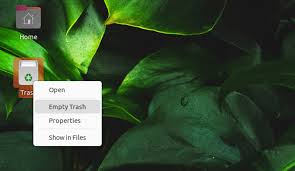
How to Remit The Basket on Your Desktop
Are you tired of searching for your beloved basket on your desktop? Do you want to know how to get it back to its original place? Well, you’ve come to the right place! In this article, we’ll guide you through the steps to remit the basket on your Windows desktop, whether you’re using Windows 10/11, Windows 7/Vista, or even Windows XP.
Windows 10/11: A Simple Solution
If you’re using Windows 10 or 11 and can’t find the basket on your desktop, don’t worry! The solution is quite simple. Here’s what you need to do:
- Right-click on an empty area of your desktop.
- Select Personalize from the menu that appears.
- Click on Themes in the window that opens.
- Select Desktop Icon Settings.
- Put a Checkmark Next toRecycle BinAnd Click Apply.
That’s it! You should now see the basket back on your desktop. If you want to make any changes or restore the original settings, simply follow these steps again.
Windows 7/Vista: A Similar Solution
If you’re using Windows 7 or Vista, the process is similar:
- Right-click on an empty area of your desktop.
- Select Personalize from the menu that appears.
- Click on Themes in the window that opens.
- Select Desktop Icon Settings.
- Put a Checkmark Next toRecycle BinAnd Click Apply.
Easy peasy, right?
Windows Xp: A Slightly Different Approach
If you’re using Windows XP, things are a bit different:
- Right-click on an empty area of your desktop.
- Select Properties from the menu that appears.
- Click on Themes in the window that opens.
- Select Desktop Icon Settings.
- Put a Checkmark Next toRecycle BinAnd Click Apply.
That’s it! The basket should now be back on your desktop.
What If I’m Still Having Problems?
If you’ve followed these steps and still can’t find the basket, don’t worry! We’ve got some additional solutions for you:
- Check if The Basket is Hidden: Sometimes, the basket might be hiding behind other icons or files. Try moving them around to see if it’s there.
- Use The System File Checker: This tool scans your system files and replaces any corrupted ones with new ones. You can run this tool by going to Start > Run (or Windows + R), typing
sfc /scannow, and pressing Enter.
Mac Users: No Basket in Sight?
If you’re a Mac user, don’t worry! We’ve got some solutions for you too:
- Check if an Application is Blocking The Basket: Sometimes, applications can interfere with system files, including the basket.
- Try Resetting The Dock: This might sound like a drastic measure, but sometimes it’s necessary. You can reset the Dock by going to Terminal and typing
rm ~/Library/Preferences/com.Apple.Dock.Plist, followed by pressing Enter.
Conclusion
Remitting the basket on your desktop is a simple process that should take you no more than a few minutes. Whether you’re using Windows or Mac, we’ve got some solutions for you. Just remember to follow these steps carefully, and don’t hesitate to reach out if you need further assistance.
Frequently Asked Questions
- Q: Why Can’t I Find The Basket on my Desktop?
A: It’s possible that the basket is hidden or blocked by another application. - Q: How do I Reset The Dock on Mac?
A: You can reset the Dock by going to Terminal and typingrm ~/Library/Preferences/com.Apple.Dock.Plist. - Q: What if I Still Can’t Find The Basket After Trying These Solutions?
A: Don’t worry! We’ve got some additional troubleshooting steps for you to try. - Q: Can I Customize The Basket on my Desktop?
A: Yes, you can change the appearance and behavior of the basket by right-clicking on it and selecting Personalize. - Q: Why is my Basket Empty?
A: This might be due to a corrupted file or an issue with system permissions. - Q: How do I Prevent The Basket From Disappearing Again?
A: Try resetting the Dock or checking for any applications that might be interfering with the basket’s functionality. - Q: Can I Use a Third-party Application to Manage The Basket?
A: Yes, there are several third-party apps available that can help you customize and manage the basket. - Q: Why is This Happening Only on my Computer?
A: It might be due to a software conflict or an issue with system files.
We hope these answers have helped!


