
How to Contact Whatsapp on Various Devices
Are you interested in learning how to contact WhatsApp on your smartphone, tablet, or computer? Look no further! This article will guide you through the process of installing and using WhatsApp on various devices.
Installing Whatsapp on Your Smartphone
Whether you have an Android or iOS device, installing WhatsApp is a straightforward process. Here’s how:
Installing Whatsapp on Android
- Open the Google Play Store on your smartphone.
- Tap on the search bar at the top of the screen and type “WhatsApp.”
- Select the app from the search results and tap on the “Install” button.
- Wait for the installation to complete and then tap on the “Open” button.
Installing Whatsapp on Ios
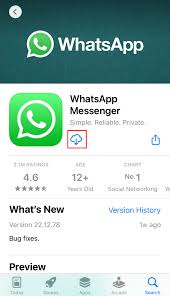
- Open the App Store on your iPhone.
- Tap on the search bar at the top of the screen and type “WhatsApp.”
- Select the app from the search results and tap on the “Get” button.
- Wait for the installation to complete and then tap on the “Open” button.
Using Whatsapp on Your Smartphone
Once you have installed WhatsApp, here’s how to use it:
- Open WhatsApp and tap on the “Accept” button to agree to the terms of service.
- Enter your phone number and verify it by sending a confirmation code.
- Choose a profile picture and name for your account.
- Start chatting with friends and family by tapping on their names in the contacts list.
Installing Whatsapp on Your Tablet
If you have an Android tablet, you can install WhatsApp just like on your smartphone:
- Open the Google Play Store on your tablet.
- Tap on the search bar at the top of the screen and type “WhatsApp.”
- Select the app from the search results and tap on the “Install” button.
If you have an iPad, you can install WhatsApp using the App Store:
- Open the App Store on your iPad.
- Tap on the search bar at the top of the screen and type “WhatsApp.”
- Select the app from the search results and tap on the “Get” button.
Using Whatsapp on Your Tablet
Once you have installed WhatsApp, here’s how to use it:
- Open WhatsApp and tap on the “Accept” button to agree to the terms of service.
- Enter your phone number and verify it by sending a confirmation code.
- Choose a profile picture and name for your account.
Installing Whatsapp on Your Computer
WhatsApp can also be installed on your computer using the web version:
- Open a web browser on your computer.
- Go to the WhatsApp website and click on the “Scan QR Code” button.
- Open WhatsApp on your smartphone and scan the QR code displayed on the screen.
Using Whatsapp on Your Computer
Once you have installed WhatsApp, here’s how to use it:
- Open a web browser on your computer.
- Go to the WhatsApp website and click on the “Scan QR Code” button.
- Scan the QR code using the WhatsApp app on your smartphone.
Changing The Theme of Whatsapp
Did you know that you can change the theme of WhatsApp to dark or light mode? Here’s how:
Changing The Theme on Android
- Open WhatsApp and tap on the three dots in the top-right corner.
- Tap on the “Settings” option.
- Scroll down and select the “Theme” option.
Changing The Theme on Ios
- Open WhatsApp and tap on the three dots in the bottom-right corner.
- Tap on the “Settings” option.
- Scroll down and select the “Theme” option.
Conclusion
Installing and using WhatsApp is a straightforward process, whether you’re using an Android or iOS device, or even your computer. With these steps, you should be able to get started with WhatsApp in no time!
Faqs
- Q: How do I install WhatsApp on my smartphone?
A: To install WhatsApp on your smartphone, go to the Google Play Store (for Android) or the App Store (for iOS), search for “WhatsApp,” and tap on the “Install” button. - Q: Can I use WhatsApp on my tablet?
A: Yes, you can use WhatsApp on your tablet if it’s running an Android operating system. - Q: How do I change the theme of WhatsApp to dark mode?
A: To change the theme of WhatsApp to dark mode, go to the settings menu and select the “Theme” option. Choose the dark or light mode that suits your preference. - Q: Can I use WhatsApp on my computer?
A: Yes, you can use WhatsApp on your computer using the web version. Go to the WhatsApp website and scan the QR code displayed on the screen using the WhatsApp app on your smartphone.
…


