
The Ultimate Guide to Using Widgets on Android
Are you tired of constantly switching between apps on your Android device? Do you wish there was a way to stay informed without having to open multiple apps at once? Look no further than widgets! In this article, we’ll explore the world of widgets and show you how to use them to make your life easier.
What Are Widgets?
Widgets are small applications that can be added to your home screen to provide quick access to information or functionality. They’re like mini-apps that run in the background and display relevant data or offer a specific feature. Think of them as shortcuts to information or actions that you use frequently.
Types of Widgets
There are various types of widgets available on Android, each serving a different purpose. Here are some examples:
- News Feed Widget: Displays the latest news from your favorite sources, making it easy to stay informed about current events.
- Weather Widget: Shows the current weather conditions and forecast for your location, helping you plan your day or week.
- Social Media Widget: Connects you with friends and family on social media platforms, allowing you to share updates and engage with others in real-time.
- Clock Widget: Displays a digital clock that can be customized to show multiple time zones or different styles of clocks.
How to Add a Widget
Adding a widget is easy! Here’s how:
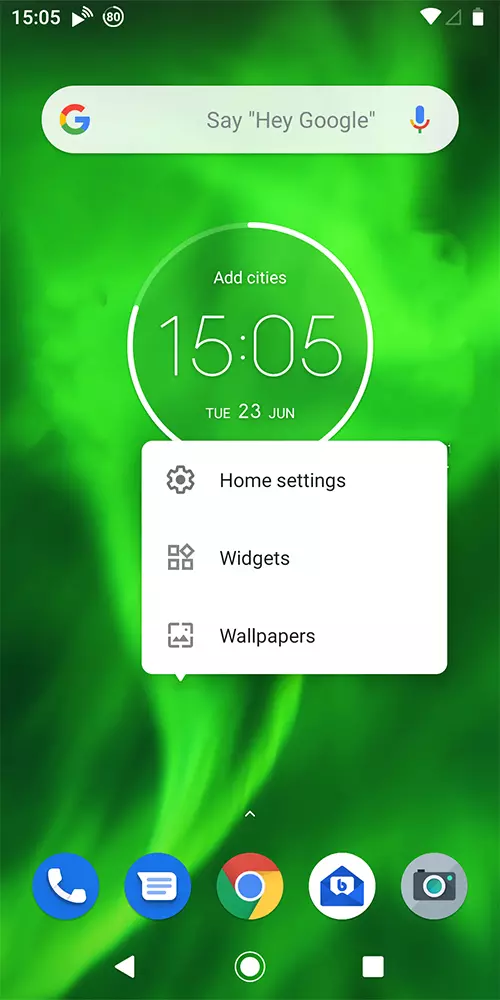
- Long press on an empty spot on your home screen until the “Widgets” section appears.
- Select the widget you want to add from the list.
- Choose the size and layout of the widget that suits your needs.
- Tap and hold on the widget, then drag it to the desired location on your home screen.
Modifying a Widget
Sometimes, you might need to adjust the settings or appearance of a widget. Here’s how:
- Long press on the widget until the settings icon appears.
- Tap on the settings icon to open the customization menu.
- Adjust the settings as needed, such as changing the font size or layout.
Creating Personalized Widgets
Want to take your widget game to the next level? Try creating personalized widgets using apps like KWGT (Kustom Widget Maker)!
- Download and install the KWGT app from the Play Store.
- Open the app and follow the instructions to create a new widget template.
- Customize the template with various elements, such as images, text, or other media.
Tips And Tricks
Here are some additional tips and tricks to keep in mind when using widgets:
- Keep it Simple: Don’t overload your home screen with too many widgets. Choose ones that provide essential information or functionality.
- Customize: Take advantage of customization options within each widget to tailor them to your needs.
- Battery Life: Be mindful of the impact widgets can have on your device’s battery life.
Conclusion
Widgets are a powerful tool for streamlining your Android experience and staying informed without having to open multiple apps. By understanding how to use, modify, and create personalized widgets, you can take control of your home screen and make it work for you. Happy widgeting!
Frequently Asked Questions (FAQs)
Q: What is a widget on Android?
A: A widget is a small application that provides quick access to information or functionality.
Q: How do I add a widget to my home screen?
A: Long press on an empty spot until the “Widgets” section appears, then select the desired widget and follow the prompts.
Q: Can I modify a widget’s settings or appearance?
A: Yes! Long press on the widget and tap on the settings icon to open the customization menu.
Q: How do I create personalized widgets using KWGT?
A: Download and install the KWGT app, then follow the instructions to create a new template and customize it with various elements.
Q: Will adding widgets affect my device’s battery life?
A: Yes, widgets can impact your battery life. Be mindful of the number and type of widgets you use.
Q: Can I remove a widget from my home screen?
A: Yes! Simply long press on the widget and drag it to the “Widgets” section or delete it entirely.
Q: How do I update my widgets to ensure they’re working correctly?
A: Make sure your Android device is running the latest software, then check for updates within each widget’s settings.


