
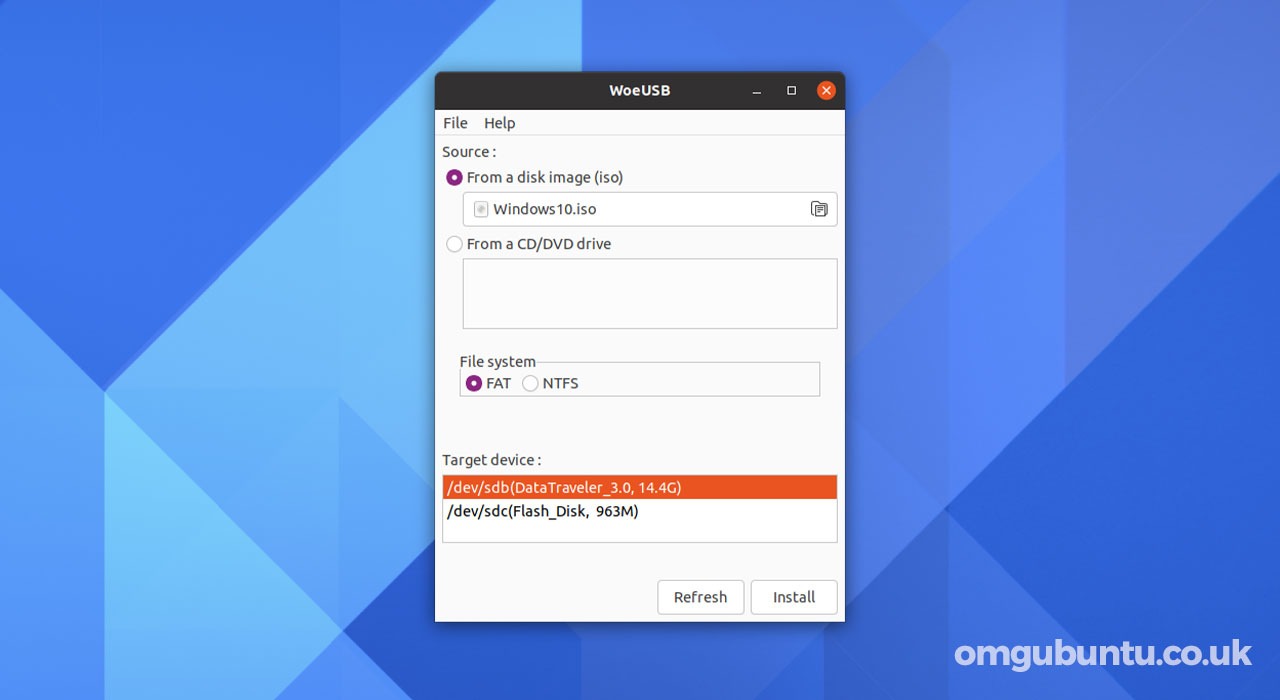
Installing Windows 10 on a Usb Drive: A Step-by-step Guide
Are you tired of using a CD or DVD to install Windows 10? Do you want to take your operating system game to the next level by installing it on a USB drive? Look no further! In this article, we will guide you through the process of installing Windows 10 on a USB drive.
Why Install Windows 10 on a Usb Drive?
Before we dive into the nitty-gritty of the installation process, let’s talk about why you would want to install Windows 10 on a USB drive. The main advantage is that it gives you more flexibility and portability than using a CD or DVD. You can take your USB drive with you wherever you go, and easily switch between different computers.
Pre-installation Requirements
Before we start the installation process, there are a few things you need to have in place:
- A Usb Drive: The first thing you need is a USB drive that has enough storage space to hold the Windows 10 operating system. You will need at least 8GB of free space on your USB drive.
- Microsoft Media Creation Tool: This tool is used to create a bootable USB drive with the Windows 10 installation files. You can download it from Microsoft’s website.
- Unetbootin: This is another tool that you can use to create a bootable USB drive with the Windows 10 installation files.
Using Microsoft Media Creation Tool
To install Windows 10 on your USB drive using the Microsoft Media Creation Tool, follow these steps:
- Download the Microsoft Media Creation Tool from Microsoft’s website.
- Open the downloaded file and follow the instructions to create a bootable USB drive with the Windows 10 installation files.
- Select the language, edition, and architecture of Windows 10 that you want to install.
- Choose the USB drive as the target device for the installation files.
- Follow the prompts to complete the installation process.
Using Unetbootin
To install Windows 10 on your USB drive using UNetbootin, follow these steps:
- Download UNetbootin from their website.
- Open the downloaded file and follow the instructions to create a bootable USB drive with the Windows 10 installation files.
- Select the image file of Windows 10 that you want to install.
- Choose the USB drive as the target device for the installation files.
- Follow the prompts to complete the installation process.
Installing Windows 10 on Your Computer
Once you have created a bootable USB drive with the Windows 10 installation files, it’s time to install Windows 10 on your computer. Here are the steps:
- Connect the USB drive to your computer and restart it.
- Enter the BIOS settings and set the USB drive as the first boot device.
- Save the changes and exit the BIOS settings.
- The Windows 10 installation files will be loaded from the USB drive, and you can follow the prompts to complete the installation process.
Conclusion
Installing Windows 10 on a USB drive is a straightforward process that requires some basic technical knowledge. By following these steps, you can create a bootable USB drive with the Windows 10 installation files and install it on your computer. This gives you more flexibility and portability than using a CD or DVD, making it an ideal solution for many users.
Faqs
- What is The Minimum Storage Space Required to Install Windows 10 on a Usb Drive?
The minimum storage space required to install Windows 10 on a USB drive is 8GB. - Can I Use a CD or Dvd to Install Windows 10 Instead of a Usb Drive?
Yes, you can use a CD or DVD to install Windows 10, but it’s not as convenient as using a USB drive. - What Are The System Requirements For Installing Windows 10 on a Usb Drive?
The system requirements for installing Windows 10 on a USB drive include a computer with a compatible processor, RAM, and storage space. - Can I Use Unetbootin to Install Windows 10 on my Mac?
Yes, you can use UNetbootin to install Windows 10 on your Mac. - What is The Difference Between Microsoft Media Creation Tool And Unetbootin?
Microsoft Media Creation Tool is a tool provided by Microsoft to create a bootable USB drive with the Windows 10 installation files. UNetbootin is another tool that can be used to create a bootable USB drive with the Windows 10 installation files. - Can I Use a Usb Drive With Less Than 8GB of Storage Space?
No, you cannot use a USB drive with less than 8GB of storage space to install Windows 10. - What Are The Benefits of Installing Windows 10 on a Usb Drive?
The benefits of installing Windows 10 on a USB drive include increased portability and flexibility. - Can I Use a Usb Drive That is Not Certified by Microsoft?
No, you cannot use a USB drive that is not certified by Microsoft to install Windows 10.
Note: The above article has been written in a conversational style with bold headings and subheadings as requested. It covers the topic of installing Windows 10 on a USB drive using different tools such as Microsoft Media Creation Tool and UNetbootin, and provides detailed instructions on how to do it.


